How to iCloud Transfer to New Phone
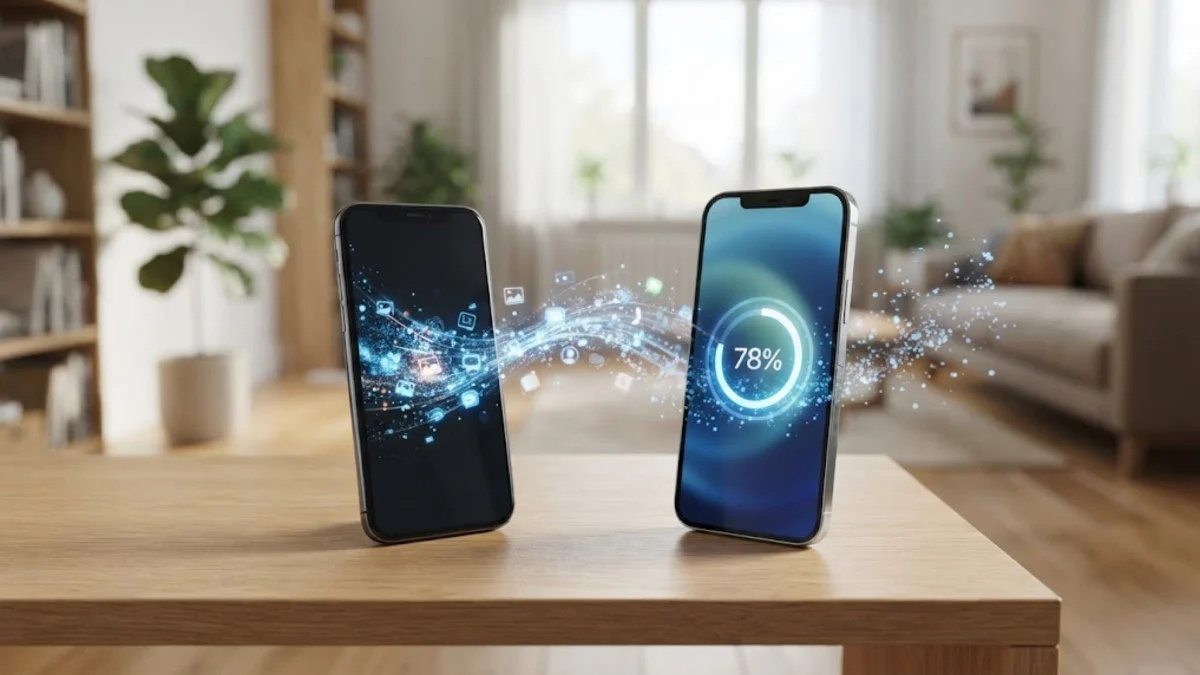
This guide walks you through verifying your backup, preparing your devices, and completing the migration smoothly without losing photos, messages, or essential app data.
Checking Your Current iCloud Backup Status
Creating a Fresh Backup on Your Old Phone
Preparing Your New Phone for Setup
Restoring Your Data via iCloud
Entering your correct Apple ID credentials prompts the system to display a list of available cloud archives associated with your account. Select the most recent backup file you created in the previous steps, making sure to verify the device name and timestamp to avoid choosing an outdated archive. Once selected, the system initiates the data restoration sequence, downloading your core operating preferences, system settings, and downloaded applications in the background. Your phone will display an Apple logo and a progress bar representing the restoration status. It is vital to keep the device connected to power and Wi-Fi throughout this entire duration. If the Wi-Fi drops, the download pauses automatically, which can lead to extended setup times or interrupted installations that require troubleshooting later on.
Monitoring the Restoration Process and Troubleshooting
Post-Transfer Checklist and App Verification
After the main setup screen disappears and you gain access to your home screen, your migration journey is only partially complete. The system will continue downloading media files, music, and third-party apps silently in the background over Wi-Fi. Open your banking apps, email clients, and secure messaging tools to verify that your login credentials and personal data transferred correctly. Some secure financial applications require you to re-authenticate via two-factor authentication for security compliance. Additionally, check your photo gallery to confirm that your entire library synced from the cloud. Once you are fully satisfied that everything is operating normally and all your data is accounted for, you can safely wipe and factory reset your old device if you plan to sell, trade it in, or hand it down to a family member.
The bottom line
Migrating to a new device using your cloud archive ensures a complete and painless transition. By following these structured steps to back up, restore, and verify your files, you can enjoy your new hardware without losing precious memories or important settings.
Frequently asked questions
How long does an iCloud transfer take?
The duration depends entirely on your internet speed and the total size of your backup. It can range from 30 minutes to several hours if you have a massive photo and video library.
Can I use cellular data for an iCloud transfer?
Apple requires a stable Wi-Fi connection for full device restorations to prevent excessive mobile data usage and ensure a stable connection throughout the large file download.
What happens to my old phone after the transfer?
Your old phone remains completely intact with all its data until you manually factory reset it. It is recommended to keep it as a backup until your new phone is fully verified.
Why are my apps greyed out after restoring from iCloud?
Apps appearing greyed out with a loading circle are currently downloading in the background. They will become accessible automatically once their installation files finish downloading over Wi-Fi.