Why Is My iPhone Not Ringing? How to Fix It
When your iPhone stops ringing for incoming calls, missing important personal or business communications can create immediate frustration. In most cases, a silent iPhone is not caused by hardware failure. Instead, it stems from software toggles like Silent mode, active Focus profiles, quiet call screening settings, or call audio routing to external Bluetooth accessories.
This troubleshooting guide explains why your iPhone fails to ring when calls arrive and provides step-by-step solutions to restore full sound alerts. By following these practical steps, you can quickly identify the configuration blocking your ringtone and ensure your device alerts you reliably every time.
Check the Physical Silent Switch or Action Button Settings
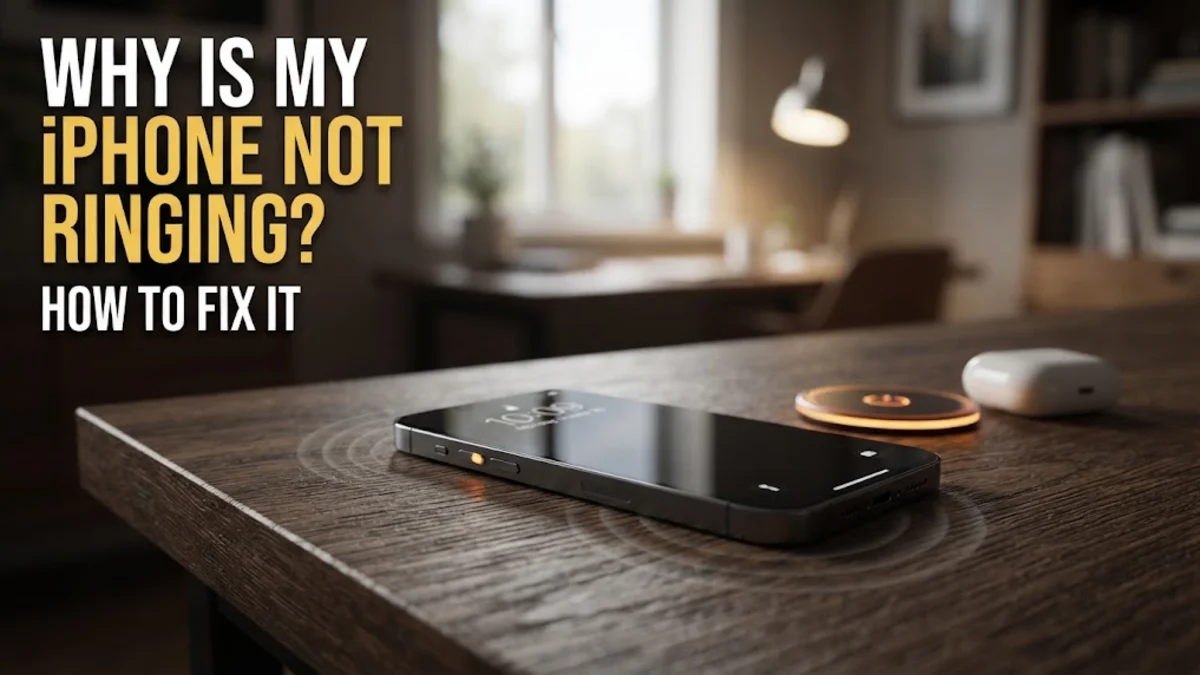
The most frequent reason an iPhone remains silent during incoming calls is an accidental engagement of Silent mode. On standard iPhone models, a physical Ring/Silent switch is located on the upper-left edge of the chassis above the volume buttons. If the switch shows a visible orange strip, your device is set to Silent mode, which turns off ringtones and alert sounds for all incoming calls and notifications.
To fix this, push the switch toward the screen so the orange indicator is covered. On newer models equipped with an Action Button instead of a traditional slider switch, press and hold the Action Button to toggle between Silent and Ring modes. You can also verify Silent mode by swiping down from the top-right corner to open Control Center. If the bell icon is highlighted in red or crossed out, tap it to re-enable system ringing. Alternatively, go to Settings > Sounds & Haptics and ensure Silent Mode is toggled off.
Audit Active Focus Profiles and Do Not Disturb Schedules
iOS Focus profiles, including Do Not Disturb, Work, Personal, and Sleep, are designed to suppress incoming alerts while you concentrate or sleep. When a Focus mode is enabled, your iPhone silences calls and routes them directly to voicemail unless the caller is designated on your whitelist or calls repeatedly within a short window.
To check your Focus status, open Control Center by swiping down from the top-right edge of your screen. Look for the Focus badge located next to the brightness slider. If any Focus profile is active, tap the badge to disable it immediately. If your phone automatically enters quiet mode at specific times of the day, navigate to Settings > Focus > Do Not Disturb. Check Set a Schedule to delete unwanted automation filters. Additionally, ensure that Share Across Devices in Settings > Focus is reviewed, as an active Focus profile on an iPad or Mac connected to your Apple ID can automatically mute your iPhone.
Disable Silence Unknown Callers and Third-Party Call Blocking
iOS includes dedicated features designed to block spam and nuisance calls, but aggressive call filtering can prevent valid phone calls from triggering a ring alert. The primary setting responsible for this is Silence Unknown Callers. When enabled, any phone number that is not stored in your Contacts list, recent outgoing calls, or Siri Suggestions will be silenced automatically without ringing your handset.
To turn this off, navigate to Settings > Phone > Silence Unknown Callers and switch the toggle to the off position. Additionally, review third-party spam blocking apps and carrier filtering services under Settings > Phone > Call Blocking & Identification. Temporarily disable any active call identification extensions to verify if an external application is misidentifying legitimate incoming numbers as spam and suppressing your ringtone.
Inspect Ringer Volume Levels and Disconnect Bluetooth Audio
If your ringer volume slider is set to an extremely low level, your iPhone may technically be ringing, but the audio volume is too quiet to hear in normal environment noise. Open Settings > Sounds & Haptics and examine the Ringtone and Alert Volume slider. Drag the slider to the right to increase your alert volume to a comfortable level. If you frequently turn down your media volume using side buttons and accidentally lower your ringtone, disable the Change with Buttons toggle directly under the volume slider.
Another common hardware scenario involves audio output routing. If your iPhone remains paired to wireless headphones, AirPods, a portable Bluetooth speaker, or a car stereo system, your incoming call ringtone plays through that accessory rather than the built-in phone speakers. Open Control Center, tap the AirPlay audio icon in the top-right corner of the playback card, and select iPhone to force call ringing back to the device. You can also turn off Bluetooth via Settings > Bluetooth to ensure no stray connections steal your ringtone output.
Review Call Forwarding, Blocked Contacts, and Custom Ringtones
If your iPhone rings for most people but stays silent for specific contacts, your configuration issue is localized to individual call rules or missing audio files. Start by reviewing your blocked list: go to Settings > Phone > Blocked Contacts and confirm that essential numbers have not been added to your block list accidentally.
Next, check your call forwarding configuration. Open Settings > Phone > Call Forwarding and verify that the feature is turned off. If Call Forwarding is turned on, incoming calls bypass your iPhone altogether and transfer to another phone number. Lastly, check whether custom ringtones assigned to specific contacts have been corrupted or deleted. Open the Phone app, select Contacts, choose the affected person, tap Edit, and reassign their ringtone to a built-in iOS tone such as Reflection or Radar to ensure valid sound file playback.
Force Restart Your Device and Reset All Settings
System audio daemons and media services can occasionally freeze due to temporary iOS code execution errors. A force restart refreshes your system memory and restarts internal audio controllers without erasing your personal data. To force restart modern iPhone models, press and quickly release Volume Up, press and quickly release Volume Down, then press and hold the Side Button until the Apple logo appears on the display.
If a force restart does not fix the problem, deep-seated settings conflicts might be interfering with call notifications. You can reset system configurations without losing photos, messages, or apps. Go to Settings > General > Transfer or Reset iPhone > Reset > Reset All Settings. Enter your passcode to confirm. This process restores Wi-Fi passwords, Bluetooth pairings, Focus profiles, and sound parameters back to factory defaults, eliminating corrupted configuration files causing silent call behavior.
The bottom line
Fixing an iPhone that is not ringing usually comes down to reviewing a few key toggles: checking the physical switch or Action Button, disabling Focus profiles, turning off Silence Unknown Callers, and verifying Bluetooth audio routing. By systematic troubleshooting from hardware switches down to system settings resets, you can quickly restore reliable call ringers to your iPhone.
Frequently asked questions
Why does my iPhone only ring once and then lower its volume?
This behavior is caused by Attention-Aware Features on iPhones with Face ID. When your iPhone detects that you are looking at the screen, it automatically lowers the ringtone volume. You can disable this feature in Settings > Accessibility > Face ID & Attention by turning off Attention-Aware Features.
Why is my iPhone not ringing when locked?
If your phone is silent only when locked, an automated Focus profile like Do Not Disturb or Sleep is likely scheduling silent hours. Check Settings > Focus to ensure automated schedules are turned off.
Will my iPhone ring if it is connected to AirPods?
When wearing AirPods, the ringtone will play through your earbuds rather than the main iPhone speaker. To hear who is calling without looking at your screen, go to Settings > Siri & Search > Announce Calls and select Always or Headphones Only.
Why do incoming calls go straight to voicemail without ringing?
Calls go directly to voicemail when Do Not Disturb is active, Silence Unknown Callers is switched on for unsaved contacts, or your phone line has Call Forwarding enabled.