How to Fix Google Sheets Stuck on View Only
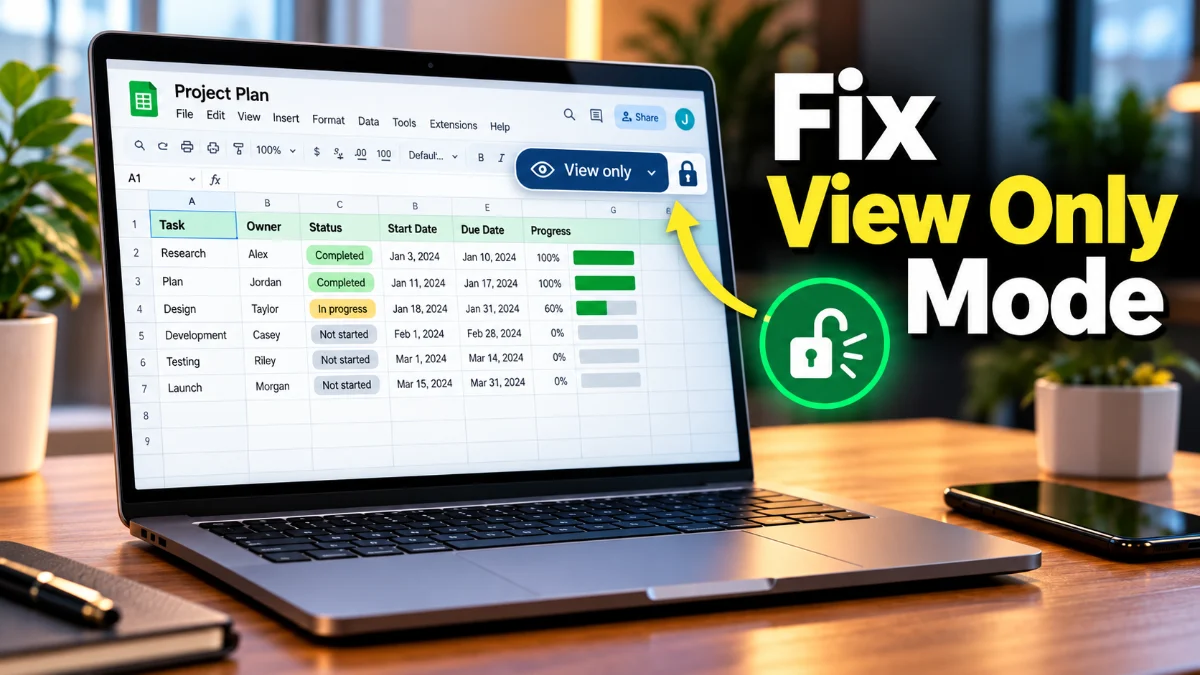
When Google Sheets opens in View Only mode, you cannot type, add formulas, or edit existing data. This issue usually occurs because you are logged into the wrong Google account, the file owner granted view-only permissions, or the web URL is directed to a read-only web view rather than the interactive editor.
You can quickly restore edit access by switching accounts, altering the URL path, duplicating the file, or requesting permission updates. Follow the step-by-step solutions below to fix Google Sheets when it is stuck in read-only mode across web browsers and mobile apps.
Verify and Switch to the Authorized Google Account
The most frequent cause of an unexpected read-only restriction is viewing the document while signed into an alternate Google account. If someone sent editing permission to your work or personal email, but your browser default is set to a different account, Google Sheets defaults to viewer mode for security.
To check and switch your account, click on your profile avatar located in the top-right corner of the Google Sheets interface. Look at the active email address displayed at the top of the menu. If it is not the account that received access, click Add another account or select the correct profile from the list. Alternatively, copy the link, open an Incognito window with Ctrl + Shift + N on Windows or Cmd + Shift + N on Mac, and sign directly into the authorized account.
Modify the Document URL to Force Edit Mode
Sometimes shared links point directly to a published web view or preview mode rather than the working sheet editor. Web addresses containing /pubhtml or ending with /htmlview or /preview display static data that prevents editing regardless of your underlying permission level.
Examine the address bar in your web browser. Locate the trailing end of the URL string. If you see words like /preview, /pubhtml, or /htmlview, select that portion of the web address and delete it. Replace that text with /edit and press Enter. If you have proper account access, the sheet will reload with full editing toolbar functionality restored.
Request Edit Access directly from the Owner
If the document creator explicitly shared the file with Viewer or Commenter rights, Google Sheets will lock editing tools until your access level is elevated to Editor. You can send an official access request directly through the spreadsheet interface.
Click the prominent View only button located near the top-left title area, or click the blue Request edit access button on the toolbar. A pop-up dialog box will appear on your screen. Type a brief note explaining why you need editing rights, then click Send. The document owner will receive an automated email from Google Drive containing a link to approve your request.
Make a Copy to Create an Editable Version
When you need to work on data immediately and cannot wait for the document owner to change permissions, you can create a personal duplicate of the spreadsheet in your own Google Drive storage. Because you become the owner of the new copy, all editing restrictions are automatically removed.
Navigate to the top menu bar and select File > Make a copy. Enter a custom name for the new file, choose a destination folder inside your Google Drive account, and click Make a copy. The duplicate document opens in a new tab with full editing rights enabled. Keep in mind that changes made to your personal copy will not sync back to the original shared file.
Check for Storage Quota and Google Workspace Limits
Google Drive account storage limits can unexpectedly turn documents into read-only files. If the file owner or your organization's Google Workspace storage quota is completely full, Google prevents new edits from saving by locking documents in place.
Open Google Drive and check the Storage indicator in the left menu pane. If the bar indicates 100% usage, delete unnecessary files or empty the trash by navigating to Trash > Empty trash. If you are working on a company file, contact your Workspace administrator to confirm whether enterprise storage or policy restrictions have locked shared editing features.
Clear Browser Cache and Disable Conflicting Extensions
Corrupted browser cache files or aggressive content-blocking extensions can prevent Google Sheets scripts from loading correctly. When background communication fails, the app safe-modes the document into view-only status.
Force-refresh the webpage by pressing Ctrl + F5 on Windows or Cmd + Shift + R on Mac. If the problem persists, clear your cached files by selecting Settings > Privacy and security > Clear browsing data inside Google Chrome. Temporarily disable ad blockers or script-blocking extensions via Extensions > Manage Extensions to eliminate software interference.
Fix View Only Restrictions in the Google Sheets Mobile App
On iOS and Android devices, opening a Google Sheets link often defaults to a quick web preview inside Gmail, Slack, or a mobile browser. These internal previews do not support active editing and appear identical to read-only sheets.
To edit on mobile, ensure the dedicated Google Sheets app is installed from the official App Store or Google Play Store. When opening a file link, tap the Open in app banner or choose Edit in Sheets. If the app is already open, tap the account icon in the top right to verify that you are signed into the exact email account granted edit access.
The bottom line
Resolving a Google Sheets view-only issue usually takes just a few clicks once you identify the source. Switching to the correct Google account, fixing truncated link URLs, or making a local duplicate will resolve the majority of access conflicts. If administrative policies or storage caps are responsible, contacting the file owner or clearing your Google Drive storage will get your spreadsheets fully editable again.
Frequently asked questions
Why does Google Sheets say View Only when I am the owner?
This happens when you are logged into a different Google account in your browser, your Google Drive storage is 100% full, or you opened a published/preview URL instead of the main editor link.
How do I request edit permissions on Google Sheets?
Click the blue 'Request edit access' button or the 'View only' badge near the title bar, add an optional note for the owner, and click 'Send'.
Can I edit a View Only Google Sheet without asking for permission?
Yes. Click 'File' > 'Make a copy' to generate a duplicate document in your personal Google Drive account. You will have full editing rights on your copy.
Why can I edit Google Sheets on desktop but not on mobile?
Mobile browsers often render files in read-only web previews. Make sure you install the native Google Sheets app and open the document inside the app while signed into the correct Google account.