Windows 11 Home vs Pro: Which Version Do You Need?
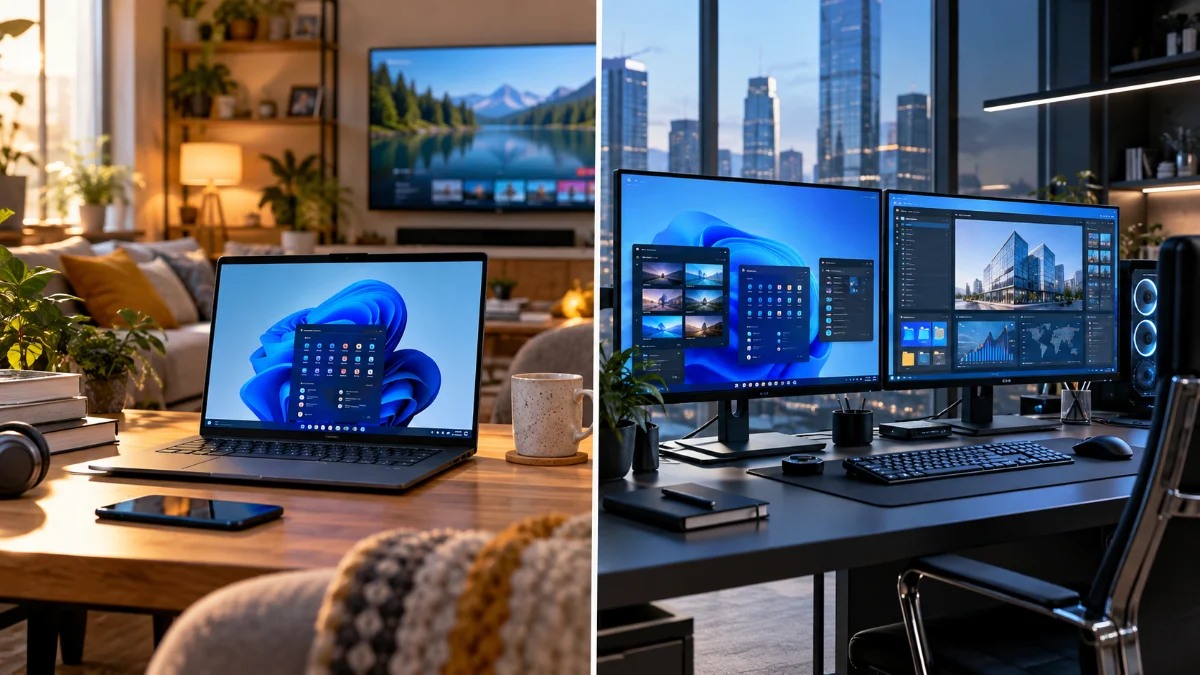
Choosing between Windows 11 Home and Pro often feels like deciding between a reliable daily driver and a heavy-duty workstation. While both versions share the same elegant interface and core performance capabilities, the Pro edition includes a suite of advanced features designed for security, management, and virtualization. For most casual users, students, and home office workers in 2026, the Home edition provides everything necessary for a smooth computing experience. However, power users and professionals often find the added control of the Pro version indispensable.
Core Performance and Gaming Similarities
In 2026, the fundamental performance of Windows 11 remains consistent across both Home and Pro editions. Whether you are browsing the web, editing high-resolution photos, or playing the latest AAA games, you will not see a difference in frame rates or application loading times just by switching versions. Both editions utilize the same kernel and receive identical security updates and feature patches from Microsoft. You get the same Snap Layouts for multitasking, the same integrated Microsoft Teams chat, and the same sleek, centered Taskbar experience that defines the modern Windows look. For gamers, the critical features remain universal. Both Home and Pro support DirectX 12 Ultimate, which provides high-end graphics rendering, and DirectStorage, which allows the GPU to load game data directly from your NVMe SSD. Auto HDR is also present on both, enhancing the visual range of older games on compatible monitors. If your primary goal is building a high-end gaming rig or a standard family PC, you are not losing any 'speed' by choosing the Home edition. The difference only becomes apparent when you dig into the underlying system management and advanced security protocols.
Advanced Security and BitLocker Encryption
Security is the primary area where Windows 11 Pro begins to pull ahead. The most significant feature missing from the Home edition is BitLocker Drive Encryption. BitLocker allows you to encrypt your entire hard drive, ensuring that even if your laptop is stolen and the drive is removed, your data remains inaccessible without the recovery key. While Windows 11 Home offers a basic 'Device Encryption' feature, it is much more restrictive. Device Encryption requires you to sign in with a Microsoft Account and have a motherboard equipped with a TPM 2.0 chip. If you prefer using a local account or need to encrypt external USB flash drives (BitLocker To Go), you must use Windows 11 Pro. Another security advantage for Pro users is Windows Information Protection (WIP). This tool is designed to prevent accidental data leaks by separating personal and corporate data on a single device. It allows administrators to define which apps have access to sensitive files and can even wipe business data remotely without touching your personal photos. For anyone handling sensitive client information or working in a field with strict data privacy requirements, these added layers of protection make Pro the clear winner over the standard Home version.
System Management and the Group Policy Editor
The Group Policy Editor (GPE) is perhaps the most sought-after tool that distinguishes Windows 11 Pro from Home. Group Policy allows you to change advanced system settings that are not exposed in the standard Settings app. For example, you can use GPE to disable automatic restarts after updates, block specific apps from running, or customize the login screen in ways that would otherwise require complex registry edits. While tech-savvy users can sometimes find workarounds to install similar tools on Home, Pro includes this natively and safely. Beyond customization, Windows 11 Pro is designed for managed environments. It includes features like Domain Join and Azure Active Directory (now Microsoft Entra ID) Join. These allow a computer to be part of a larger corporate network, where a central administrator can control updates, security policies, and software distribution across hundreds of machines. If you are an IT professional or an employee in a medium-to-large business, your company will likely require the Pro edition just to connect your device to their infrastructure. Pro also supports Windows Update for Business, giving you more granular control over when and how updates are installed to prevent workflow disruptions.
Virtualization with Hyper-V and Sandbox
If you are a software developer, a cybersecurity student, or just someone who likes to experiment with new software, the virtualization features in Windows 11 Pro are a game-changer. Pro includes Hyper-V, Microsoft's native hypervisor. This allows you to create and manage virtual machines, which are essentially 'computers within a computer.' You can run Linux, older versions of Windows, or even a separate instance of Windows 11 in an isolated environment without affecting your main operating system. While third-party tools like VirtualBox exist, Hyper-V is deeply integrated into the system and offers excellent performance. Another unique Pro feature is Windows Sandbox. This creates a lightweight, temporary desktop environment where you can safely run suspicious .exe files or test new browser extensions. Once you close the Sandbox window, everything inside it is permanently deleted, leaving your host system untouched. It is the ultimate 'reset button' for testing software. Windows 11 Home users do not have access to these native tools, meaning they must rely on third-party software that may not be as stable or well-integrated with Windows security features like Memory Integrity and VBS (Virtualization-based Security).
Remote Desktop and Hardware Limits
Remote Desktop is another key differentiator. While both Home and Pro can act as a Remote Desktop 'client' (meaning you can use a Home PC to control another computer), only Windows 11 Pro can act as a 'host.' This means you can be at a coffee shop with your laptop and remotely access your powerful Pro desktop at home, seeing its screen and running its applications as if you were sitting right in front of it. While free third-party alternatives like Chrome Remote Desktop or TeamViewer exist, the native Microsoft Remote Desktop protocol is often faster and more secure for professional use. On the hardware front, Windows 11 Pro is built for extreme power. Most users will never hit the limits of the Home edition, which supports one CPU socket and up to 128GB of RAM. However, if you are building a workstation for 8K video editing or complex 3D rendering, you might need the Pro edition. Pro supports up to two physical CPU sockets and a staggering 2TB of RAM. This massive overhead is designed for dual-processor motherboards used in enterprise environments. Unless you are spending thousands of dollars on enterprise-grade hardware, the Home edition's limits will not affect your daily experience.
Detailed Comparison Summary Table
| Feature | Windows 11 Home | Windows 11 Pro |
|---|---|---|
| BitLocker Encryption | No | Yes |
| Windows Sandbox | No | Yes |
| Hyper-V (Virtualization) | No | Yes |
| Remote Desktop (Host) | No | Yes |
| Group Policy Editor | No | Yes |
| Maximum RAM | 128 GB | 2 TB |
| Maximum CPU Sockets | 1 Socket | 2 Sockets |
| Domain Join / Azure AD | No | Yes |
The bottom line
Windows 11 Home is the right choice for the vast majority of users in 2026, offering a complete feature set for gaming, productivity, and general use. However, if you require full disk encryption via BitLocker, need to run virtual machines natively with Hyper-V, or work in a corporate environment that requires Domain Join, Windows 11 Pro is a necessary investment. The good news is that if you start with Home and realize you need Pro later, you can always upgrade through the Microsoft Store without needing to reinstall your operating system.
Frequently asked questions
Can I upgrade from Windows 11 Home to Pro?
Yes, you can easily upgrade by going to Settings > System > Activation. Click on Go to the Store under the upgrade section. You will pay a one-time fee, and the new features will be unlocked without losing any of your files or applications.
Is Windows 11 Pro faster for gaming?
No, Windows 11 Pro does not offer any performance advantage for gaming. Both versions use the same drivers and support the same gaming technologies like Auto HDR and DirectStorage. Your hardware (CPU, GPU, RAM) determines gaming speed, not the OS edition.
Does Windows 11 Pro have better battery life?
No, there is no inherent difference in battery life between the two editions. In some cases, the extra background services in the Pro edition (like virtualization or management tools) might consume a tiny bit more energy, but it is not enough to be noticeable in daily use.
Can I use BitLocker on Windows 11 Home?
BitLocker is not available on Windows 11 Home. However, Home users have 'Device Encryption,' which provides similar protection for your internal drive as long as you are signed in with a Microsoft Account. To encrypt external drives or have more control, you need Pro.