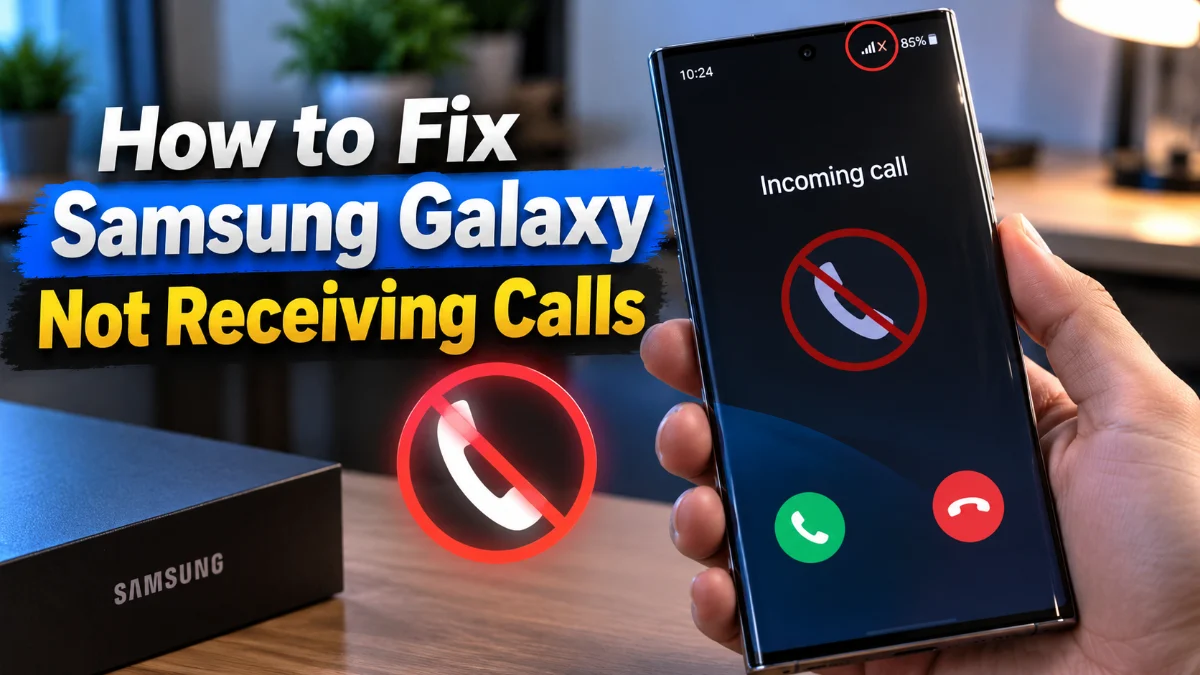
If your Samsung Galaxy is not receiving calls, it is usually caused by an active Do Not Disturb mode, a misconfigured network setting, or a temporary glitch with your service provider. This issue often results in callers being sent directly to voicemail while your phone shows no notification of the incoming attempt, which can be frustrating when you are expecting important communication.
1Verify Network Signal and Airplane Mode
The most common reason for a Samsung Galaxy not receiving calls is a simple lack of cellular signal or the accidental activation of Airplane Mode. Start by swiping down from the top of your screen to access the Quick Settings panel. Ensure that the Airplane Mode icon (the airplane silhouette) is greyed out. If it is blue, tap it to disable it. Even if it appears off, toggling it on for ten seconds and then off again can force your device to re-establish a fresh connection with the nearest cell tower, which often resolves minor handshake errors between your phone and the network.
Next, look at your signal bars in the status bar. In 2026, most Samsung devices rely heavily on 5G Standalone (5G SA) networks. If you see an 'X' or 'No Service' icon, you may be in a dead zone or your phone might be struggling to switch between 5G and LTE. You can try forcing a specific network type by going to Settings > Connections > Mobile networks > Network mode. Try switching from '5G/LTE/3G/2G (auto connect)' to 'LTE/3G/2G (auto connect)' temporarily to see if a more stable, albeit slower, signal allows calls to come through.
2Disable Do Not Disturb and Modes
Samsung's One UI includes sophisticated automation features called Modes and Routines. If your phone is silent when people call, Do Not Disturb (DND) is likely active. When DND is enabled, the phone blocks all interruptions unless you have specifically whitelisted certain contacts. Check the status bar for a small minus sign inside a circle. To turn this off, go to Settings > Notifications > Do Not Disturb and ensure the toggle is set to off.
Beyond basic DND, check your active Modes. Samsung Galaxy phones in 2026 use AI-driven modes like 'Sleep', 'Driving', or 'Work' that can automatically trigger call blocking based on your location or the time of day. Navigate to Settings > Modes and Routines. Review each active mode to see if 'Restrict calls' is enabled. It is a common mistake to leave a 'Theater' or 'Meeting' mode active long after the event has ended, which keeps your phone from ringing for hours.
3Check Call Forwarding and Spam Filters
If your phone isn't ringing and callers report that your line sounds busy or goes straight to a specific number, you might have Call Forwarding enabled. This setting directs all incoming traffic to another number, often a leftover setting from a previous office configuration or a roaming setup. Open the Phone app, tap the three dots in the top right corner, and select Settings. Navigate to Supplementary services > Call forwarding > Voice call. Ensure all options, such as 'Always forward', are disabled.
Another culprit is Samsung’s built-in Smart Call and spam protection. While excellent for blocking telemarketers, it can sometimes be too aggressive and flag legitimate numbers as 'Potential Spam', silencing them automatically. In the same Phone app settings menu, look for Caller ID and spam protection. If you are missing calls from people not in your contacts, try lowering the block level or disabling the 'Block all spam and scam calls' toggle to see if the missing calls start appearing. You should also check Settings > Phone > Block numbers to ensure you haven't accidentally blocked a specific person.
4Reset Mobile Network Settings
When software configurations for Wi-Fi, Bluetooth, and mobile data become corrupted, a network reset is the most effective fix. This process does not delete your photos or apps, but it will erase saved Wi-Fi passwords and paired Bluetooth devices. This is a crucial step if your Samsung Galaxy not receiving calls issue started after a system update or after traveling internationally. To perform this, go to Settings > General management > Reset > Reset mobile network settings.
After tapping Reset settings and entering your PIN, your phone will clear its internal cellular cache. This forces the device to re-read the configuration data from your SIM card or eSIM. Once the reset is complete, restart your phone. This is a common fix for IMS registration errors—a technical background process that allows your phone to communicate with the carrier's calling server. If your IMS status is 'Not Registered', you will be able to use data but will never receive a voice call.
5Inspect SIM Card and Carrier Status
Physical damage to a SIM card or an outdated eSIM profile can lead to intermittent call reception. If you use a physical SIM, use a SIM ejector tool to remove the tray. Check the gold contacts for scratches or debris. Clean the card with a dry microfiber cloth and re-insert it firmly. For 2026 Samsung models that primarily use eSIM, go to Settings > Connections > SIM manager. Ensure the eSIM is toggled on and that it is selected as the 'Preferred SIM' for calls.
You should also verify your account status with your mobile carrier. Sometimes, carriers implement 'Network Refreshes' on their end if they detect a device is not responding correctly to pings. Call your service provider from another device and ask them to 're-provision' your line. This is particularly important if you have recently upgraded to a newer Galaxy model, as the carrier might still be trying to route calls using older protocols that your new hardware doesn't support.
6Test in Safe Mode to Rule Out Apps
Third-party apps, particularly third-party dialers, VoIP apps (like WhatsApp or Skype), or call-recording software, can interfere with the native Android phone system. To determine if an app is causing the conflict, boot your Galaxy into Safe Mode. To do this, press and hold the Power button until the power menu appears, then long-press the Power off icon until the Safe Mode prompt appears. Tap it to restart.
While in Safe Mode, only factory-installed apps will run. Ask someone to call you. If the call comes through perfectly, a third-party app you recently installed is the culprit. You will need to restart your phone normally and uninstall apps one by one, starting with the most recent ones, until the calling functionality returns to normal. Common offenders include call-blocking apps or custom 'Theme' apps that modify the incoming call UI.
Frequently asked questions
Why does my phone go straight to voicemail without ringing?
This is typically caused by Do Not Disturb mode, Call Forwarding, or a weak cellular signal. Check your 'Modes and Routines' to ensure a quiet mode isn't active, and verify that Call Forwarding is disabled in your Phone app settings.
Can Wi-Fi Calling cause me to miss calls?
Yes, if your Wi-Fi connection is unstable, Wi-Fi Calling may attempt to route the call through the router but fail to hand it off to the cellular network. Try disabling Wi-Fi Calling in Settings > Connections to see if call reception improves.
Why am I not receiving calls but I can send texts?
Calling and texting use different protocols. You might have a registered data connection for texts (SMS/RCS) but an unregistered IMS status for voice calls. Resetting your mobile network settings usually fixes this discrepancy.
Does a full storage affect incoming calls?
While rare, if your phone's internal storage is completely full, the Phone app may crash when attempting to write a call log entry or display the caller ID UI. Ensure you have at least 1GB of free space for system stability.