If your iPad has become unresponsive, stuck in a boot loop, or remarkably slow immediately after installing the latest iPadOS 20 update, you are likely dealing with a software conflict or a corrupted installation file. These issues often occur when the system transition is interrupted by a fluctuating Wi-Fi connection or when background processes like file indexing overwhelm the hardware during the initial boot sequence. While a 'bricked' iPad can be alarming, it is rarely a permanent hardware failure and can typically be resolved through specific reset procedures. In this guide, we will walk through the most effective troubleshooting methods used by technicians to revive iPads that have stopped working after an update. We will cover everything from simple forced restarts to the more advanced DFU mode restorations, ensuring that your device returns to peak performance in 2026.
1Force Restart Your iPad to Clear System Cache
The first and most effective response to an iPad not working after update is a forced restart. Unlike a standard power-off, a forced restart cuts power at the hardware level and clears the temporary system cache, which often contains the corrupted instructions causing the freeze. For iPad models without a Home button (including the latest iPad Pro and Air models in 2026), quickly press and release the Volume Up button, then quickly press and release the Volume Down button. Finally, press and hold the Top Power button until you see the Apple logo appear on the screen. Do not let go when you see the 'Slide to Power Off' prompt; keep holding until the logo confirms a fresh boot. If you are using an older iPad model that still features a physical Home button, you must hold the Home and Top buttons simultaneously until the Apple logo emerges. This process does not delete any of your personal data, but it is vital for forcing the OS to reload the new iPadOS 20 kernel without the baggage of the failed previous session. Many users make the mistake of letting go of the buttons too early; ensure you hold the power button for at least 15 to 20 seconds to be certain the hardware reset is triggered.
2Use Recovery Mode to Repair the Operating System
If your iPad is stuck on the Apple logo or a black screen and a forced restart fails, you will need to utilize Recovery Mode. This state allows the iPad to communicate with a computer without fully booting the potentially corrupted operating system. Connect your iPad to a Mac or a PC using a high-quality USB-C cable. On a Mac running the latest macOS, open Finder; on Windows, open the Apple Devices app. Perform the forced restart button sequence described in the previous section, but continue holding the Top Power button even after the Apple logo appears. Keep holding until you see a screen showing a laptop and a cable icon. Your computer will then display a pop-up with two options: Update or Restore. You should choose Update first. This option attempts to reinstall iPadOS 20 without erasing your photos, apps, or settings. If the update process takes longer than 15 minutes, your iPad may exit Recovery Mode automatically, and you will need to repeat the button sequence. If the 'Update' option fails to fix the problem, you may eventually have to select Restore, which will wipe the device and install a clean version of the software, so ensure you have an iCloud backup ready.
3Managing Post-Update Battery Drain and Overheating
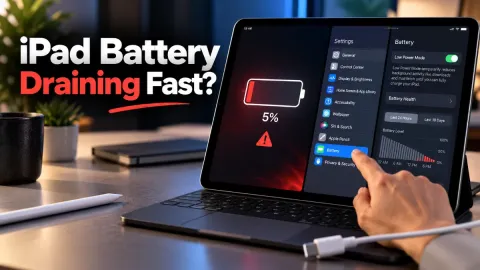
It is extremely common for an iPad to feel hot or for the battery to drain rapidly in the first 48 hours after a major update. This often leads users to believe their iPad is not working correctly, but it is usually a result of background 'indexing.' When iPadOS 20 is installed, the system must re-scan every photo, email, and file to update the Spotlight search database and AI-driven features. This process is processor-intensive and generates significant heat. To mitigate this, keep your iPad connected to a charger and a stable Wi-Fi network overnight. This allows the system to complete these tasks without interruptions. You can check which processes are consuming the most energy by navigating to Settings > Battery. If you see 'Home & Lock Screen' or 'Siri' using a high percentage of battery, it confirms that background optimization is still in progress. Avoid using high-performance apps like video editors or games during this window to prevent the device from thermal throttling, which can make the iPad feel sluggish or unresponsive. Once indexing is complete, typically within a day or two, your battery life and temperature should return to normal 2026 standards.
4Reset Network Settings to Fix Connectivity Glitches
Software updates frequently include updates to the baseband and Wi-Fi firmware. Sometimes, the transition between the old and new network protocols causes the iPad to lose its connection or fail to recognize saved networks. If your iPad is 'working' but cannot reach the internet or connect to Bluetooth accessories after an update, a network reset is necessary. Go to Settings > General > Transfer or Reset iPad > Reset and select Reset Network Settings. Be aware that this will erase all saved Wi-Fi passwords and VPN configurations, so have your credentials handy. After the iPad restarts, try reconnecting to your Wi-Fi. This action clears the cache of the network daemon and forces the iPad to re-handshake with your router using the new iPadOS 20 protocols. If the issue persists, check if other devices can connect to the same network. If they can, the problem is likely a software handshake error on the iPad that this reset is specifically designed to solve. Avoid selecting 'Reset All Settings' at this stage, as that is a much more intrusive step that reverts your entire UI customization.
5Update Incompatible Apps to Prevent Crashing
If your iPad seems to be working but specific apps crash immediately upon opening after the update, the issue is likely app incompatibility rather than a system-wide failure. Developers frequently release patches alongside new iPadOS versions to ensure stability. Open the App Store and tap on your Profile Icon in the top right corner. Scroll down to see the 'Upcoming Automatic Updates' or 'Available Updates' section. Tap Update All to ensure every third-party application is compatible with iPadOS 20. If a specific app continues to fail, it may be storing corrupted cache data from the previous OS version. You can fix this by going to Settings > General > iPad Storage, finding the problematic app, and selecting Offload App. This removes the app's binary files while keeping your data safe. Reinstall the app from the same screen to see if the fresh installation resolves the conflict. This is a common requirement for older apps that have not yet been optimized for the latest Apple silicon optimizations released in 2026.
6DFU Mode: The Final Troubleshooting Step
When all other methods fail and your iPad remains completely unresponsive or stuck in a loop, Device Firmware Update (DFU) mode is the last resort. DFU mode is deeper than Recovery Mode because it allows the device to interface with a computer before the 'iBoot' bootloader is even loaded. This is the only way to fix issues where the firmware itself was corrupted during the update process. To enter DFU mode, connect your iPad to your computer. For models with Face ID, quickly press Volume Up, then Volume Down, then hold the Top Power button for 10 seconds. While still holding the Top Power button, press and hold the Volume Down button for 5 seconds. Release the Top Power button but keep holding Volume Down for another 10 seconds. The screen must remain completely black; if the Apple logo appears, you held the buttons too long and must start over. If successful, your computer will report that it has detected an iPad in recovery mode. At this point, the only option is to Restore, which will completely format the iPad and install the latest firmware from scratch. This should only be done if you have a backup, as it is a total reset of the device.
Frequently asked questions
Will I lose my data if I fix my iPad after a failed update?
If you use a forced restart, you will not lose any data. If you use Recovery Mode and select the 'Update' option, your data is also safe. However, if you are forced to choose 'Restore' or use DFU mode, all data on the iPad will be erased, and you will need to restore from an iCloud or computer backup.
How long should an iPad update take in 2026?
A typical iPadOS 20 update takes between 20 and 45 minutes depending on your internet speed and the specific iPad model. If your iPad has been on the same progress bar for more than two hours, it is likely frozen and requires a forced restart.
Why is my iPad screen black but the device feels warm?
This usually indicates that the iPad is stuck in a boot loop or a high-energy background task that has crashed. The warmth comes from the processor working at maximum capacity. A forced restart is the best way to break this cycle and cool the device down.
Can a low battery cause an update to fail?
Yes, if your iPad drops below 50% battery and is not connected to a charger, it may shut down during the firmware writing process, leading to a corrupted OS. Always keep your iPad plugged in during the entire update process to prevent this.