Best Windows 11 Themes to Refresh Your PC
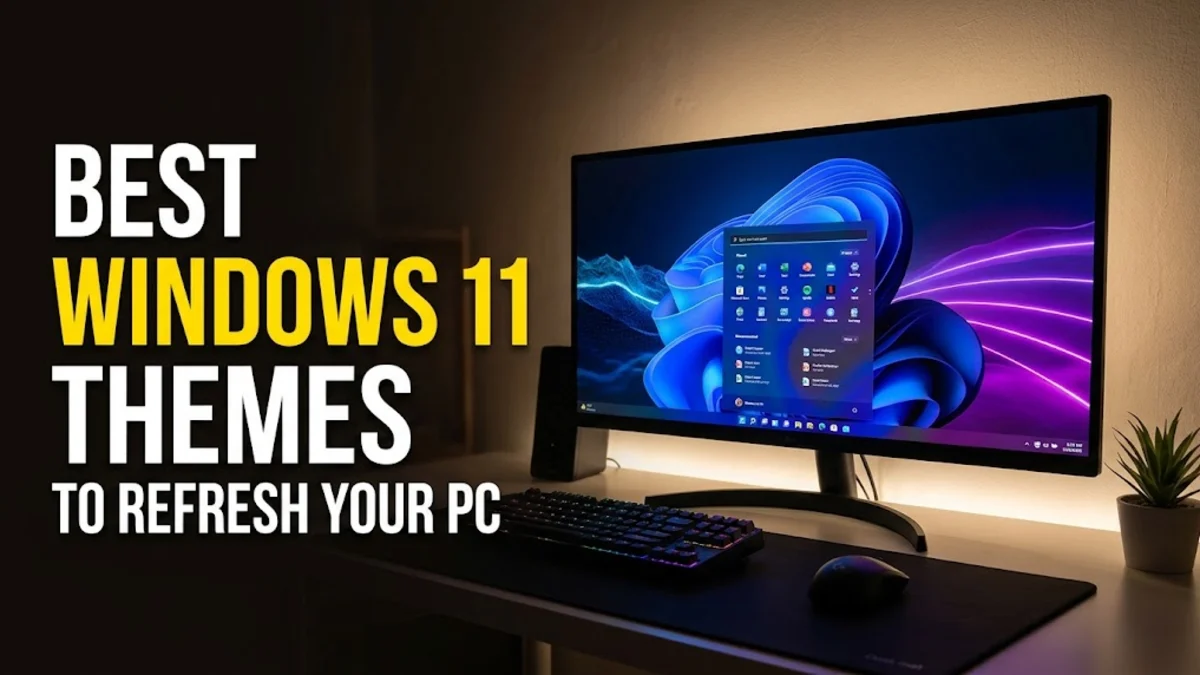
Personalizing your desktop changes how your entire workspace feels, reducing eye strain and bringing fresh energy to daily computing. Windows 11 includes a refined design language with rounded corners, Mica material effects, and smooth animations, but default presets can quickly feel stale. Installing curated theme packs lets you overhaul your wallpapers, system accent colors, mouse cursors, and audio cues with a single click.
Finding safe, high-quality themes does not require risky system file patches or third-party patchers that break during major Windows updates. Microsoft provides a vast repository of free, high-resolution theme packs directly through the Microsoft Store, alongside built-in customization settings that unlock tailored aesthetics. Here are the best Windows 11 themes available today, balancing visual polish, readability, and system performance.
Understanding How Themes Work in Modern Windows
Top Dark Mode and Minimalist Themes
- Nightfall Camo: An official Microsoft release featuring subdued geometric camouflage artwork in slate grey, charcoal, and muted blue tones. It pairs seamlessly with the dark system accent color to keep your eyes relaxed during long work sessions.
- Earth from Above Dark: High-resolution satellite imagery captured at night, showcasing shimmering city lights against deep ocean blacks. This theme provides exceptional depth while maintaining a dark aesthetic that prevents screen glare.
- Glow (Default Dark Variant): One of the strongest built-in options in Windows 11. It uses spherical luminous ribbons set against dark backgrounds, dynamically adjusting subtle Mica translucency across File Explorer windows.
When using dark themes, verify that your accent color is configured for high contrast. Go to Settings > Personalization > Colors, choose Dark under Choose your mode, and select an accent shade like electric blue or cyan to ensure active tabs and toggles remain clearly visible.
Best Nature and Scenic Landscape Packs
| Theme Name | Image Count | Visual Style | Best Suited For |
|---|---|---|---|
| River Deltas | 10 Images | Aerial geographic photography | Ultrawide and multi-monitor setups |
| Sunflowers Pride | 18 Images | Macro botanical photography | Bright rooms and high-DPI displays |
| World of Bamboo | 20 Images | Forest greens and morning mist | Calm, minimalist focus spaces |
| Desert Beauty | 20 Images | Warm sands and canyon formations | Warm color palettes and night shifts |
River Deltas stands out for multi-monitor workstations because its aerial patterns span wide visual horizons naturally. If you use dual monitors, Windows automatically distributes different images from the collection across each screen, ensuring your workstation looks cohesive without duplicate wallpaper rendering.
Modern Abstract and Official Surface Themes
High-Contrast and Accessibility Themes for Maximum Clarity
How to Build and Save Your Own Custom Theme
- Navigate to Settings > Personalization > Background. Change the dropdown from Picture to Slideshow, then select Browse to link a local folder containing your favorite 4K wallpapers.
- Set Change picture every to your preferred interval, such as 30 minutes or 1 day, and enable Shuffle the order of pictures.
- Switch to Personalization > Colors. Select Custom accent color, or toggle Automatic so Windows extracts a dominant matching tone directly from the current wallpaper.
- Return to Personalization > Themes, click Save next to Current theme, name your configuration, and click Save.
Once saved, right-click your custom theme to export it as a .deskthemepack file. This allows you to back up your layout or share it with other Windows 11 computers via cloud storage or a flash drive.
Optimizing Performance and Battery Life with Themes
The bottom line
Customizing your Windows 11 desktop with high-quality themes elevates your daily computing experience without compromising system stability. Whether you prefer the soothing simplicity of minimalist dark palettes, the sweeping horizons of geographic collections, or the precision of custom contrast profiles, Windows provides the tools natively. Explore official Microsoft Store collections first to guarantee high resolutions and effortless system updates.
Frequently asked questions
Are Windows 11 themes from the Microsoft Store completely free?
Yes, the vast majority of official theme packs published by Microsoft Corporation in the Microsoft Store are completely free to download and use without subscriptions or advertisements.
Do dynamic desktop themes slow down PC gaming performance?
Standard themes with static wallpapers do not hurt gaming performance. However, slideshows configured to change every minute or heavy third-party animated wallpaper apps can cause brief frame drops during gameplay. Turning off battery slideshows and pausing background apps resolves this.
Can I use Windows 10 themes on Windows 11?
Yes. Themes downloaded from the Microsoft Store or exported as .deskthemepack files from Windows 10 work seamlessly on Windows 11. Windows 11 automatically adapts the wallpapers and colors to its updated taskbar and window geometry.
Why is my taskbar color not matching my selected theme?
In Windows 11, taskbar accent coloring requires a specific toggle. Open Settings > Personalization > Colors, make sure your mode is set to Dark or Custom, and turn on the toggle labeled 'Show accent color on Start and taskbar'.