How to Fix Google Sheets Printing So Small
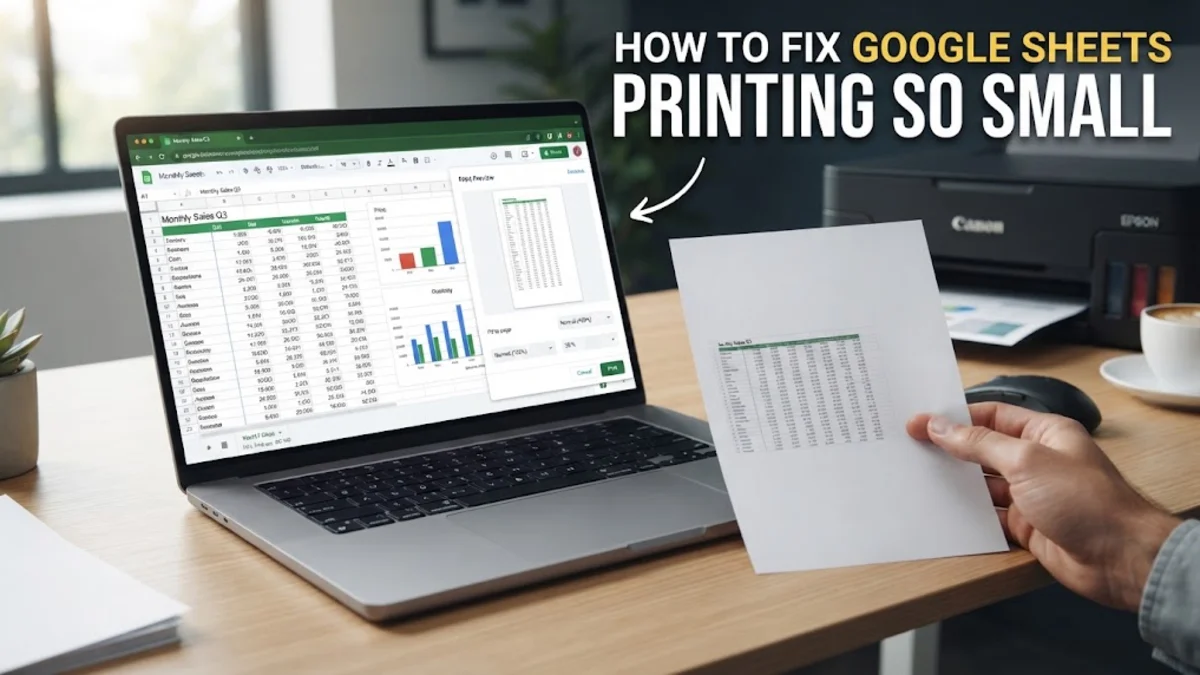
When your Google Sheets printouts come out with microscopic text, it is usually because the software is trying to force too much data onto a single sheet of paper. By default, Google Sheets prioritizes fitting all your columns onto the width of the page, which often results in the font size being scaled down to illegible levels. This problem is particularly common in spreadsheets with many columns or large empty margins.
Adjusting the Scaling and Fit Settings
The most frequent cause of Google Sheets printing so small is the scaling setting within the print preview menu. When you press Ctrl + P (or Cmd + P on Mac), the Print settings sidebar appears on the right. Look for the Scale dropdown menu. By default, this is often set to Fit to width or Fit to page. If you have a spreadsheet with twenty columns, Google Sheets will shrink everything—including the text—until all twenty columns fit within the 8.5-inch width of a standard letter page.
To fix this, click the Scale dropdown and select Normal (100%). This forces the text to print at its actual size. However, be aware that doing this may cause some columns to spill over onto a second page. If 100% is too large, you can select Custom number and enter a specific percentage, such as 85% or 90%, to find a balance between legibility and layout. If you must fit everything on one page, consider hiding unnecessary columns first to allow the remaining ones to occupy more space.
Optimizing Margins and Alignment
Margins are the white spaces around the edges of your document. If your margins are set too wide, the printable area shrinks, forcing Google Sheets to scale your content down even further to stay within those boundaries. In the Print settings sidebar, locate the Margins section. You can choose from Normal, Narrow, or Wide. Switching to Narrow margins is often the quickest way to give your data more breathing room, which in turn allows the scaling engine to increase the font size automatically.
For even more control, select Custom numbers under the Margins menu. This allows you to click and drag the margin lines directly on the print preview screen. By pulling the margins closer to the edge of the paper, you maximize the horizontal and vertical space. Additionally, check the Formatting section in the sidebar and ensure that Alignment is set to Center or Left. Sometimes, horizontal or vertical centering can create awkward gaps that the software tries to compensate for by shrinking the content.
Changing Page Orientation and Size
Sometimes the data simply does not fit the shape of the paper you are using. If your spreadsheet is wider than it is tall, printing in Portrait mode is the primary reason it appears small. In the Print settings sidebar, change the Orientation to Landscape. This immediately provides more horizontal space, which is where most spreadsheets struggle. Landscape orientation is the standard for financial reports, project timelines, and any sheet with more than six or seven columns.
You should also verify that the Paper size matches the actual paper in your printer. If the software thinks you are printing on a small A5 sheet but you actually have Letter or A4 paper loaded, it will shrink the output unnecessarily. Ensure the Paper size is set to Letter (8.5" x 11") or A4 depending on your region. If you are using a specialized wide-format printer, selecting Legal or Tabloid can also prevent the text from being scaled down to a tiny size.
Removing Blank Rows and Columns
Google Sheets often calculates the "print area" based on every cell that contains even a single space or a lingering border. If you have empty columns to the right of your data or empty rows at the bottom that once held information, the software may still be trying to include them in the printout. This forces the actual data into a smaller corner of the page. To prevent this, highlight all the truly empty columns to the right of your data, right-click the headers, and select Delete columns. Do the same for any empty rows at the bottom.
Alternatively, you can tell Google Sheets exactly what to print. Highlight the specific range of cells you want on paper, then press Ctrl + P. In the Print settings sidebar, change the Print dropdown from Current sheet to Selected cells. This ignores everything else on the tab and focuses the scaling logic entirely on your selection. This is the most effective way to ensure that a small table on a large sheet does not end up looking like a postage stamp in the middle of a white page.
Using Manual Page Breaks
When a sheet is too large to fit naturally, Google Sheets makes its own decisions about where to break pages, often resulting in awkward scaling. You can override this by clicking Set Custom Page Breaks in the Print settings sidebar. This opens an interface where you can drag blue lines to define exactly where one page ends and the next begins. By manually splitting a very wide sheet into two pages, you allow the font on each page to remain at 100% size instead of shrinking both to fit on one sheet.
Once you have positioned your breaks, click Confirm breaks. This feature is a lifesaver for complex reports where you want to keep specific categories of data together. Remember that the more breaks you add, the more pages you will use, but each page will be much easier to read. If you find that the page breaks are ignored, double-check that your Scale is still set to Fit to width; manual breaks work best when the software knows it is allowed to span multiple pages.
Fixing Browser Print Dialog Conflicts
A common mistake is using the browser's native print command instead of the Google Sheets print interface. If you go to File > Print in the Chrome menu (or press Ctrl + Shift + P), you bypass the Google Sheets optimization engine. This often leads to messy formatting and tiny text because the browser treats the sheet like a standard webpage. Always use the internal Print button within the Google Sheets toolbar or the Ctrl + P shortcut while the tab is active.
If the printout still looks small, try exporting the document as a PDF first. In the Print settings sidebar, instead of sending the job to your printer, select Save as PDF or Export. Open the resulting PDF file in a dedicated viewer like Adobe Acrobat or even your browser's PDF viewer. PDF files often handle scaling more reliably than direct-to-printer commands. When you print the PDF, ensure the "Scale to Fit" option in your PDF software is set to 100% or "Actual Size" to avoid a double-scaling effect that could shrink the text even further.
The bottom line
Fixing tiny text in Google Sheets requires a few quick adjustments to scaling, margins, and orientation. By switching to Landscape mode, choosing 'Fit to width' carefully, and deleting empty rows, you can ensure your data is always legible. Always preview your changes in the sidebar before hitting the final print button to save paper and frustration.
Frequently asked questions
Why does my Google Sheet look fine on screen but print small?
This happens because the digital view expands to fill your monitor, but the print engine must fit the data onto physical paper dimensions. If you have many columns, the 'Fit to width' setting shrinks the font size to make everything fit.
How do I make the font larger without changing the spreadsheet?
In the print preview sidebar, go to Scale and select 'Custom number.' Increase the percentage (e.g., 110% or 120%) until the text is the desired size, though this may cause data to move to additional pages.
Does 'Fit to Page' affect font size?
Yes, 'Fit to Page' is the most common culprit for small printing. It forces both the height and width of your entire data set onto one sheet, which can drastically reduce the font size if your sheet is large.
Can I print only a specific part of my sheet to keep it large?
Yes. Highlight the cells you want to print, press Ctrl+P, and in the 'Print' dropdown menu on the right, select 'Selected cells' instead of 'Current sheet'.