How to Fix AirPods Not Working on Windows 11
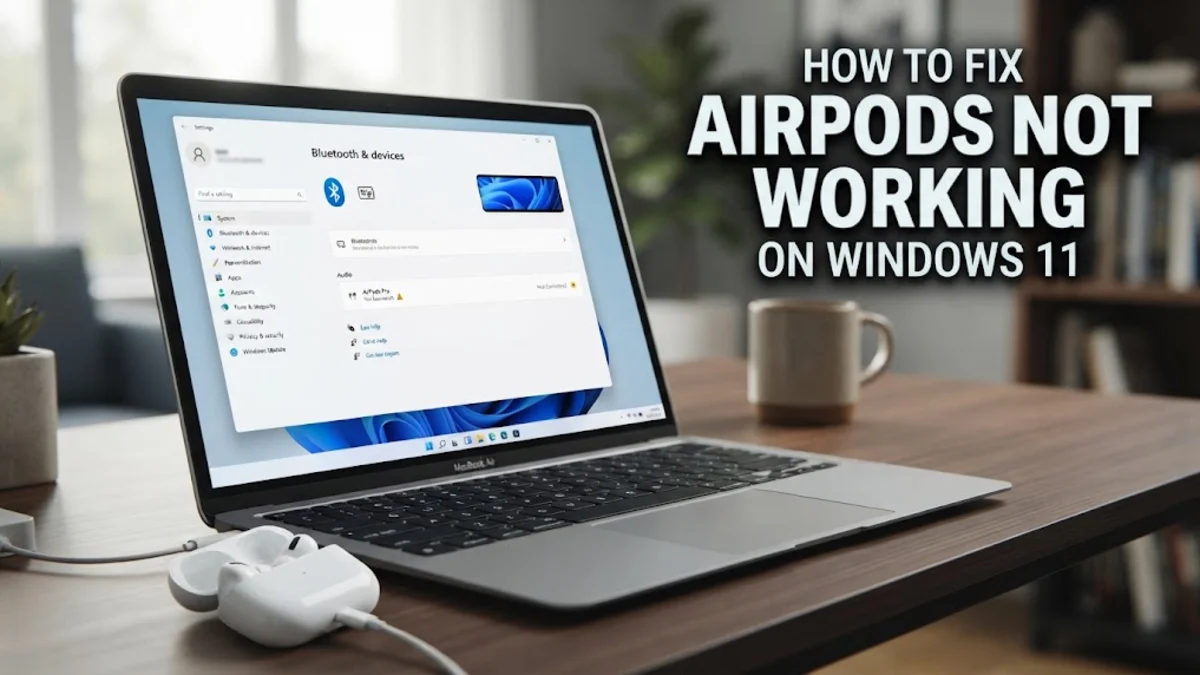
When your AirPods refuse to play sound or drop connection on Windows 11, the problem almost always traces back to Bluetooth profile conflicts, outdated drivers, or audio service misconfigurations. While AirPods work seamlessly across Apple devices, Windows handles Bluetooth audio headsets through separate stereo and hands-free communication protocols that can easily conflict.
Whether your AirPods are paired but silent, stuttering constantly, or delivering muffled audio during calls, you can resolve the issue without third-party software. Follow these troubleshooting steps, organized from the quickest fixes to deeper system adjustments.
Remove and Re-Pair Your AirPods in Windows Settings
A corrupted Bluetooth pairing profile is the most common reason AirPods connect but produce no sound. Clearing the existing handshake forces Windows 11 and your AirPods to establish a clean Bluetooth audio link with fresh encryption keys and communication parameters.
To unpair and reconnect your earbuds cleanly, complete the following steps:
- Open the Windows 11 settings menu by pressing Win + I.
- Navigate to Bluetooth & devices > Devices.
- Locate your AirPods in the list, click the three-dots menu icon beside their name, and select Remove device.
- Confirm the removal, then toggle Bluetooth off and back on using the toggle at the top of the Bluetooth & devices page.
- Place both AirPods inside their charging case and keep the lid open.
- Press and hold the setup button on the back of the case until the status light flashes white.
- Back on your PC, select Add device > Bluetooth, select your AirPods when they appear, and wait for Windows to finalize the driver setup.
If the status light flashes amber rather than white, close the lid, reconnect the case to power for ten minutes, and try initiating pairing mode again.
Disable Hands-Free Telephony to Fix Muffled or Distorted Audio
Windows 11 includes a legacy feature known as Hands-Free Telephony. This service enables the AirPods built-in microphone for voice calls, but it forces audio output down to a low-bitrate mono channel (SCO codec), resulting in tinny, distorted, or completely silent audio during playback.
Disabling this service restores high-quality stereo playback through the standard A2DP profile. Follow this path:
- Press Win + R, type
control printers, and press Enter to open the classic Devices and Printers menu. - If your Windows 11 version redirects to the modern Settings app, navigate to Bluetooth & devices > Devices, scroll down, and click More devices and printer settings.
- Right-click your AirPods icon and choose Properties.
- Switch to the Services tab at the top of the properties dialog.
- Uncheck the box next to Handsfree Telephony.
- Click Apply, then click OK.
Keep in mind that disabling Hands-Free Telephony turns off the AirPods microphone on your PC. For gaming, streaming, or video calls, using your laptop internal microphone or an external USB microphone alongside your AirPods gives you the best possible listening quality without bandwidth throttling.
Configure Windows 11 Sound Output and Volume Levels
Even after successful pairing, Windows 11 may fail to switch its active audio endpoint automatically, leaving sound routed to built-in laptop speakers or a connected monitor. In other instances, Windows Absolute Volume can lock your AirPods at near-silent levels.
First, verify your primary output device:
- Click the Sound icon on the right side of the Windows taskbar, or press Win + A to launch Quick Settings.
- Click the arrow icon next to the volume slider (Select a sound output).
- Select Headphones (AirPods) as your default output device.
- If your AirPods do not appear here, open Settings > System > Sound. Scroll to the Advanced section and select More sound settings.
- In the Playback tab, right-click Headphones (AirPods), select Set as Default Device, and select Set as Default Communication Device.
If the sound is extremely quiet even at 100 percent volume, launch a media app, adjust the in-app volume slider, and press the volume rockers or stem controls on your AirPods to ensure independent volume states are synchronized.
Update or Reinstall Bluetooth Drivers in Device Manager
Outdated or corrupted Bluetooth radio drivers frequently cause AirPods to stutter, drop audio packets, or fail to connect entirely after waking Windows 11 from sleep. Reinstalling the driver removes corrupt cache files and restores the default stack.
To refresh your Bluetooth drivers:
- Right-click the Start button on the taskbar and select Device Manager.
- Click the arrow next to Bluetooth to expand the hardware category.
- Locate your main Bluetooth adapter. It typically reads Intel Wireless Bluetooth, Realtek Bluetooth Adapter, or Qualcomm Atheros Bluetooth. Avoid clicking individual audio profiles or device names.
- Right-click your adapter and select Update driver > Search automatically for drivers.
- If Windows reports the best driver is already installed, right-click the adapter again and select Uninstall device. Do not check the box to delete driver software.
- Restart your PC. Windows will automatically detect the Bluetooth hardware and install a clean copy of the driver during boot.
For custom desktop PCs or laptops, check your motherboard or computer manufacturer support site for the latest Bluetooth driver packages, which regularly contain bug fixes for modern wireless accessories.
Restart the Windows Bluetooth Support Service
Background system services manage the Bluetooth discovery engine and audio protocol handshakes. If the Windows Bluetooth Support Service hangs or enters an error state, your AirPods may show as connected in the taskbar while failing to transmit any actual audio packets.
Restarting this core system service restores normal operation without requiring a full computer reboot:
- Press Win + R, enter
services.msc, and hit Enter. - Scroll down the alphabetical list to find Bluetooth Support Service.
- Right-click Bluetooth Support Service and choose Restart. If the service is stopped, click Start.
- Right-click the service again and select Properties.
- Under the General tab, change the Startup type dropdown menu to Automatic.
- Switch to the Log On tab, confirm that This account is selected, and verify that the account field contains Local Service. Leave the password fields blank if prompted.
- Click Apply and OK.
Perform the same verification for Windows Audio and Windows Audio Endpoint Builder in the same window to ensure no underlying audio subsystems are stalled.
Prevent Windows from Turning Off the Bluetooth Adapter
Windows 11 aggressive power management features can automatically put your Bluetooth card into low-power sleep mode to conserve battery life. This frequently results in AirPods cutting out after several minutes of playback or disconnecting whenever media pauses.
You can prevent Windows from suspending the Bluetooth module by adjusting power settings in Device Manager:
- Press Win + X and select Device Manager.
- Expand the Bluetooth section.
- Right-click your primary Bluetooth adapter (such as Intel Wireless Bluetooth) and select Properties.
- Click the Power Management tab. Note: If your Bluetooth adapter uses newer universal drivers, this tab may instead be found under your computer primary USB host controller.
- Uncheck the option labeled Allow the computer to turn off this device to save power.
- Click OK to save the changes.
On laptops, also ensure that your active Windows power mode under Settings > System > Power & battery is set to Balanced or Best performance, as extreme battery saver profiles throttle wireless adapter signal strength.
Factory Reset Your AirPods Hardware
If Windows settings and drivers are in order but connection failures persist, internal firmware memory on the AirPods themselves may be corrupt or locked onto a previous host device. A hardware reset erases all stored pairing keys and returns the AirPods to factory state.
To perform a complete hardware reset:
- Place both AirPods in their charging case and close the lid for at least 30 seconds.
- Open the lid.
- On the back of the case, press and hold the round setup button.
- Keep holding the button for roughly 15 seconds until the status indicator light flashes amber several times, then continuously flashes white.
- Release the setup button.
- Bring the open case near your Windows 11 PC, navigate to Settings > Bluetooth & devices > Add device, and pair them fresh.
If you own AirPods Max, press and hold the Digital Crown and the Noise Control button simultaneously for 15 seconds until the LED flashes amber, then white, to complete the reset.
The bottom line
Getting AirPods to work reliably on Windows 11 comes down to eliminating profile conflicts and maintaining healthy Bluetooth drivers. Disabling Hands-Free Telephony resolves the majority of audio quality complaints, while a driver reinstall or hardware reset takes care of stubborn connection drops. With these settings configured, your AirPods will deliver clear, dependable audio every time you sit down at your PC.
Frequently asked questions
Why do my AirPods sound muffled or distorted on Windows 11?
Windows 11 automatically activates the Hands-Free Telephony profile when an app accesses the microphone. This slashes audio bandwidth to a low-bitrate mono channel. Disabling Hands-Free Telephony in device properties forces high-quality stereo playback.
Can I use the AirPods microphone and listen in stereo simultaneously on Windows 11?
Bluetooth bandwidth limitations prevent simultaneous two-way wideband audio on most non-Apple systems. Using the AirPods microphone triggers the low-quality communications profile. For crisp stereo sound while gaming or taking meetings, use an external USB microphone alongside your AirPods.
Why do my AirPods keep disconnecting from Windows 11 after a few minutes?
Frequent drops are usually caused by Windows power-saving settings turning off the Bluetooth adapter, or by an Apple device nearby (like an iPhone or iPad) automatically seizing the connection. Disable Bluetooth on nearby Apple devices and uncheck power saving in Device Manager.
How do I check my AirPods battery level on Windows 11?
Windows 11 displays the battery percentage for connected Bluetooth audio devices directly in Settings. Go to Settings > Bluetooth & devices > Devices, and you will see the current battery percentage listed next to your paired AirPods.
Why won't my AirPods enter pairing mode with the white light?
If your AirPods case will not flash white, the battery in the case or earbuds is too low, or the contact pins are dirty. Charge the case for 15 minutes, clean the stem charging contacts with a dry cotton swab, and press the rear button again.