How to Fix Copilot Not Working on Windows 11
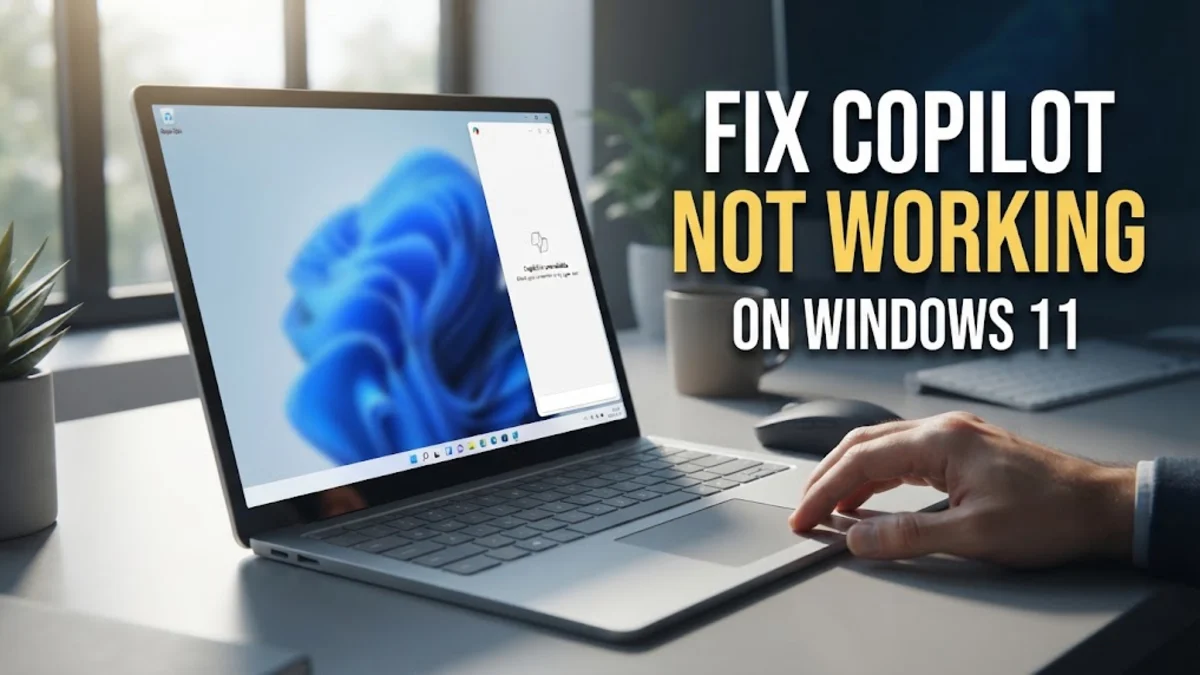
If Microsoft Copilot has suddenly stopped responding, disappeared from your taskbar, or thrown an error on your Windows 11 PC, you are not alone. This frustrating glitch usually stems from outdated system components, regional policy conflicts, or corrupted background app caches that prevent the AI assistant from connecting to Microsoft servers.
To fix copilot not working windows 11 issues quickly, you need to work through a series of targeted troubleshooting steps starting with quick interface restarts and moving toward component updates and account verification.
Understanding Why Copilot Fails on Windows 11
Before diving into complex technical fixes, it helps to understand why Microsoft Copilot might fail on your Windows 11 machine. The AI assistant relies heavily on modern web components, specifically Microsoft Edge WebView2, to render its chat interface directly within the operating system shell. If these underlying components become corrupted, or if your Windows build falls behind the required version threshold, the sidebar will refuse to open or load completely.
Another frequent culprit involves account authentication conflicts. Copilot requires either a verified personal Microsoft account or a managed enterprise/school account with specific tenant policies enabled. If your login session drops or your region settings do not match supported territories, the service will block access entirely, leaving you with a blank screen or a generic error message.
Verify Your Region and Account Requirements
Microsoft restricts Copilot availability based on geographical region and account type. If you have recently traveled or changed your system location settings, Copilot may deactivate itself automatically. To check and correct your region, open Settings > Time & language > Language & region and ensure your country or region matches a supported market.
Next, check your account status. If you are signed in with a work or school account, your organization may have disabled Copilot via IT policy. Try switching to a standard personal Microsoft account by clicking your profile icon within the app or opening Settings > Accounts > Your info to verify if your primary login is causing the restriction.
Restart Windows Explorer and Background Processes
Many minor glitches in Windows 11 are tied to the graphical shell freezing or failing to refresh background services. Restarting Windows Explorer often forces the taskbar integration and sidebar elements to reload cleanly without requiring a full system reboot. Press Ctrl + Shift + Esc to open the Task Manager, locate Windows Explorer in the list of processes, right-click it, and select Restart.
If Copilot still fails to respond after restarting the explorer, check for any lingering background tasks related to the assistant. Look for any active Microsoft Edge or WebView2 processes consuming resources in the background, select them, and click End task to clear out any frozen instances before attempting to launch the AI tool again.
Clear Copilot App Cache and Reset Component Data
Corrupted local cache files can prevent the Copilot interface from rendering properly. Clearing these files forces the application to rebuild its temporary storage from scratch. Navigate to Settings > Apps > Installed apps, search for Microsoft Copilot or the integrated web components, and select Advanced options if available.
If a direct reset option is not visible for Copilot, you can clear temporary browser data since the assistant relies on Edge infrastructure. Open Microsoft Edge, go to settings, clear your browsing cache and cookies, and ensure that background extensions are not actively blocking Microsoft domain scripts. This simple clearance resolves most persistent loading loops and formatting errors.
Update Windows 11 and Microsoft Edge WebView2
Running an outdated version of Windows 11 is one of the most common reasons AI features stop working. Microsoft frequently patches integration bugs in cumulative updates. Go to Settings > Windows Update and click Check for updates to install any pending system patches.
Additionally, ensure that your Microsoft Edge WebView2 runtime is fully up to date. You can check this by navigating to Settings > Apps > Installed apps and looking for Microsoft Edge WebView2. If an update is available through the Microsoft Store or system updater, install it immediately to restore full compatibility with Copilot backend APIs.
Re-enable Copilot via Taskbar and System Settings
Sometimes the Copilot button simply gets toggled off within your taskbar customization preferences. To verify this, right-click an empty space on your taskbar and select Taskbar settings. Look for the Copilot toggle switch and make sure it is turned on. If it is already enabled, toggle it off, wait ten seconds, and turn it back on to re-trigger the interface hook.
If the toggle remains greyed out, your system might be running a Windows edition or group policy that restricts AI tools. Home users can check local registry configurations, while corporate users should contact their IT administrator to ensure organizational policies permit the use of desktop AI integrations on the local network.
The bottom line
Fixing Copilot on Windows 11 usually comes down to updating your system components, verifying your regional settings, or refreshing the background user interface processes. By methodally following these troubleshooting steps, you can eliminate frustrating errors and get your AI assistant back up and running smoothly.
Frequently asked questions
Why did my Copilot icon disappear from the Windows 11 taskbar?
The icon usually disappears after a system update, a change in your regional settings, or if the taskbar preference was accidentally toggled off in your system settings.
Do I need an internet connection for Copilot to work on Windows 11?
Yes, Microsoft Copilot relies entirely on cloud servers to process queries and generate responses, meaning an active, stable internet connection is required.
Can I use Copilot with a local offline account?
No, you must be signed into a verified Microsoft account (personal, work, or school) to authenticate and access the Copilot interface on Windows 11.
What should I do if the Copilot shortcut key does not work?
If the dedicated keyboard shortcut fails, try restarting Windows Explorer via Task Manager or re-enabling the Copilot button inside your taskbar settings.