Why Is My AirPods Case Making Noise and How to Fix It
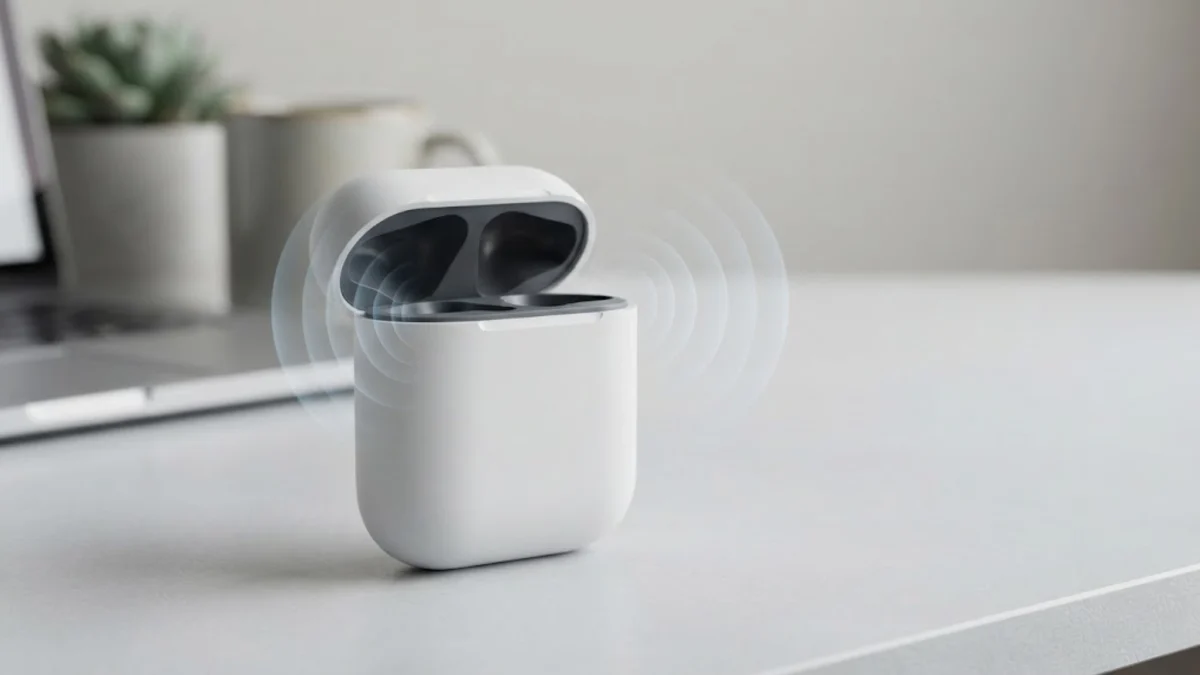
If your AirPods case suddenly starts chiming, chirping, or beeping when you pick it up or plug it in, you are not alone. Modern models like AirPods Pro 2 and AirPods 4 with Active Noise Cancellation include a dedicated acoustic speaker built directly into the charging case. While these chimes provide helpful status indicators, unexpected sounds can be alarming when you do not know what triggered them.
In most instances, case noises stem from routine events such as low battery levels, charger connection feedback, or Apple Find My safety alerts. This guide explains why your AirPods case makes noise and details the exact settings you need to adjust to silence any unwanted chimes.
Recognizing Built-In Case Sounds and Chime Types
Apple introduced a physical speaker grille on the bottom of the MagSafe Charging Case starting with AirPods Pro 2 and expanding to AirPods 4 with ANC. This hardware addition allows the case to communicate alerts audibly without requiring either earbud to be resting in your ear. Understanding the distinct chime patterns helps you determine whether your case is working normally or signaling an alert.
Different tones correspond to distinct hardware states. A soft, upward chime plays when you seat the case on a wireless charging pad or plug in a USB-C cable. A descending, brief tone indicates that the case battery has dropped below critical levels. A continuous repeating ring plays exclusively when an owner or paired device triggers Find My location pinging. If the chime occurs randomly while carrying the case, it usually points to an unwanted tracking alert or an unlatched lid trigger rather than a hardware defect.
Battery Warnings and Charging Audio Cues
The two most common reasons an AirPods case emits sound during daily handling are charging verification and low battery warnings. When you connect your case to power, the internal speaker plays a confirmation tone to confirm that electricity is flowing and the contacts are seated correctly. If your cable is loose or your wireless charging pad shifts, the case may repeatedly chime as it repeatedly connects and disconnects from power.
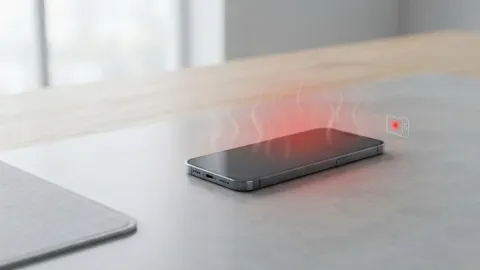
Similarly, when the battery reserve of the case falls below twenty percent, opening the lid or lifting the case can trigger an audible reminder to charge the unit. To test if charging behavior is the root cause, try these diagnostic checks:
- Inspect the charging port for lint or debris using a dry, soft-bristled brush or a wooden toothpick.
- Try an alternate charging cable and power adapter to ensure stable power delivery without micro-disconnections.
- If using a Qi or MagSafe wireless charger, ensure the case sits directly centered on the charging coil to eliminate intermittent connection loops.
- Charge the case and both earbuds continuously for at least sixty minutes to clear any persistent low-battery chime thresholds.
Find My Separation and Unknown Tracker Alerts
Apple Find My network integration is another primary trigger for mysterious case beeping. If your AirPods become separated from your primary device for an extended period, moving the case can activate an anti-stalking safety sound. Apple designed this privacy alert to sound if an unknown Find My-compatible accessory travels with someone who does not own it, deterring unauthorized location tracking.
This safety tone can accidentally trigger on your own device under specific conditions. If your iPhone has Bluetooth disabled, if you recently set up a secondary Apple Account, or if your case has fallen out of sync with your iCloud profile, the case assumes it has been separated from its registered owner. Once its internal accelerometer detects motion after several hours of separation, the speaker produces a distinct chime sequence. Verifying that your AirPods are assigned to your active Apple Account in the Find My app stops this loop.
How to Turn Off AirPods Case Speaker Sounds in iOS
If you prefer your AirPods case to remain completely silent during daily charging and routine handling, Apple provides a native setting in iOS to mute operational sound effects. Disabling this option mutes charging confirmation tones and battery alerts while leaving critical Find My pinging available if you ever misplace the case.
To disable case speaker sounds on your iPhone or iPad, follow these steps:
- Place both AirPods inside the charging case and keep the lid open near your unlocked iPhone.
- Open Settings on your device.
- Tap the name of your AirPods near the top of the main settings screen. If they do not appear there, go to Settings > Bluetooth and tap the More Info icon (an encircled letter "i") next to your AirPods.
- Scroll down the preferences list until you locate the Enable Charging Case Sounds toggle switch.
- Tap the toggle to switch it to the off position.
Once toggled off, your case will no longer chime when connected to a charger, seated on a wireless pad, or opened on low power.
Fixing Separation Alert Loops in the Find My App
If your case continues to ring even after disabling charging sounds, the problem is almost certainly an active Find My notification. You can modify notification rules and eliminate false "Left Behind" prompts through the Find My utility on your Apple device.
Open the Find My app on your iPhone and tap the Devices tab along the bottom navigation bar. Select your AirPods from the equipment list, then inspect the Notifications subsection. Tap Notify When Left Behind. If this feature frequently rings your case when you leave your AirPods at your desk or home, either turn off the feature entirely or use the Notify Me, Except At option to add trusted locations like your home or workplace. This adjustment prevents the case from chiming every time you walk into another room without your earbuds.
Resetting Your AirPods to Resolve Firmware Glitches
When an AirPods case beeps erratically without any logical trigger, a software desynchronization between the case controller and your iPhone is often responsible. Resetting the AirPods restores factory defaults, clears corrupt pairing keys, and updates hardware states.
Complete a full hardware reset using this technician-tested procedure:
- Put both AirPods in the case, close the lid, and wait thirty seconds.
- Open the lid, take out your iPhone, and navigate to Settings > Bluetooth.
- Tap the More Info icon next to your AirPods, choose Forget This Device, and confirm your choice.
- Keep the lid of your AirPods case open. Locate the setup button on the back of the case (or double-tap the front touch surface on AirPods 4).
- Press and hold the setup button for approximately fifteen seconds until the status indicator light flashes amber, then white.
- Bring the case close to your iPhone with the lid open and follow the on-screen setup animation to reconnect.
The bottom line
An AirPods case making noise is almost always operating as intended, whether notifying you of power status or alerting you via Find My safety protections. By identifying the exact chime pattern and toggling off charging sounds in your iPhone settings, you can eliminate disruptions while preserving the high-end tracking capabilities of your audio gear.
Frequently asked questions
Can older AirPods cases make noise?
No. First-generation and second-generation AirPods, third-generation standard AirPods, and original first-generation AirPods Pro charging cases do not have built-in speakers. If you hear noise from older models, the sound is coming directly from the earbud speakers inside the case.
Why does my AirPods case beep when I pick it up?
If your case beeps immediately upon movement, it is typically an anti-stalking Find My alert indicating the case has been separated from its registered Apple Account, or a warning that the case battery is critically low.
Does turning off case sounds stop the Find My locator sound?
No. Disabling Enable Charging Case Sounds in iOS settings only mutes connection tones and battery warnings. If you intentionally locate your case using the Play Sound button in Find My, the case speaker will still chime at full volume.
Why does my case chime multiple times while sitting on a wireless charger?
Repeated chimes during wireless charging indicate intermittent power transfer. The case sounds a tone every time it reconnects to power, which happens if the charger is misaligned, overheating, or receiving insufficient wattage.