Why Is My AirPods Volume So Low? How to Fix It
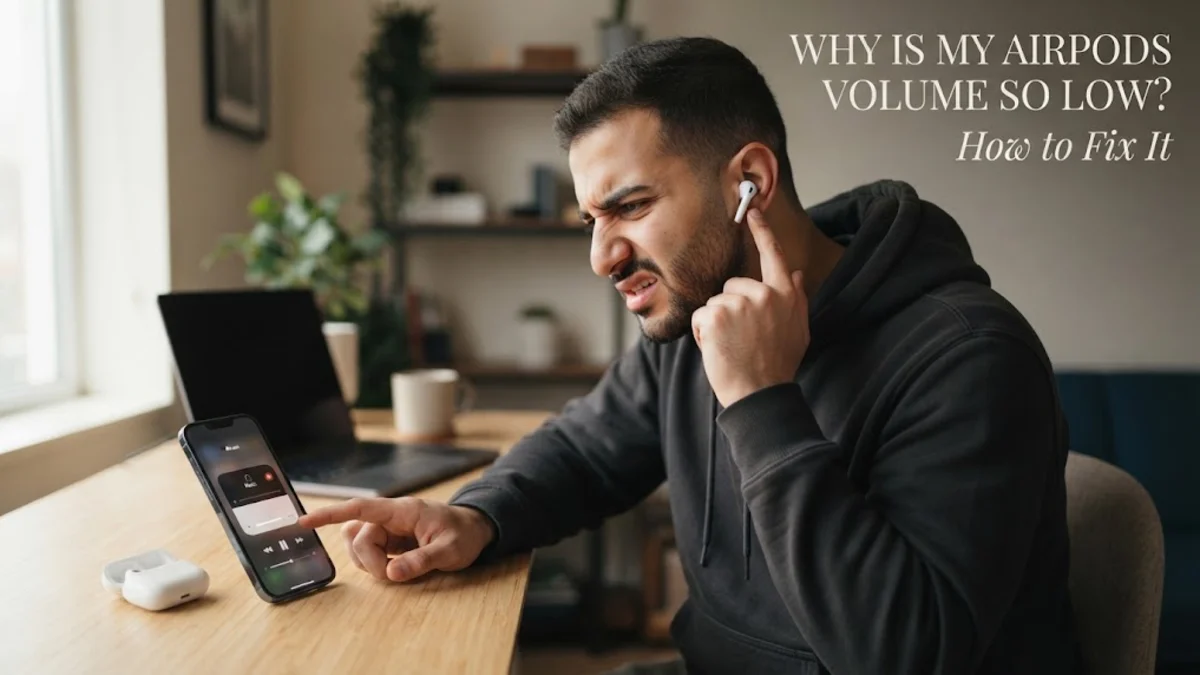
If your AirPods suddenly sound faint even when your iPhone volume slider is set to maximum, the issue usually stems from either software-level audio restrictions or physical debris blocking the acoustic grilles. Apple includes several built-in hearing protection features in iOS that can automatically cap decibel levels without an obvious alert, while Bluetooth synchronization glitches can cause your iPhone and earbuds to report mismatched volume levels.
Physical buildup from earwax, dust, and lint is equally common, often degrading sound output on one or both sides over weeks of use. Fortunately, you can diagnose and resolve quiet AirPods within minutes by adjusting a few hidden system toggles, inspecting your audio balance, and thoroughly cleaning the speaker meshes.
Disable iOS Headphone Safety Decibel Limits
The most frequent reason why your AirPods volume sounds unusually subdued is the iOS Headphone Safety feature. Designed to protect your hearing from prolonged exposure to high decibels, this utility actively monitors your listening habits. When enabled, it automatically reduces audio above a specified decibel threshold, which can make your favorite tracks, podcasts, and video streams sound flat and quiet.
To review and adjust this threshold on your iPhone, follow these steps:
- Open the Settings app on your iPhone.
- Tap Sounds & Haptics and select Headphone Safety.
- Check the toggle next to Reduce Loud Sounds.
- If you want full control over your volume, toggle Reduce Loud Sounds off entirely. Alternatively, drag the decibel slider up to a higher limit, such as 90 decibels or 95 decibels, if you still want upper-range protection.
Keep in mind that in certain regions, local sound-exposure regulations prevent turning off headphone safety completely. In those territories, the toggle may appear locked or grayed out, but raising the slider to its maximum permitted setting will restore significantly higher volume headroom.
Clean the Acoustic Grilles and Mic Ports
Earwax, skin oils, and pocket lint collect inside the speaker meshes over time. Even an invisible film of oil across the fine acoustic mesh can restrict airflow, which dramatically lowers audio volume and eliminates bass response. If one AirPod is noticeably quieter than the other, physical blockage is almost always the culprit.
Clean your AirPods safely using this technician-approved method:
- Inspect the main speaker port, the ear-canal nozzle (on AirPods Pro), and the secondary exterior pressure vents under direct light.
- If using AirPods Pro, pull off the silicone ear tips and rinse the silicone pieces under warm water. Let them dry completely before reattaching. Do not submerge the actual AirPods in water.
- Take a clean, dry, soft-bristled toothbrush or dedicated anti-static acoustic brush and gently sweep the mesh screens with the speaker facing downward so loosened debris falls out rather than inward.
- Moisten a cotton swab lightly with 70% isopropyl alcohol. Ensure it is not dripping wet, then gently rub the surface of the metal or cloth grille to dissolve sticky residue.
Never use sharp metal implements like safety pins or needles, as they easily puncture delicate acoustic membranes and permanently destroy water-resistant coatings.
Check the Audio Balance and Accessibility Settings
iOS includes granular accessibility adjustments designed to help users with hearing imbalances. If the left-to-right audio balance slider is accidentally shifted off-center, one of your AirPods will sound whisper-quiet while the other plays at normal loudness. This setting often gets nudged inadvertently during quick adjustments or after restoring system preferences from an older backup.
To inspect and recalibrate your audio balance:
- Open Settings on your iPhone.
- Scroll down and tap Accessibility.
- Select Audio & Visual under the Hearing category.
- Examine the Balance slider positioned between L and R.
- Make sure the slider indicator rests dead center at 0.00.
While in the Audio & Visual screen, check the status of Mono Audio. When Mono Audio is activated, stereo tracks combine into a single channel, which can alter perceived loudness across dynamic mixes. Toggle it off if you prefer standard stereo separation, or leave it enabled if you listen through a single earbud.
Resync Bluetooth Volume and Calibrate Levels
Occasionally, the volume mapping between iOS and your AirPods loses synchronization. When this glitch occurs, your iPhone software believes the audio is blasting at 100%, but the internal amplifier inside the AirPods remains throttled at a significantly lower stage. You can manually reset this communication handshake in under a minute.
Use this calibration sequence to align audio levels:
- Place both AirPods in your ears and begin playing any continuous audio or music track.
- Press the physical volume down button on the side of your iPhone until the volume level hits zero.
- Swipe down from the top-right corner of your screen to open Control Center.
- Tap the Bluetooth icon to disconnect your AirPods, leaving the music playing silently on the iPhone.
- Lower the iPhone speaker volume to zero again using the volume rocker.
- Tap the Bluetooth icon in Control Center to reconnect your AirPods, resume playback, and raise the volume to your desired listening level.
This simple procedure forces the Bluetooth Absolute Volume protocol to recalibrate, aligning the digital volume ceiling on your iPhone with the internal hardware amplifier inside your AirPods.
Toggle Sound Check and Adjust Streaming App Equalizers
If your AirPods sound loud enough during phone calls but quiet when streaming music through Apple Music, Spotify, or YouTube, software normalization is likely dampening your playback. Streaming apps frequently apply automatic gain compensation to prevent sudden volume spikes between different mastering tracks.
Here is how to optimize playback settings across popular services:
| Platform / Setting | Navigation Path | Recommended Action |
|---|---|---|
| Apple Music Sound Check | Settings > Apps > Music | Toggle off Sound Check to prevent volume attenuation. |
| Apple Music EQ | Settings > Apps > Music > EQ | Set to Off or select Late Night to boost quiet sections. |
| Spotify Normalization | Spotify > Settings > Playback | Set Volume Level to Loud or turn off normalization. |
| Low Power Mode | Settings > Battery | Turn off Low Power Mode if audio processing lags. |
Apple Music's Sound Check feature calculates average track loudness and often lowers peak volume by up to 4 to 6 decibels to match quieter recordings. Disabling it instantly restores natural mastering dynamic range and overall volume headroom.
Reset and Re-pair Your AirPods
When software toggles and physical cleanings fail to fix persistent low volume, corrupted firmware cache or pairing data on the AirPods themselves may be the root problem. Performing a complete factory reset wipes the stored audio profiles, clears hardware memory, and reinstalls a fresh wireless handshake with your device.
To perform a clean factory reset:
- Place both AirPods inside their charging case and close the lid. Wait 30 seconds.
- Open the lid of your charging case.
- On your iPhone, go to Settings > Bluetooth.
- Find your AirPods in the list, tap the More Info icon (the circled 'i'), and select Forget This Device. Confirm when prompted.
- With the case lid open, press and hold the setup button on the back of the case (or tap the front touch controls on newer generation cases).
- Hold the button for approximately 15 seconds until the status light flashes amber, then continuously flashes white.
- Bring the case close to your unlocked iPhone and follow the on-screen animation to reconnect.
A full factory reset resolves firmware handshake errors and resets internal digital signal processing (DSP) calibrations back to factory defaults.
The bottom line
Unusually low AirPods volume is almost always caused by iOS Headphone Safety limits, audio normalization features like Sound Check, or acoustic grilles clogged with fine debris. By cleaning your speaker meshes with an isopropyl alcohol swab and adjusting your iOS audio and accessibility settings, you can quickly bring back full, vibrant sound. If low volume persists after a complete reset, have the hardware tested at an authorized service provider to rule out failing acoustic drivers.
Frequently asked questions
Why is only one of my AirPods so much quieter than the other?
A volume mismatch between earbuds is almost always caused by wax buildup on the main speaker grille or an off-center balance slider. Check Settings > Accessibility > Audio & Visual to confirm the balance slider is at 0.00, and clean the quieter earbud with a dry, soft-bristled brush.
Does Low Power Mode make AirPods volume lower?
Low Power Mode does not directly cap audio decibels, but it throttles background processes, reduces system animations, and can occasionally disrupt Bluetooth audio streaming buffers, leading to quiet or compressed sound output.
Why did my AirPods get quiet after an iOS update?
Major iOS updates sometimes re-enable safety defaults automatically. Check Settings > Sounds & Haptics > Headphone Safety to ensure the Reduce Loud Sounds toggle was not turned on during the update process.
Can water or sweat cause low volume in AirPods?
Yes. Moisture trapped inside the acoustic mesh forms a surface tension barrier that muffles sound output. Place the AirPods stem-down on a lint-free cloth in a warm, dry area for several hours to let trapped moisture evaporate completely before testing again.