How to Fix AirPods Not Working on Calls
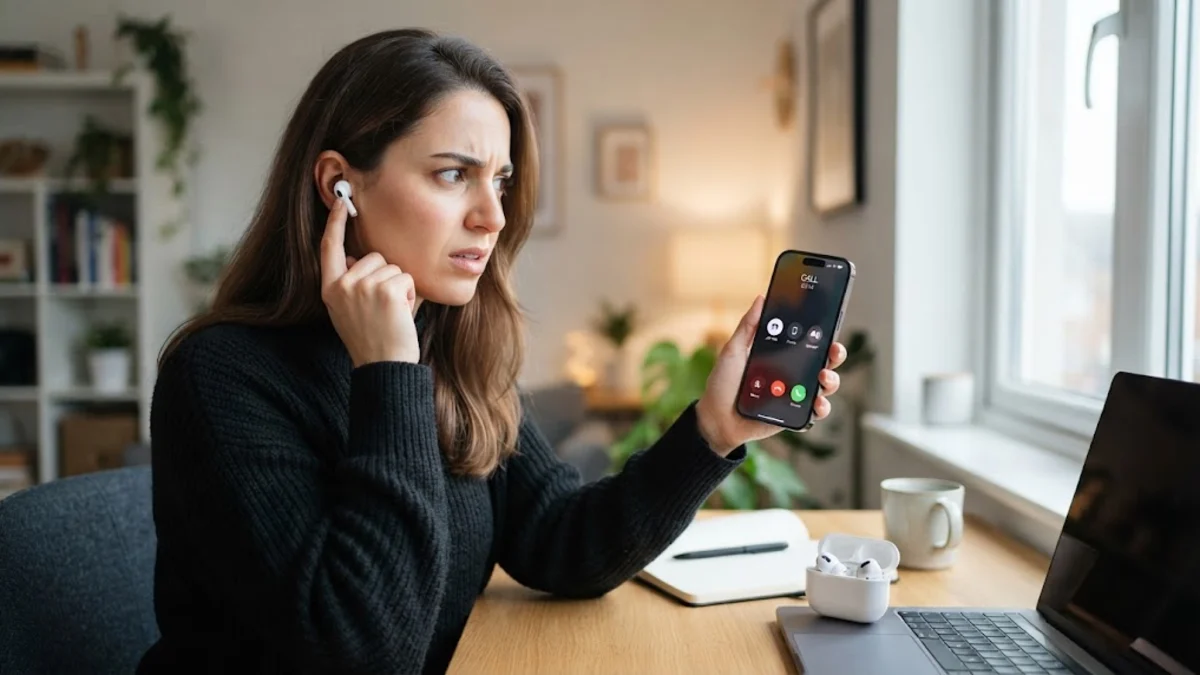
If your AirPods work perfectly when streaming music or podcasts but suddenly cut out, go silent, or distort the moment you answer a phone call, you are dealing with a distinct audio routing or microphone failure. During standard media playback, AirPods operate in a high-bandwidth listening mode, but incoming and outgoing phone calls force them to engage bi-directional Bluetooth profiles that activate the dual beamforming microphones simultaneously.
When your AirPods are not working on calls, the culprit is usually an audio routing conflict, blocked microphone ports on the stems, or an iOS Bluetooth handshake error. This guide breaks down why call audio fails and walks you through systematic, technician-tested solutions to restore crisp, reliable voice calls.
Why Call Audio Fails on AirPods
Understanding why AirPods fail specifically during calls helps isolate whether the issue is software-based or hardware-related. When you place a cellular call or launch a communication app like FaceTime or WhatsApp, iOS switches the Bluetooth audio codec from AAC (Advanced Audio Coding) to the SCO (Synchronous Connection-Oriented) link. This protocol reserves bandwidth for both real-time voice transmission and two-way audio reception. If either microphone suffers from hardware damage or firmware corruption, the entire voice channel can stall.
Physical obstructions represent another frequent cause. Each AirPod houses a voice microphone at the base of the stem and an acoustic ambient-noise port higher on the casing. Lint, earwax, and pocket debris frequently clog these fine meshes. When iOS detects that the primary microphone cannot register clear acoustic input, noise-suppression algorithms can aggressively mute the channel, causing the person on the other end to hear dead silence or choppy robotic audio.
Verify In-Call Audio Routing and Control Center
A common mistake when answering incoming calls is tapping the green button directly on the iPhone screen rather than pressing the AirPods stem sensor. When you answer directly from your phone screen, iOS frequently defaults the voice channel to the handset earpiece rather than routing it through your connected earbuds.
During an active call, inspect your screen to confirm the current output route:
- Look at the audio source button on the active phone call screen. If it displays an iPhone or speaker icon instead of a Bluetooth emblem, tap it and select your AirPods from the list.
- To make sure all calls automatically route to your AirPods whenever they are in your ears, open Settings > Accessibility > Touch > Call Audio Routing. Change the setting from Automatic to Bluetooth Headset.
If you use third-party apps such as Microsoft Teams, Zoom, or WhatsApp, swipe down from the top-right corner of your screen to open Control Center, tap the small AirPlay audio icon in the media module, and explicitly check your AirPods as the designated sound destination.
Clean the Stem Microphones and Acoustic Ports
Clogged microphone grilles are the leading cause of callers stating they cannot hear you. Even microscopic layers of pocket lint or body oils can mute the beamforming microphones positioned at the bottom tips of the AirPods stems, as well as the noise-canceling vents along the sides.
Follow these safe cleaning steps to restore acoustic clarity without damaging sensitive internal membranes:
- Use a dry, soft-bristled brush (such as an unused toothbrush) to gently brush outward across the microphone mesh at the bottom of each stem.
- Lightly dampen a cotton swab with 70% isopropyl alcohol—making sure it is not dripping wet—and carefully wipe the exterior metal ring and grilles.
- Never insert metal needles, toothpicks, or pointed safety pins into the acoustic openings, as doing so can puncture the delicate protective mesh and permanently destroy the microphone transducer.
Isolate the Microphone to One AirPod in Settings
By default, iOS sets the AirPods microphone to switch automatically between the left and right earbud based on which one provides the clearest signal. However, if one earbud suffers from a failed microphone, a drained internal battery, or an acoustic block, the automatic switching routine can lock onto the defective earbud and drop call audio entirely.
You can identify whether one specific microphone is causing the malfunction by manually locking input to a single side:
- Place both AirPods in your ears and connect them to your iPhone.
- Open Settings > Bluetooth and tap the More Info button (the i icon) next to your AirPods.
- Scroll down and tap Microphone.
- Select Always Left AirPod, then place a test phone call or record a sample in the Voice Memos app to check your voice clarity.
- Repeat the test after switching the setting to Always Right AirPod.
If your voice sounds crisp on one side but silent or muffled on the other, you have isolated a hardware issue on that individual AirPod, allowing you to keep the functioning side locked until you can arrange service.
Unpair and Factory Reset the AirPods
Corrupted Bluetooth cache files or mismatched firmware states between the two earbuds can prevent the bi-directional audio channel from opening properly during phone calls. Performing a full hardware reset clears stored pairing keys and forces the earbuds to re-establish a pristine connection with your device.
To execute a clean reset:
- Open Settings > Bluetooth on your iPhone, locate your AirPods, tap the i icon, and select Forget This Device. Confirm your choice.
- Place both AirPods inside their charging case and close the lid. Wait at least 30 seconds.
- Open the lid of the charging case. Press and hold the circular setup button on the back of the case (or double-tap the front capacitive touch zone on newer case models).
- Continue holding the button for roughly 15 seconds until the status light flashes amber, followed by continuous flashing white.
- Bring the open case close to your unlocked iPhone and tap Connect on the pairing prompt that appears on your screen.
Reset Network Settings and Verify App Permissions
If the AirPods function during standard cellular calls but fail inside communication tools like WhatsApp, Slack, or Zoom, the issue stems from iOS privacy permissions rather than the hardware itself. Without explicit permission, these applications can output incoming sound to your ears while completely blocking microphone input.
To verify access, open Settings > Privacy & Security > Microphone. Scroll down the list of installed apps and ensure the toggle next to your specific calling application is turned on (green).
If call audio continues to drop across all apps and regular cellular lines, lingering network glitches in the iOS telephony and wireless stacks might be responsible. You can clear these without losing personal data by navigating to Settings > General > Transfer or Reset iPhone > Reset > Reset Network Settings. Note that this step removes saved Wi-Fi passwords and paired Bluetooth profiles, so you will need to re-enter your Wi-Fi credentials afterward.
The bottom line
When AirPods cut out or refuse to transmit audio on phone calls, resolving the problem usually comes down to setting explicit Call Audio Routing, cleaning the stem microphones, or isolating a failing microphone in settings. Taking a few minutes to reset the connection or reassign microphone control ensures your voice comes through clearly on every cellular and VoIP call.
Frequently asked questions
Why can people not hear me on calls, but Siri understands me?
Siri uses short voice bursts and can capture commands using ambient noise microphones, whereas phone calls require a continuous, high-bandwidth bi-directional connection from the bottom stem microphones. If the bottom ports are clogged with lint or the call audio profile fails to engage, callers will hear silence even if Siri still processes quick phrases.
Does Voice Isolation mode affect AirPods during phone calls?
Yes. When enabled, Voice Isolation filters out ambient environmental noise to prioritize your voice. However, if your stem microphones are partially obstructed, the algorithm may mistake your voice for background noise and cut out audio. During an active call, swipe down to open Control Center, tap Mic Mode, and try switching between Standard and Voice Isolation to see which delivers better clarity.
Can low AirPods battery cause call audio to cut out?
Yes. Bi-directional calling consumes significantly more power than passive music playback. When an AirPod battery drops below roughly 15%, the system may automatically shut down the microphone or drop the connection to conserve remaining energy for audio playback.
What should I do if only one AirPod works on phone calls?
Place both earbuds in the case and inspect the battery levels to ensure both are charging. Next, open Settings > Bluetooth > your AirPods > Microphone and verify that the setting is on Automatically Switch AirPods. If one earbud's microphone has sustained physical moisture or drop damage, lock the setting to the undamaged earbud.