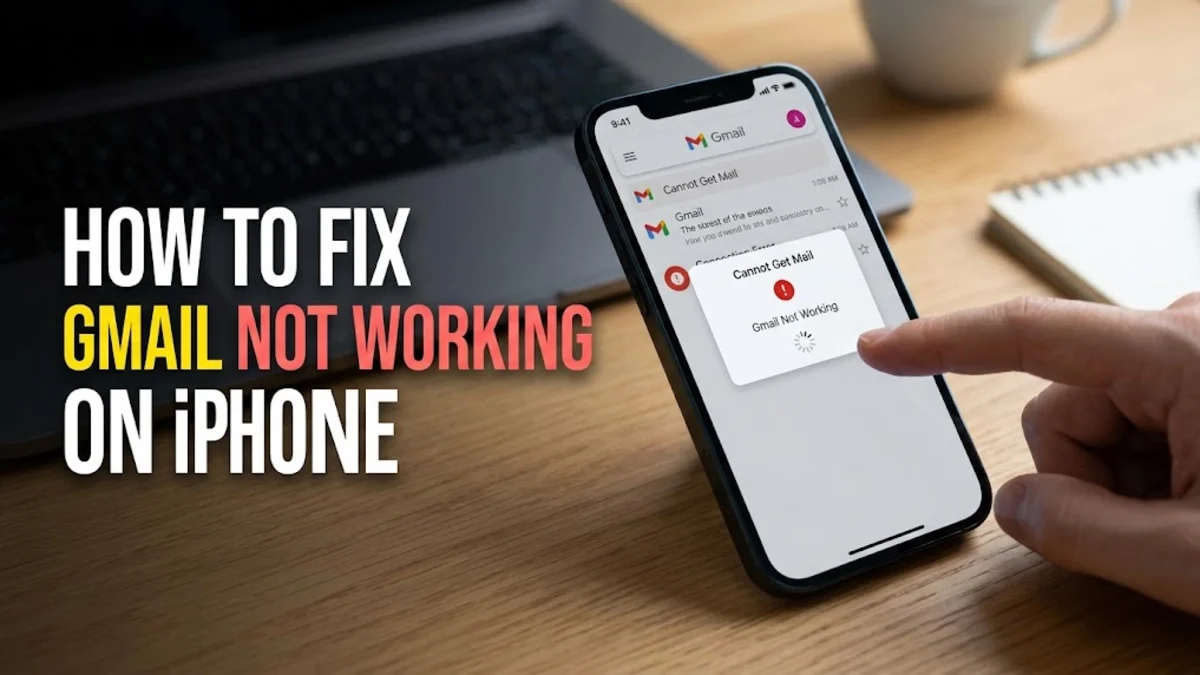
When Gmail stops working on your iPhone, missing important emails can disrupt your entire day. Whether the app keeps crashing, new messages refuse to load, or notifications completely fail to arrive, fixing the issue is usually straightforward once you isolate the cause.
1Check Your Internet Connection and Network Settings
The most common reason Gmail fails to load new messages on an iPhone is an unstable or restricted internet connection. Before diving into complex troubleshooting steps, verify that your device has a working connection by opening Safari and visiting a website. If you are using Wi-Fi, try switching to cellular data to see if the problem persists. Network congestion or temporary router glitches can block Google servers from communicating with your phone. Sometimes, a simple network reset clears out corrupted configurations that prevent email syncing. To do this, open your iPhone settings, navigate to Settings > General > Transfer or Reset iPhone > Reset > Reset Network Settings. Keep in mind that this will erase saved Wi-Fi passwords, so you will need to reconnect to your wireless network afterward. If you use a VPN or a third-party content blocker, temporarily disable it because these security tools often interfere with Google authentication servers and secure mail ports.
2Force Quit and Restart the Gmail App
Temporary software glitches within the Gmail app itself can cause freezing, infinite loading loops, or sudden crashes. Force quitting the app clears its temporary cache from your iPhone memory and forces it to start fresh upon your next launch. To force quit Gmail on modern iPhones without a home button, swipe up from the bottom of your screen and pause in the middle to open the app switcher. Find the Gmail preview card and swipe it all the way up and off the top of the screen. If your iPhone features a physical home button, double-click the home button instead, then swipe up on the Gmail preview. After closing the app completely, wait about ten seconds before tapping the Gmail icon on your home screen to relaunch it. This gives the application a clean slate to re-establish a secure connection with your Google account and download any pending messages that were stuck in the queue.
3Remove and Re-add Your Google Account
Corrupted account credentials or synchronization tokens are frequent culprits behind persistent Gmail errors on iOS devices. Refreshing your account link by removing and re-adding it often resolves authentication failures instantly. Start by opening the Gmail app, tap your profile picture in the top right corner, and select Manage accounts on this device. Tap Remove from this device under your Google account. Once the account is removed, tap Add account, choose Google, and sign back in using your email address and password. If you manage your Google account through the native iOS Mail app via Settings > Mail > Accounts, select your Gmail account, toggle off the switch for Mail, restart your device, and toggle it back on. This forces iOS to rebuild the database and re-sync all emails, calendars, and contacts without losing any actual server-side data.
4Check Background App Refresh and Notifications
If Gmail works fine when you manually open the app but fails to notify you of incoming messages, your background permissions or notification settings are likely misconfigured. iOS uses Background App Refresh to let apps check for new content while you are not actively using them. To ensure Gmail has this permission, go to Settings > General > Background App Refresh and make sure the master switch is enabled, as well as the individual toggle next to Gmail. Next, check your notification preferences by navigating to Settings > Notifications > Gmail. Verify that Allow Notifications is turned on, and ensure that alerts are enabled for the Lock Screen, Notification Center, and Banners. Additionally, check that your iPhone is not set to Focus mode or Do Not Disturb, which silences incoming alerts and pauses background data fetching for non-urgent apps.
5Update iOS and the Gmail App to the Latest Version
Running outdated software versions on your iPhone can cause compatibility clashes with Google services. App developers frequently release patches to fix bugs and adapt to changes in iOS security protocols. To check for pending updates, open the App Store, tap your profile icon in the top right corner, and scroll down to the available updates section. If Gmail is listed, tap Update next to it. Simultaneously, ensure your operating system is up to date by going to Settings > General > Software Update. Installing the latest iOS version ensures that system-level networking frameworks operate smoothly and reduces the likelihood of background crashes caused by legacy software code.
6Clear App Cache and Reinstall Gmail
When minor troubleshooting steps fail to resolve persistent syncing errors or storage-related glitches, a clean reinstallation of the Gmail app is the most effective solution. Deleting the app removes all local cached files that might have become corrupted over time. Press and hold the Gmail app icon on your home screen, tap Remove App, and then select Delete App to confirm. Head over to the App Store, search for Gmail, and download the official application fresh. Once installed, log back into your Google account. This process guarantees that you are running the uncorrupted binary files and clears out any deep-seated cache errors that regular restarts could not fix.
Frequently asked questions
Why are my Gmail emails not loading on my iPhone?
Emails usually fail to load due to a weak internet connection, incorrect account credentials, background refresh restrictions, or a corrupted app cache. Restarting the app or re-adding your account typically fixes the issue.
How do I force Gmail to sync on my iPhone?
You can force a sync by pulling down on the inbox screen inside the Gmail app. If that fails, check your internet connection, ensure Background App Refresh is enabled, or remove and re-add your Google account.
Will I lose my emails if I delete the Gmail app from my iPhone?
No. All your emails are stored safely on Google's cloud servers. Deleting and reinstalling the app only clears local cached files on your device and will not delete your actual messages.
Why am I not getting Gmail notifications on my iPhone?
Check your iPhone notification settings by going to Settings > Notifications > Gmail and ensure alerts are allowed. Also, make sure Background App Refresh is turned on and your phone is not in Focus mode.