Why Is My Gemini Lagging and How to Fix It
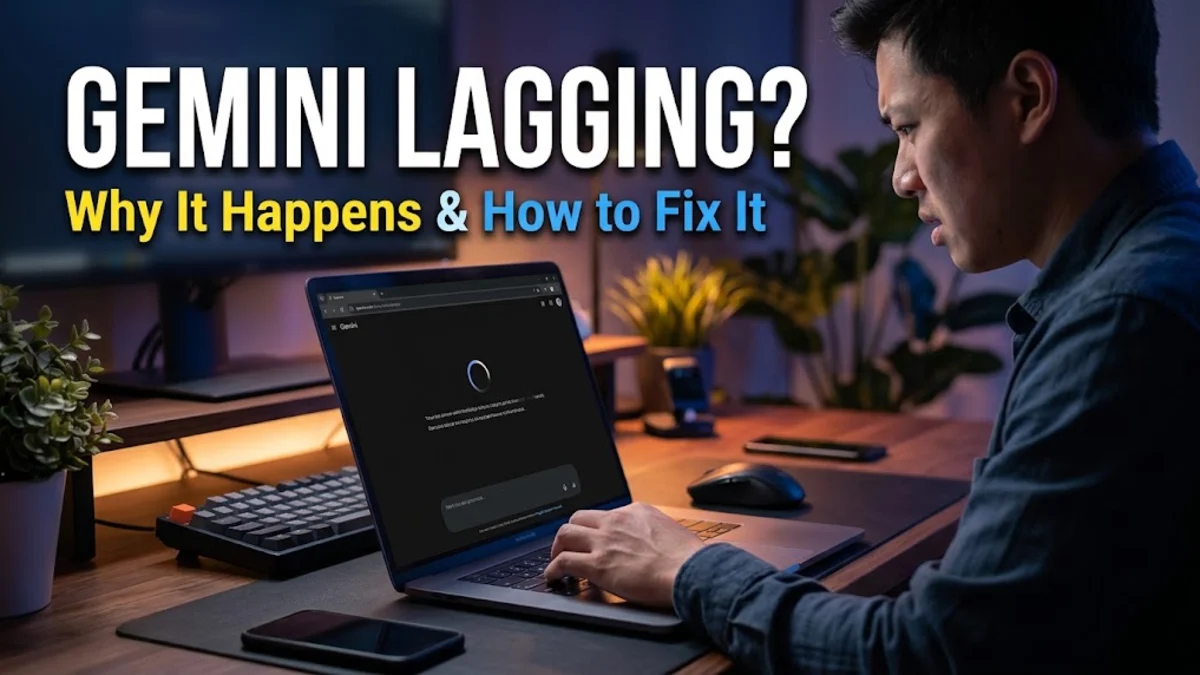
In this guide, we will explore the primary reasons behind AI generation delays and provide actionable troubleshooting steps to resolve them effectively, whether you are using the web version or the mobile app.
Checking Your Internet Connection and Network Stability
If you are using a cellular data connection on your mobile device, weak signal strength can severely hinder performance. Moving closer to a window or switching from mobile data to a stable Wi-Fi network frequently resolves these communication delays. Additionally, disabling any active VPN services can help, as routing your traffic through distant servers often introduces unnecessary latency that slows down real-time text generation significantly.
Clearing Browser Cache and Extension Interference
Furthermore, certain browser extensions such as aggressive ad blockers, privacy shields, or custom script managers can inadvertently block necessary background scripts required by the application. You can test for this by opening an incognito or private browsing window without any extensions enabled. If the service runs smoothly there, disable your extensions one by one in your normal window to identify the specific tool causing the interference and adjust its permissions accordingly.
Managing Conversation History and Active Chats
You should also periodically review and delete older, unnecessary conversation histories from your sidebar. Keeping your workspace clean not only improves application responsiveness but also makes it easier to navigate your past work. If a specific thread becomes unresponsive or stuck during generation, closing that tab or creating a new chat instance will usually bypass the corrupted buffer state entirely.
Updating Your Mobile App or Switch to Web
Using the mobile web interface often provides a more stable experience if a recent app update introduced localized bugs affecting your specific device model. Conversely, if you notice that performance issues persist across both the app and the browser, the problem likely stems from external server-side factors rather than your local installation.
Reviewing Account Status and Google Server Load
Additionally, verify that your Google account is signed in properly and that there are no pending security checks or billing issues if you subscribe to any premium tiers. Logging out of your account entirely, clearing your session cookies, and logging back in can also refresh your user credentials and resolve authentication-related processing delays.
The bottom line
Resolving performance lag in your AI assistant usually comes down to isolating whether the issue stems from your local network, browser cache, or temporary server congestion. By systematically working through these practical troubleshooting steps, you can quickly restore fast and reliable responses for all your daily tasks.
Frequently asked questions
Why is my AI assistant taking so long to generate text?
Delays are usually caused by an unstable internet connection, browser cache issues, overly long conversation threads, or high traffic on the remote servers.
Does clearing browser cache help speed up web applications?
Yes, clearing accumulated cache and temporary files removes corrupted data that can interfere with how web scripts load and communicate with servers.
Will starting a new chat session improve response speed?
Yes, extremely long conversation threads force the system to process excessive context history, whereas new chats reduce processing overhead.
How can I check if the servers are experiencing an outage?
You can check online server status platforms or community forums to see if other users are experiencing identical slowdowns.
Do browser extensions affect application performance?
Yes, aggressive ad blockers or privacy extensions can block necessary background scripts, causing errors or lag.