Why Is My Facebook Account Restricted and How to Fix It
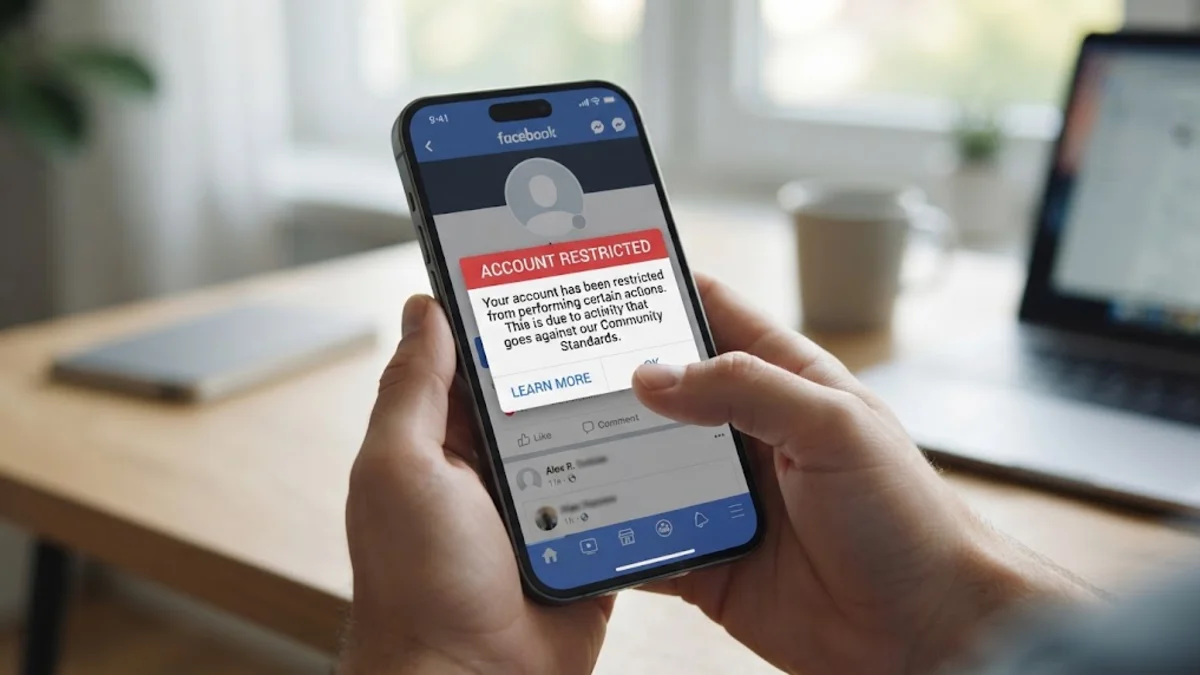
If you opened Facebook only to discover that you cannot post, comment, send direct messages, or run ads, your profile has received an enforcement restriction. Facebook uses automated moderation algorithms combined with human review teams to penalize accounts that trigger spam filters, violate Community Standards, or show signs of unauthorized takeover.
Seeing restrictions placed on your profile can be frustrating, especially when no warning preceded the penalty. Fortunately, most Facebook restrictions are either time-limited or eligible for an administrative appeal. This guide explains why account restrictions happen, how to identify the exact violation on your profile, and the direct steps you can take to appeal the decision and protect your account from permanent suspension.
Understanding Facebook Account Restrictions
A Facebook restriction is an administrative penalty that limits specific actions on your account without completely locking you out of the platform. Unlike an outright account disabling or a security lock, a restricted user can usually log in, browse the News Feed, and read incoming messages, but essential interaction tools remain blocked.
Meta divides account penalties into distinct categories depending on the severity and frequency of the infraction:
- Feature-specific blocks: Prevents you from performing repetitive actions such as sending friend requests, commenting in groups, liking posts, or sharing links for a period ranging from 24 hours to 30 days.
- Advertising restrictions: Revokes your ability to create campaigns, manage ad accounts, or utilize Meta Business Suite, usually triggered by billing anomalies or rejected ad copy.
- Support Inbox violations: Restricts public posting privileges after automated filters flag your content for violating community safety rules.
- Shadow limitations: Temporarily reduces your post reach across feeds and search results due to detected suspicious patterns or rapid behavior changes.
Recognizing the boundary of your specific restriction helps you choose the correct recovery path instead of waiting passively for automated timers to reset.
Primary Causes Behind Account Restrictions
Facebook enforces strict policies designed to maintain platform safety, stop spam networks, and eliminate fraudulent campaigns. In most cases, restrictions result from automated detection bots that flag sudden deviations in regular user habits or content triggers.
| Trigger Type | Common Behavior | Typical Duration |
|---|---|---|
| Rapid Activity | Sending dozens of friend requests or joining multiple groups in minutes | 24 to 72 hours |
| Community Standard Strike | Sharing prohibited media, copyrighted material, or aggressive language | 3 to 30 days |
| Suspicious Sign-in | Logging in via unknown VPN endpoints or conflicting geographic locations | Until verified |
| Commercial Policy | Promoting prohibited goods or repeated ad payment failures | Requires manual review |
Another widespread cause involves compromised credentials. If your account was hijacked by a phishing campaign or malicious browser extension, attackers often deploy automated spam runs across hundreds of public groups before you notice. In those instances, Meta places an emergency safety restriction on your account to prevent further harm across the network.
Check Your Account Status in Meta Accounts Center
Before attempting to fix a restriction, you must find out which rule Facebook believes you broke and whether the enforcement carries an option to appeal. You can inspect your active penalties directly inside your profile settings on desktop or mobile.
To check your restriction status on a computer or mobile browser, navigate through the following path:
- Log in to your Facebook profile and click on your profile picture in the top-right corner.
- Select Settings & privacy > Settings.
- In the left-hand navigation pane, select Account Status (or click your name within Meta Accounts Center).
- Review the active warnings listed on your dashboard. Click on any flagged incident to read the excerpt of the post or message that triggered the penalty.
If the penalty relates to advertising or page management, access Meta Business Support Home (formerly Account Quality) by navigating to business.facebook.com/accountquality. This dedicated dashboard lists ad account bans, policy strikes against business assets, and explicit deadlines for submitting verification documents.
Submit an Official Appeal Through the Support Inbox
If automated moderation mistakenly flagged your genuine content, context, or satire, you can request an administrative review. Facebook provides a formal appeal channel within your private support portal.
Follow these steps to submit a dispute for a personal account strike:
- Click your profile picture in the top menu and select Help & support > Support Inbox.
- Under the Your Alerts section, locate the notification detailing your restriction.
- Open the violation notice and read the stated community rule.
- Click the button labeled See Options or Disagree with Decision at the bottom of the notification.
- Provide any requested clarification or context if a text box is provided, then confirm your submission.
Keep your appeal message concise and objective. Avoid emotional complaints; instead, state clearly that your post complied with community guidelines or explain that the flagged material was educational, artistic, or misclassified by automated language processing filters. Human review queues generally process standard disputes within 48 to 72 hours.
Secure Compromised Credentials and Clear Malicious Sessions
When restrictions arise from unauthorized logins or spam activity executed by third parties, simply requesting an appeal will not solve the underlying problem. Meta will reapply restrictions immediately if the threat actor retains access to your session.
Take immediate steps to secure your credentials through the Meta Accounts Center:
- Go to Settings & privacy > Settings > Accounts Center > Password and security.
- Click on Where you're logged in to see an exhaustive list of all devices and locations currently connected to your profile.
- Select any unfamiliar computer, phone, or location, and click Log Out. If you are unsure, click Select all and log out of every remote session.
- Return to Password and security, select Change password, and establish a fresh passkey or complex passphrase containing uppercase letters, numbers, and symbols.
- Select Two-factor authentication and activate an authenticator app (such as Google Authenticator or Microsoft Authenticator) instead of relying solely on SMS verification codes.
Securing your sessions demonstrates to Meta's security algorithms that the owner has regained control, substantially improving the success rate of any subsequent appeal.
Audit Connected Apps and Disconnect Suspicious Integrations
Rogue third-party applications and outdated social management tools frequently cause automated posting violations that lead to account restrictions. If you linked your Facebook credentials to third-party scheduling platforms, contest entries, or quiz websites years ago, those tokens might still possess posting permissions.
To clean up connected services that could be publishing background requests:
- Open Facebook Settings and scroll down to the Permissions section.
- Click on Apps and websites.
- Examine the list of active third-party platforms with active authorization tokens.
- Identify any app you do not recognize, no longer use, or suspect of unusual activity.
- Click Remove next to each suspect entry, ensuring you also check the box to delete all historical posts and videos published by that application.
After revoking suspect access, clear your browser cache and cookies or reinstall the Facebook mobile app to eliminate lingering authentication states that could interfere with your account rehabilitation.
Best Practices to Keep Your Facebook Account in Good Standing
Once your restriction expires or gets lifted upon review, your account will remain on heightened surveillance by automated detection models for several weeks. Any secondary infraction during this observation window can result in immediate, prolonged, or irreversible disabling.
Adopt these long-term security habits to prevent future account strikes:
- Throttle manual engagement: Avoid adding dozens of new contacts, sending duplicate messages across multiple groups, or repeatedly pasting identical web addresses into comment threads.
- Verify website destinations: Never share affiliate links or shortened URLs that redirect to landing pages flagged for spam or misleading marketing practices.
- Separate personal and commercial activity: Never use a personal timeline to conduct public sales or high-frequency business announcements. Use a dedicated Facebook Page and verified Business Manager asset instead.
- Keep identity documents ready: Ensure the name and birthdate registered on your profile match your government-issued identification to make future identity appeals straightforward.
Treating your account with measured activity following a suspension allows your internal trust score within Meta's security framework to gradually recover.
The bottom line
Experiencing an unexpected Facebook restriction disrupts communication and digital business, but identifying the root cause is the fastest way to regain full utility. Start by checking your Support Inbox and Meta Accounts Center to determine whether the issue stems from an automated content strike or an unverified login. Submit a structured appeal if the strike resulted from an error, secure your authentication protocols, and eliminate unneeded third-party integrations to keep your profile compliant.
Frequently asked questions
How long does a Facebook account restriction usually last?
Most standard community strikes last anywhere from 24 hours to 30 days depending on your profile history. First-time or minor policy warnings typically clear within 24 to 72 hours, whereas repeated strikes or advertising violations require manual appeal review before they are removed.
Can I bypass a Facebook restriction using a VPN?
No. Facebook restrictions are tied directly to your user account ID on Meta servers, not your IP address or physical location. Connecting through a VPN will not remove the limitation and can trigger additional automated security flags due to suspicious location switching.
What should I do if my Facebook restriction appeal is rejected?
If an automated appeal is denied, wait out the remaining duration of the restriction timer without attempting repeated actions that could trigger new penalties. Once the duration expires, remove any questionable past posts and ensure two-factor authentication is active to avoid subsequent strikes.
Why is my Facebook ad account restricted while my profile is active?
Meta enforces separate standards for advertising assets. An ad restriction typically occurs due to unverified business documentation, rejected ad creative, copyright disputes, or billing payment failures. You can address commercial suspensions specifically inside Meta Business Support Home.