How to Backup Your iPhone to iCloud Successfully
In this guide, you will learn how to perform a manual iCloud backup, configure automatic daily backups, manage your cloud storage space, and troubleshoot common errors when your backup refuses to finish. Follow these step-by-step instructions to protect your digital life effortlessly.
Checking iCloud Storage and Connection Requirements
Additionally, reliable backups require a stable Wi-Fi network and a plugged-in power source if you are running automated routines. Cellular data backups are restricted by default on most mobile carriers to prevent unexpected data overages. Connect your device to a fast home or office Wi-Fi network, plug it into a wall charger, and ensure your battery is sufficiently charged before initiating a large manual transfer.
Performing a Manual iCloud Backup Right Now
Follow these steps to back up your iPhone manually:
- Open the Settings app on your home screen.
- Tap on your name and Apple ID profile at the top of the menu.
- Select iCloud from the list of account options.
- Tap on iCloud Backup under the device storage summary.
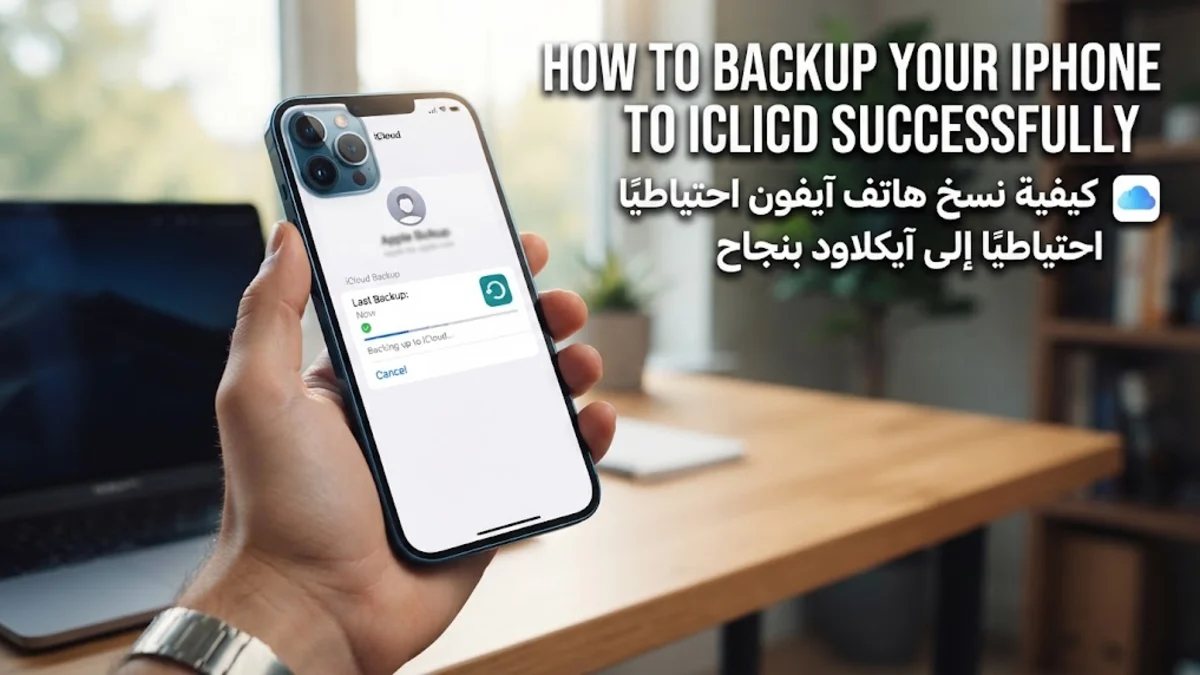
- Tap the blue Back Up Now button and keep your phone connected to Wi-Fi until the progress bar completes.
Depending on your internet upload speed and the amount of data stored on your device, this process can take anywhere from a few minutes to over an hour. Do not toggle off Wi-Fi or restart your phone while the progress indicator is active.
Managing What Gets Included in Your Backup
To adjust your backup contents, go to Settings > [Your Name] > iCloud > iCloud Backup > This iPhone. Here, you will see a comprehensive list of installed applications with toggle switches next to each one. Switch off any heavy apps, such as large document scanners or offline video players, that you do not need restored if you switch devices. This simple adjustment preserves your storage quota and keeps your backup files lean.
Enabling Automatic Daily iCloud Backups
To turn on automatic backups, navigate to Settings > [Your Name] > iCloud > iCloud Backup and make sure the switch for Back Up This iPhone is enabled. For the automatic backup to execute successfully each day, three conditions must be met: your phone must be locked, connected to a stable Wi-Fi network, and plugged into a power source. Most users satisfy these conditions naturally by placing their phone on a nightstand charger every evening before going to sleep.
Troubleshooting Common iCloud Backup Failures
If a simple restart does not resolve the issue, go to Settings > General > VPN & Device Management to ensure no restrictive network profiles are blocking Apple server communication. Another effective troubleshooting step is deleting an older, corrupted backup file from Settings > [Your Name] > iCloud > Manage Account Storage > Backups, and then attempting a fresh backup from scratch.
Restoring Your Data From a Previous iCloud Backup
When you power on a new or freshly wiped iPhone, progress through the initial setup screens until you reach the Transfer Your Apps & Data screen. Select From iCloud Backup, sign in with your Apple ID and password, and choose the most recent backup file from your history list. Keep your device connected to Wi-Fi and power throughout the entire restoration window until the home screen reappears and apps finish downloading their contents in the background.
The bottom line
Backing up your iPhone to iCloud is an essential maintenance habit that protects your personal files from unexpected loss. By configuring automatic daily backups, managing your storage allocation wisely, and knowing how to troubleshoot common upload errors, you can ensure your data is always safe and ready for restoration whenever you need it.
Frequently asked questions
Why is my iCloud backup saying it cannot be completed?
This usually happens due to insufficient iCloud storage space, an unstable Wi-Fi connection, or a temporary glitch with Apple servers. Check your available storage and restart your phone before trying again.
Does iCloud back up my photos automatically?
Yes, if you have iCloud Photos enabled in your iCloud settings, your pictures and videos sync to the cloud continuously, supplementing your main device backup.
Can I back up my iPhone to iCloud using cellular data?
Apple restricts iCloud backups to Wi-Fi by default to protect you from carrier data charges. You can override this on some carriers by checking your cellular settings, but Wi-Fi is strongly recommended.
How do I delete old iCloud backups to free up space?
Go to Settings, tap your name, select iCloud, choose Manage Account Storage, tap Backups, select the old device or backup file, and tap Delete Backup.
What happens if my iCloud storage runs out during a backup?
The backup will pause and fail to complete. You will need to upgrade your iCloud storage plan or delete unnecessary files and app data to free up space.