How to Fix Google Account Problems
Google account problems usually manifest as frustrating sign-in loops, 'Account Action Required' notifications, or sync failures across your devices. Whether you are locked out due to a forgotten password or your Android phone refuses to connect to Gmail, most issues are caused by outdated cached data, incorrect security settings, or minor software glitches in the underlying Google Play Services.
Resolving Sign-In and Password Errors
When you cannot sign in to your Google account, the first step is to verify your credentials on a different device. Often, a keyboard layout error or a stuck Caps Lock key is the culprit. If you are certain the password is correct but the login still fails, the problem may be related to your browser's cookies or a temporary server-side glitch. Start by opening an Incognito window in your browser using Ctrl + Shift + N (or Cmd + Shift + N on Mac) and attempting to sign in at accounts.google.com. If this works, your primary browser profile has corrupted data that needs to be cleared.
If you have genuinely forgotten your password, the only official path is the Google Account Recovery page. In 2026, Google relies heavily on 'Passkeys' and trusted devices. If you are prompted for a verification code and do not have your phone, look for the Try another way link. Common mistakes include attempting recovery from an unrecognized IP address or using a VPN. For the best chance of success, always perform recovery steps from a Wi-Fi network and a device you have used frequently in the past three months. If you lack a recovery email or phone number, Google’s automated system may deny access to protect the account's integrity, making it vital to keep these details updated before a crisis occurs.
Fixing Android Sync and Play Services Issues
On Android devices, a 'Google account problem' often refers to a failure to sync contacts, calendar events, or emails. This is frequently caused by a hang in Google Play Services, which acts as the bridge between your apps and Google's servers. To fix this, navigate to Settings > Apps > See all apps > Google Play Services. Tap on Storage & cache and select Clear cache. If the sync error persists, go to Manage space and select Clear all data. Note that this will reset some preferences, but it will not delete your personal files or emails.
Another common fix for mobile sync issues involves toggling the master sync switch. Go to Settings > Passwords & accounts, tap on your Google account, and select Account sync. Tap the three-dot menu in the top right and choose Sync now. If specific items like 'Contacts' show a sync error icon, try disabling that specific toggle, waiting ten seconds, and re-enabling it. If these steps fail, the most effective 'nuclear' option is to remove the account from the device entirely via Settings > Passwords & accounts > Remove account, then restart the phone and add the account back from scratch. This forces a fresh handshake with Google’s authentication servers.
Troubleshooting Two-Factor Authentication (2FA) Failures
Two-factor authentication is essential for security, but it is a frequent source of account lockouts. If you are not receiving SMS verification codes, the issue is often with your mobile carrier's filtering or a delayed network. In 2026, SMS is considered the least reliable method. If the code doesn't arrive, check if you are logged in to the YouTube app or Google app on any other device; Google often sends a 'Is this you?' prompt to those apps instead of an SMS. Ensure your device has a stable data connection, as these prompts require internet access rather than just cellular signal.
For users who use Authenticator apps or hardware keys, ensure the clock on your device is accurate. 2FA codes are time-based; if your phone’s time is off by even a minute, the generated code will be rejected as invalid. Go to Settings > System > Date & time and ensure Set time automatically is enabled. If you have lost your 2FA device, you must use one of the eight-digit backup codes you were prompted to save when you first enabled 2FA. Professional tip: Always keep a physical printout of your backup codes in a secure location, as Google support agents cannot bypass 2FA for you due to strict privacy protocols.
Correcting Browser and Extension Conflicts
If your Google account works on your phone but fails on your PC, the browser is likely the problem. Extensions, particularly ad-blockers or privacy-focused add-ons, can sometimes interfere with Google's scripts. Disable all extensions via the Extensions menu and try again. If the account page loads correctly, re-enable them one by one to identify the culprit. Furthermore, ensure your browser is updated to the latest version. In 2026, Google services often require modern web standards that older browser versions cannot support, leading to 'Unsupported Browser' errors or broken buttons on the login page.
| Problem Type | Common Cause | Recommended Solution |
|---|---|---|
| Infinite Login Loop | Corrupted Cookies | Clear browser cache and cookies |
| Button Unresponsive | Script Blocker | Disable extensions like uBlock or NoScript |
| 'Wrong Password' (False) | Auto-fill Conflict | Delete saved password in Password Manager |
| Service Unavailable | Server Outage | Check the Google Workspace Status Dashboard |
If clearing cookies doesn't work, check your browser's security level. High-security settings that block all third-party cookies can prevent the Google account 'session' from transferring between Gmail and Google Drive. Adjust your settings to Standard Protection or add [*.]google.com to the 'Allowed to use cookies' list in your browser settings. This ensures that your login persists as you move between different Google services during your workday.
Handling Account Action Required Notifications
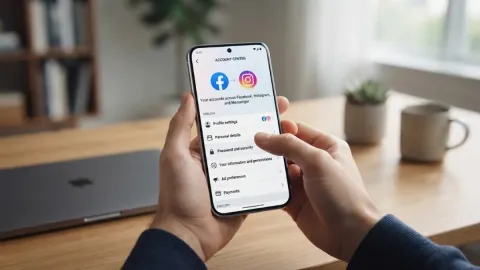
The 'Account Action Required' notification is a common Android error that occurs when there is a mismatch between the device's security token and Google’s servers. This often happens after you change your password on another device. The phone tries to sync using the old password, fails, and triggers the alert. To fix this, tap the notification. It should take you to a sign-in screen where you can enter your new password. If tapping the notification does nothing, go to Settings > Google > Manage your Google Account and check for any red exclamation marks near the security tab.
Sometimes this error is triggered by a security flag, such as an 'unusual login' attempt. Google might require you to verify your identity before allowing the device to sync again. If the notification persists even after signing in, it may be due to a system update that was interrupted. Check for system updates under Settings > System > System update. Ensuring your device is running the latest security patch often clears persistent background authentication errors. If all else fails, clearing the data for the Google Account Manager app in the system apps list will force the notification to reset.
Fixing Storage and Payment Related Lockouts
In 2026, many Google account problems are actually related to Google One storage limits. If your storage is full, you will stop receiving emails in Gmail and won't be able to save new files to Drive. This can look like a technical 'glitch' because the apps may simply stop responding or show vague 'Failed to upload' messages. Check your current usage at one.google.com/storage. If you are over the limit, you must either delete large files (check the 'Discarded files' or 'Spam' folders) or upgrade your subscription. It is a common mistake to overlook Google Photos, which often consumes the bulk of shared account storage.
Additionally, payment failures for Google Workspace or Google One can lead to temporary account suspension. If your credit card expired, Google may restrict access to certain professional features. Navigate to the Payments & subscriptions tab in your Google account settings to ensure your payment method is valid. If your account is part of a family group or a Workspace organization, the administrator might have changed your permissions. In these cases, the 'problem' isn't a bug but a policy restriction that only the account owner or admin can resolve by updating billing info or adjusting user roles.
The bottom line
Fixing a Google account problem usually requires a systematic approach, starting with credential verification and moving toward clearing local app data. By maintaining updated recovery information and utilizing passkeys, you can prevent the majority of login-related issues. If technical glitches persist, remember that removing and re-adding the account on your mobile device is the most reliable way to reset the connection to Google's infrastructure.
Frequently asked questions
Why does Google say my password is wrong when I know it is right?
This is often caused by cached credentials in your browser or a conflict with a password manager. Try typing the password manually in an Incognito window. Also, check if your account was recently recovered or changed, as old devices may still be trying to use the previous password, causing a temporary block.
How do I fix a 'Sync is currently experiencing problems' error?
Go to Settings > Passwords & accounts > [Your Account] > Account sync. Toggle the sync switches off and on. If that fails, clear the cache for 'Google Play Services' and 'Google Services Framework' in your app settings, then restart your device.
Can I recover my Google account if I lost my 2FA phone?
Yes, but you must use your 8-digit backup codes or a secondary recovery method like a backup email. If you have none of these, go to the Google Account Recovery page and answer the security questions as accurately as possible from a device you've used before.
What should I do if my Google account is disabled?
If your account is disabled, you will see a message explaining why when you try to sign in. Usually, there is a 'Request Review' or 'Appeal' button. Click it and follow the instructions. This typically happens due to a violation of Google's Terms of Service or suspicious activity.