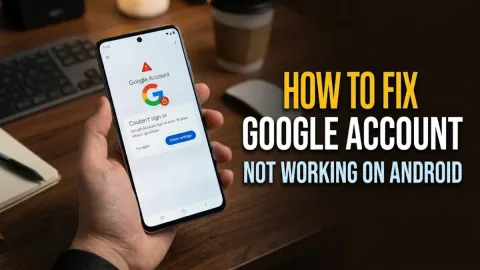
Why Your Google Account Won't Let You Log In
When your Google Account suddenly stops letting you sign in, it usually stems from incorrect password entries, outdated browser data, or triggers from automated security protections. Resolving this issue requires systematically checking your credentials, clearing cached data, and verifying your identity through recovery options to restore access safely.
Check Your Internet Connection and Browser Cache
A blocked login screen or persistent loading loop often starts with a simple network glitch or corrupted browser data. Before changing your password, verify that your internet connection is stable by loading other websites. If pages load slowly or fail entirely, restart your router or switch from cellular data to a stable Wi-Fi network.
Next, corrupted cookies and cached files frequently interfere with authentication tokens. Open your browser settings, navigate to your privacy menu, and clear your browsing data specifically for cached images, files, and cookies. Alternatively, open a private browsing or incognito window and attempt to sign in there. If you can log in successfully via incognito mode, your main browser extensions or accumulated cache files are causing the interference, and disabling extensions one by one will help isolate the culprit.
Verify Your Password and Account Recovery Options
Typing errors remain the most common reason users fail to access their accounts. Double-check your keyboard layout, ensure your Caps Lock key is not accidentally enabled, and type your password into a plain text editor first if you suspect keyboard misbehavior. If you are certain the password is correct but Google still rejects it, your account may require verification through recovery phone numbers or backup email addresses.
Go to the official Google Account recovery page and enter your username. Follow the on-screen prompts to receive a verification code via text message or email. Keep your registered mobile device nearby because Google frequently sends real-time verification prompts that require you to tap a specific number matching what appears on your computer screen. If your recovery phone number is outdated, you will need to answer security questions or use backup codes if you generated them previously.
Approve Two-Step Verification Prompts Properly
If you have two-step verification enabled, failing to approve the secondary prompt will lock you out instantly. When you enter your password, Google often sends a notification to all logged-in smartphones and tablets linked to your account. Ensure your mobile device has an active internet connection so it can receive this push notification immediately.
If push notifications fail to arrive, look for alternative verification methods listed on the login screen, such as receiving an SMS code, using a physical security key, or entering a time-based code from an authenticator app like Google Authenticator. Never ignore network connectivity on your secondary device, as delayed syncing is a primary cause of expired prompts. If you have permanently lost access to your second-step device, select the trial recovery options to prove your identity through alternative verified channels.
Check for Suspicious Activity or Account Suspensions
Google proactively locks accounts when it detects unusual sign-in locations, sudden IP address changes, or behavior that violates its terms of service. If your account has been flagged for suspicious activity, Google will temporarily restrict access to protect your personal data, photos, and emails from unauthorized third parties.
To fix this, log in from a trusted device and location that you use frequently, such as your home computer or primary smartphone. When prompted, complete the security checkup to review recent login sessions and remove any unfamiliar devices. If Google has suspended your account due to a suspected policy violation, you will see a notification detailing the suspension with a link to submit an appeal. Review your recent activity carefully and follow the instructions to request a manual review by Google support staff.
Update Your Device Operating System and App
Running an outdated operating system or an obsolete mobile application can trigger compatibility issues with modern Google authentication protocols. Security certificates and login APIs update regularly, and older software versions may fail to handshake correctly with Google servers during the login process.
On Android or iOS devices, open your device app store, search for Google services, and install any pending updates. For desktop users, update your web browser to the latest stable release by navigating to your browser settings menu and checking for updates. Once your software is completely up to date, restart your device entirely, open the application or browser again, and attempt your login sequence once more to ensure smooth authentication.
Contact Google Support If All Else Fails
When standard troubleshooting steps fail and you remain locked out despite having correct credentials, reaching out through official support channels is your final recourse. Navigate strictly to the official Google Account Help Community or official recovery support portals to submit a formal help request. Avoid any third-party services claiming they can recover your account for a fee, as these are almost always financial scams.
When filing a support request, provide as much accurate information as possible, including your approximate account creation date, previous passwords you remember, and details about the device you usually log in from. Google takes account security very seriously, so manual reviews can take several business days to complete while investigators verify your ownership securely.
The bottom line
Regaining access to your Google Account is usually straightforward when you systematically clear your browser cache, verify your login credentials, and approve security prompts. Keep your recovery phone numbers and backup codes updated to prevent future lockouts and ensure seamless sign-in experiences.
Frequently asked questions
Why does Google keep saying my password is wrong when I know it is correct?
This usually happens due to keyboard layout shifts, accidental Caps Lock activation, or cached authentication tokens in your browser. Try clearing your browser cache or testing your login in an incognito window.
What should I do if I lost my phone and cannot complete two-step verification?
Use one of your printed backup codes if you saved them when setting up security, or select the try another way option on the login screen to use an alternative recovery email or security questions.
How long does a Google Account suspension last?
Temporary security locks usually lift after a cooling period of 24 to 48 hours once suspicious activity stops. If your account is suspended for policy violations, it remains locked until you successfully submit an appeal.
Can I use public Wi-Fi to log into my Google Account?
While possible, public Wi-Fi networks can sometimes trigger automated security blocks due to shared IP addresses. If your login fails on public Wi-Fi, switch to your mobile data network or a trusted secure connection.
How can I prevent getting locked out of my Google Account in the future?
Regularly update your recovery phone number and backup email address, keep backup verification codes in a safe physical location, and ensure your devices run the latest operating system versions.