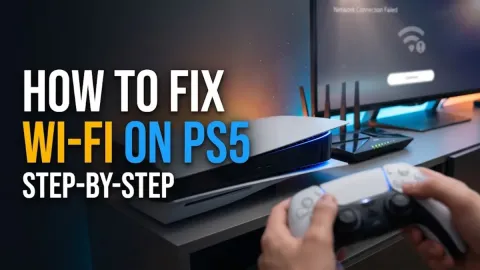
How to Fix Router Issues and Restore Internet

When your home internet drops or slows to a crawl, learning how to fix router issue problems quickly can save you hours of frustration. Most router malfunctions stem from temporary memory glitches, overheating, or outdated firmware that can be resolved without technical expertise.
This guide walks you through a structured troubleshooting process, starting with the fastest and easiest fixes like power cycling, and moving toward advanced solutions such as updating firmware or resetting hardware to factory defaults.
Power Cycle Your Router and Modem
The absolute first thing you should try when troubleshooting any networking glitch is a complete power cycle. Routers operate like small computers running continuous tasks, and their internal memory can occasionally freeze up due to heavy data traffic or background process loops. Unplugging the devices clears their volatile memory cache and forces them to re-establish a fresh handshake with your internet service provider.
To perform a proper power cycle, unplug both your modem and your router from the electrical wall outlet. Wait a full 60 seconds to ensure all residual electrical charge drains completely from the capacitors inside the hardware. Plug the modem in first and wait a minute or two until its indicator lights stabilize, indicating it has acquired a stable upstream signal. Finally, plug your router back in and give it another two minutes to boot up and broadcast your Wi-Fi network properly.
Inspect Physical Cables and Port Connections
Loose, damaged, or incorrectly plugged cables are a frequent culprit behind intermittent dropouts and complete loss of connectivity. Over time, vibrations, pets, or accidental bumps can nudge Ethernet cables or coaxial lines out of place. Even a millimeter of separation can disrupt high-speed data transmission and cause your router to drop its connection repeatedly.
Check every single cable plugged into the back of your router and modem. Ensure the Ethernet cable connecting the modem to the router's WAN or Internet port clicks securely into place. If you use a DSL or cable setup, verify that the telephone line or coaxial cable is tightly screwed or pushed into its respective jack. If a cable looks frayed or bent at an extreme angle, swap it out with a known working cable to rule out physical hardware damage.
Relocate and Optimize Router Placement
If your devices stay connected to the Wi-Fi network but experience abysmal speeds or sudden disconnects, your router placement might be the core issue. Wireless signals degrade rapidly when passing through thick concrete walls, large metal appliances, mirrors, and dense masonry. Placing your router on the floor or tucked away inside a closed TV cabinet severely restricts its broadcast range and traps heat.
Move your router to a central location in your home, ideally elevated on a shelf or desk in an open space. Keep it away from interference-heavy electronics like microwave ovens, baby monitors, and cordless phone bases that operate on similar wireless frequencies. Ensuring adequate airflow around the unit also prevents thermal throttling, which can cause internal components to slow down or crash.
Update Your Router Firmware
Running outdated firmware leaves your network vulnerable to security exploits and performance bugs that manufacturers have already patched. Most modern routers offer web-based administration panels or companion mobile apps that allow you to check for updates with a single tap. Keeping your software current ensures maximum compatibility with modern devices and internet protocols.
Connect a computer or phone to your network, open your web browser, and type your router's default gateway IP address (such as 192.168.1.1 or 192.168.0.1) into the address bar. Log in using the administrator credentials printed on the physical sticker underneath your router. Navigate to the system settings or maintenance menu, locate the firmware update section, and follow the on-screen instructions to download and install the latest available software version.
Perform a Factory Reset
When standard troubleshooting steps fail and your router continues to behave erratically, a factory reset provides a clean slate. This process wipes all customized settings, including your Wi-Fi name, custom passwords, port forwarding rules, and connected device logs, reverting the hardware back to its original out-of-the-box state.
Locate the tiny recessed reset button on the back or bottom panel of your router. Using a paperclip or a SIM ejector tool, press and hold that button down continuously for about 10 to 15 seconds. You will notice the indicator lights flash or turn off entirely, signaling that the reset sequence has initiated. Once the router boots back up, you will need to reconnect to its default Wi-Fi network using the login credentials on the label and set up your preferences again.
Contact Your Internet Service Provider
If you have power-cycled your hardware, checked all physical connections, updated your firmware, and even performed a factory reset without any success, the problem may lie outside your home. Local utility outages, damaged neighborhood line infrastructure, or server issues on your provider's end can completely disrupt service regardless of how well your local equipment functions.
Reach out to your internet service provider's customer support line or check their official mobile app for localized outage notifications. Ask them to run a remote diagnostic test on your line to verify whether your modem is responding properly from their end. If they detect a signal drop on the street or utility pole, they will dispatch a field technician to repair or replace the outside wiring.
The bottom line
Fixing router issues usually comes down to methodical troubleshooting, starting with a simple power cycle and progressing toward firmware updates or hardware resets. By keeping your equipment cool, well-placed, and properly configured, you can maintain a fast and reliable home network for all your daily online activities.
Frequently asked questions
How often should I restart my router?
It is generally good practice to restart your router once a month to clear out cached memory and refresh background processes, helping maintain optimal speed and connection stability.
Why does my router light flash red?
A flashing red light typically indicates that the router has power but cannot establish an internet connection. This usually points to an upstream issue with your ISP or a disconnected cable.
Will a factory reset delete my internet service plan?
No. A factory reset only erases the local configuration settings stored on your router, such as your Wi-Fi name and password. It does not affect your active subscription with your ISP.
Does router placement really affect Wi-Fi speed?
Yes. Physical obstacles like walls, metal objects, and household appliances can block or absorb wireless signals. Elevating your router in a central room maximizes coverage.
What is the difference between a modem and a router?
A modem connects your home to your internet service provider via an external line, while a router takes that internet signal and distributes it to multiple wired and wireless devices in your home.