Why Is My Laptop Not Charging and How to Fix It
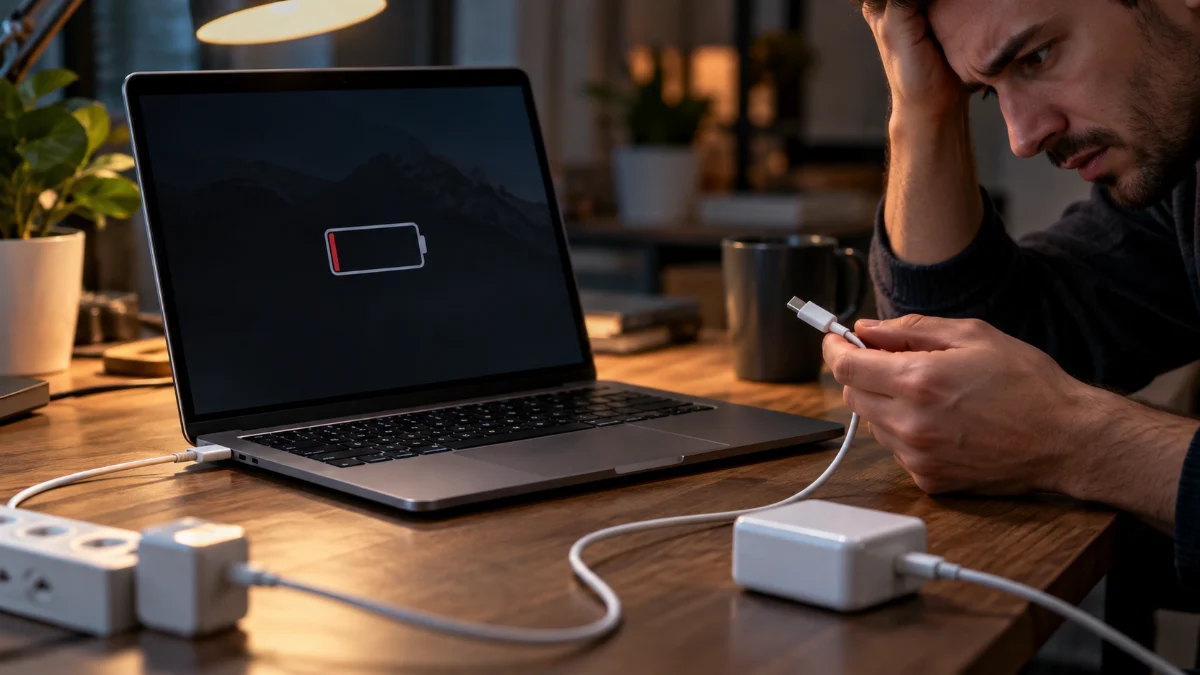
Dealing with a laptop that refuses to charge can bring your workday or gaming session to an abrupt halt. Whether your battery icon shows zero percent or your device completely refuses to power on when plugged in, addressing the root cause quickly prevents further hardware frustration.
Power issues on Windows laptops usually stem from loose physical connections, outdated battery drivers, or temporary software glitches in the power management system. This guide walks you through diagnosing the exact fault and applying proven fixes to get your battery storing energy properly again.
Check Physical Connections and Power Supply
Before diving into complex software troubleshooting or hardware replacements, you should verify all physical connections linked to your power setup. A loose wall outlet, a partially plugged power brick, or a faulty surge protector is frequently the hidden culprit behind a laptop not charging. Unplug both ends of the power cable—the wall adapter and the laptop connection port—and plug them back in firmly to ensure a secure metal-on-metal contact. If you are using a power strip or surge protector, try bypassing it entirely and plugging the charger directly into a standard wall outlet.
Additionally, check whether the power adapter itself is receiving electricity by looking for an LED indicator light on the brick, which is common on modern Windows laptops. If the LED is completely dark while plugged into a working socket, the adapter might be dead or its fuse blown. You can also test the wall outlet with another appliance, like a lamp or phone charger, to confirm that electricity is flowing properly through the electrical circuit in your room.
Inspect the Charging Port and Cable for Damage
Physical wear and tear can severely disrupt power delivery between your charger and your laptop. Carefully examine the entire length of your charging cable for signs of fraying, exposed copper wire, pet chewing, or severe bends. If the cable feels unusually hot near the connector or the power brick during use, disconnect it immediately as it may indicate an internal short circuit. A damaged cable cannot safely or effectively transmit electricity to your device battery.
Next, inspect the charging port on your laptop using a flashlight to look inside the barrel jack or USB-C port. Dust, lint, pocket fuzz, or debris often accumulates inside the port over time, preventing the charger pin from making full contact. If you notice foreign material, gently clear it out using a wooden toothpick—avoid metal objects like paperclips, as they can scratch the internal metal contacts or short-circuit the motherboard. Ensure the connector fits snugly without wobbling excessively.
Perform a Hard Power Reset on Your Laptop
Sometimes the motherboard power management circuit freezes or becomes temporarily unresponsive, causing the system to ignore incoming electrical current from the charger. Performing a hard power reset—often called a flea power drain—clears all residual electrical charge from the laptop's capacitors and resets the embedded controller. To do this, shut down your Windows laptop completely, unplug the power adapter, and disconnect all external USB devices, mice, hubs, and monitors.
If your laptop features a removable battery, slide the release latches and take the battery out. For modern laptops with internal non-removable batteries, simply keep the device disconnected from all power sources. Press and hold down the laptop power button continuously for a full 40 to 60 seconds. This action drains any trapped electrical energy. Afterward, reconnect only the power charger—leave external accessories unplugged for now—and attempt to turn your laptop back on to see if charging resumes.
Update or Reinstall Battery Drivers in Device Manager
Operating system software controls how your Windows laptop communicates with its power hardware. If your battery drivers become corrupted or outdated, Windows might fail to recognize that a charger is plugged in. To fix this, you need to refresh the battery drivers through the Device Manager interface. Right-click the Windows Start button and select Device Manager from the quick link menu. Expand the category labeled Batteries to view your system's power components.
You will typically see two items listed: Microsoft AC Adapter and Microsoft ACPI-Compliant Control Method Battery. Right-click on the Microsoft ACPI-Compliant Control Method Battery entry and choose Uninstall device. Confirm the uninstallation prompt. Next, right-click on the Microsoft AC Adapter and uninstall it as well. Do not worry; this is completely safe. Once both drivers are uninstalled, restart your laptop. Windows will automatically detect the hardware changes upon reboot and reinstall fresh, clean copies of the battery drivers.
Run the Built-In Windows Power Troubleshooter
Windows includes specialized diagnostic utilities designed to identify and automatically resolve common hardware and power configuration errors. The Power Troubleshooter checks various system settings, such as screen timeout durations, sleep configurations, and power plan states that might interfere with normal battery charging behavior. To access this tool, open your system settings by pressing the Windows + I keys simultaneously on your keyboard.
In the Settings window, navigate to System > Troubleshoot > Other troubleshooters. Scroll down the list until you locate the Power option, then click the Run button next to it. Follow any on-screen prompts provided by the diagnostic wizard. If the troubleshooter detects any misconfigured system policies or power management glitches, it will attempt to apply corrective fixes automatically. Restart your machine after the process finishes to verify whether normal charging functionality has been restored.
Check Battery Health and Replacement Options
Rechargeable lithium-ion laptop batteries degrade gradually over hundreds of charge cycles, eventually losing their capacity to hold an electrical charge. If your battery is several years old, it might have reached the end of its operational lifespan. You can check your battery's health status in Windows without installing third-party software. Open the Command Prompt as an administrator by typing cmd in the search bar, right-clicking the result, and selecting Run as administrator.
Type the command powercfg /batteryreport and press Enter. Windows will generate an HTML diagnostic file and save it to your user folder (typically C:\Users\YourUsername\battery-report.html). Open this file in any web browser to review your design capacity versus your full charge capacity. If the full charge capacity is extremely low compared to the original design capacity, or if the report indicates chemical failure, purchasing a replacement battery is the only permanent solution to your charging dilemma.
The bottom line
Resolving a laptop charging issue often starts with basic physical checks like verifying wall outlets and cleaning ports, progressing to driver updates and power resets. By systematically isolating each potential hardware and software variable, you can pinpoint the exact cause and get your Windows laptop back to full power safely.
Frequently asked questions
Can a bad charger prevent my laptop from turning on at all?
Yes. If your charger is completely dead or malfunctioning, and your internal laptop battery is fully drained, the computer will not receive any power to boot up.
Is it safe to use a third-party replacement charger?
It is always recommended to use an official manufacturer-certified charger that matches your laptop model's exact voltage and amperage requirements to avoid damaging the motherboard.
What should I do if my laptop charges very slowly?
Slow charging usually happens when using a lower-wattage power adapter, a weak USB-C port, or when running heavy background applications while plugged in.
Does leaving my laptop plugged in all the time ruin the battery?
Modern Windows laptops feature smart battery management systems that stop charging once the battery reaches 100 percent, preventing overcharging during continuous plugged-in use.
How do I know if my battery needs to be replaced?
If your battery discharges within minutes after unplugging, shuts down unexpectedly while showing a high percentage, or fails the Windows battery health report check, it is time for a replacement.