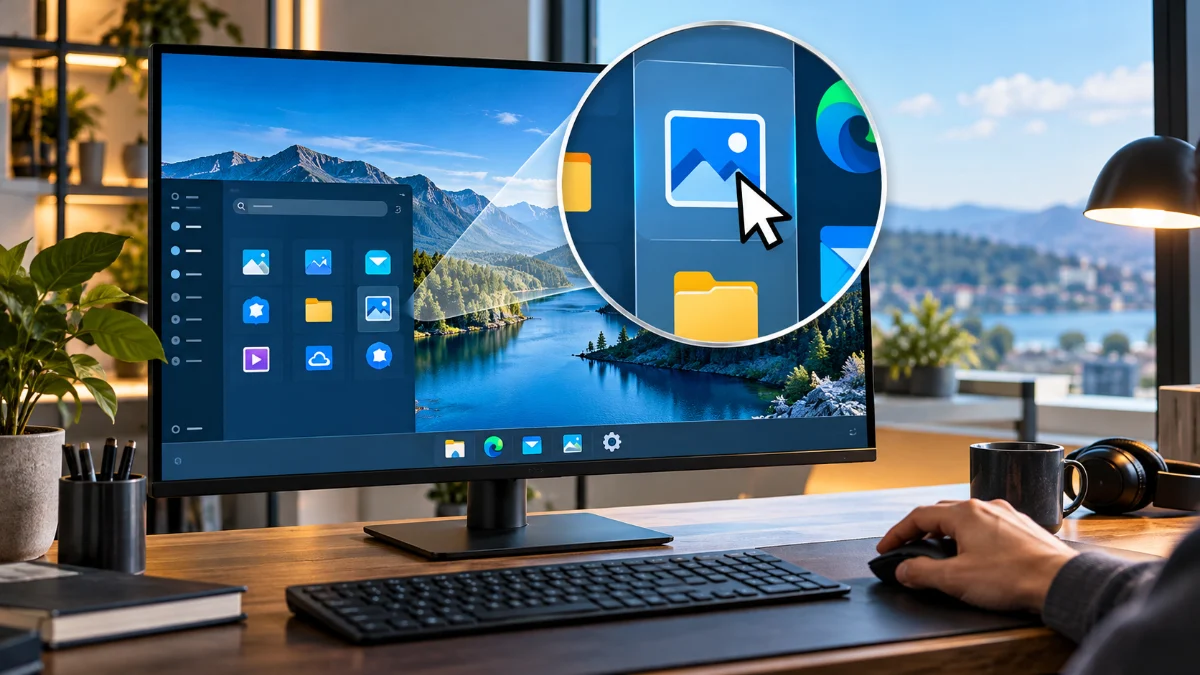
Learning how to zoom in on Windows is one of the most useful skills for improving accessibility and productivity. Whether you are trying to read small text on a high-resolution 4K monitor, examining fine details in a digital photograph, or presenting your screen during a virtual meeting, Windows provides several built-in tools to magnify your view without needing third-party software. Depending on your needs, you can zoom into a specific application window or magnify the entire operating system interface.
There are three primary ways to achieve this: using universal keyboard shortcuts, adjusting your mouse or touchpad settings, or activating the Windows Magnifier tool. Each method serves a different purpose, from quick, temporary zooms in a web browser to permanent display scaling for users with visual impairments. In this guide, we will walk through every method available in the latest version of Windows to ensure you can see every pixel with clarity and ease.
1Using Universal Keyboard Shortcuts and Mouse Controls
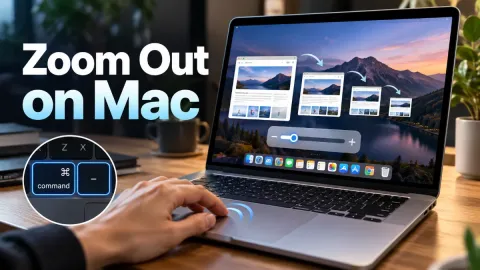
The fastest way to zoom in on Windows within most applications is by using standardized keyboard shortcuts. In almost every web browser like Microsoft Edge or Google Chrome, as well as in apps like File Explorer and Microsoft Word, you can press Ctrl and the + (Plus) key simultaneously to zoom in. To zoom back out, simply press Ctrl and the - (Minus) key. If you find yourself too deep into a zoom and want to return to the standard 100% view immediately, the shortcut Ctrl + 0 will reset the magnification level instantly. These shortcuts are essential for modern computing because they work locally within the app without affecting the rest of your desktop icons or taskbar.
If you prefer using a mouse, you can achieve the same result by holding down the Ctrl key and scrolling your mouse wheel upward to zoom in or downward to zoom out. This mouse-based method is often more precise than the keyboard, as it allows for smaller incremental changes in magnification. For laptop users, Windows precision touchpads support a 'pinch-to-zoom' gesture similar to what you would use on a smartphone. Simply place two fingers on the touchpad and move them apart to zoom in. This is particularly effective in apps like Photos or Maps where you need to navigate through a large visual field. A common mistake users make is accidentally holding the Ctrl key while trying to scroll a webpage, which causes the zoom level to jump unexpectedly. If this happens, remember that Ctrl + 0 is your quickest fix.
2Mastering the Windows Magnifier Tool
For a more powerful, system-wide magnification experience, Windows includes a dedicated utility called Magnifier. This tool is designed to follow your mouse cursor, keyboard focus, or text insertion point, making it perfect for users who need consistent assistance across all menus and applications. You can quickly toggle Magnifier on by pressing the Win + + (Plus) keys. To turn it off, press Win + Esc. Once active, a small control bar appears (which can be minimized), allowing you to change the zoom level and access advanced settings. One of the most useful features of Magnifier is its ability to change 'views'. By pressing Ctrl + Alt + M, you can cycle through three distinct modes: Full Screen, Lens, and Docked.
Full Screen mode magnifies the entire display, following your mouse as you move toward the edges. Lens mode creates a 'magnifying glass' box that follows your cursor, leaving the rest of the screen at its original size—this is ideal for reading small serial numbers or complex code snippets. Docked mode places a magnified strip at the top of your screen while keeping the rest of the desktop normal. To customize how much the zoom jumps each time you press the shortcut, navigate to Settings > Accessibility > Magnifier and look for Zoom increment. You can set this to as low as 5% for smooth transitions or up to 100% for rapid magnification. Additionally, ensure that Smooth edges of images and text is toggled on in the settings to prevent the screen from looking pixelated when zoomed in heavily.
3Adjusting System-Wide Display Scaling
If you find that everything on your screen—including the taskbar, desktop icons, and Start menu—is consistently too small, the best solution is to adjust the system-wide scaling rather than using temporary zoom tools. This is common on modern laptops with high-resolution screens where the native '100%' setting makes text nearly unreadable. To change this, right-click any empty space on your desktop and select Display settings. Under the Scale & layout section, you will see a dropdown menu labeled Scale. Windows usually provides a 'Recommended' percentage, such as 125% or 150%, but you can select a higher value to make everything on your screen appear larger.
It is important to understand the difference between changing the 'Scale' and changing the 'Display resolution'. While lowering the resolution will technically make objects appear larger, it does so by reducing the number of pixels on the screen, which results in a blurry, low-quality image. Scaling, on the other hand, keeps the high resolution but tells Windows to draw the interface elements larger using more pixels. If the preset options in the dropdown aren't quite right, you can click on the Scale arrow to access Custom scaling. Here, you can enter a specific percentage between 100 and 500. Be cautious with custom scaling, as some older applications might not render correctly and could show overlapping text or 'cut off' buttons. If you apply a custom scale and can't see the 'Apply' button to fix it, use the Tab key to navigate the menu or press Win + Esc to exit the menu.
4Zooming in Specific Productivity Applications
While global shortcuts work for many programs, some professional suites like Microsoft Office and Adobe Creative Cloud offer specialized zoom controls that provide more granular control. In Microsoft Word, Excel, or PowerPoint, there is a zoom slider located in the bottom right corner of the status bar. This allows you to slide between 10% and 500% magnification. A pro tip for Word users: if you have a mouse with a scroll wheel, hold Ctrl and scroll to zoom in on specific paragraphs. This is often faster than clicking the UI buttons. You can also go to the View tab in the ribbon and select Page Width, which automatically zooms the document so that the text fills the entire horizontal space of your monitor, making it significantly easier to read without manual adjustment.
In creative applications like Photoshop or specialized CAD software, the standard Windows shortcuts might be overridden by the app's own hotkeys. Often, these apps use the Z key to activate a zoom tool or Alt + Scroll to zoom relative to the mouse cursor's position. For developers using Windows Terminal or Command Prompt, you can zoom the text size independently of the window size by using Ctrl + +. This is particularly helpful when you need to demonstrate code on a projector or screen share. If you ever find that an app's text is blurry after you have zoomed in, it may be because the app doesn't support 'high DPI scaling.' To fix this, right-click the app icon, go to Properties > Compatibility > Change high DPI settings, and check the box for Override high DPI scaling behavior.
5How to Use Magnifier for Reading and Text-to-Speech
Modern versions of the Windows Magnifier tool are more than just visual aids; they now include powerful reading features that can help reduce eye strain. When Magnifier is active, you can use it to read text aloud from almost any window, including websites and PDF documents. To use this, simply click the Play button on the Magnifier toolbar, or use the keyboard shortcut Ctrl + Alt + Enter. Windows will begin reading from the top of the current window, highlighting each word as it goes. This is an incredible tool for multi-tasking or for users who find long-form reading difficult on a bright screen.
You can also customize the reading experience by clicking the Settings (gear) icon on the Magnifier toolbar. Here, you can change the Voice speed and the Voice selection, choosing from several natural-sounding AI voices available in 2026. Another practical shortcut is Ctrl + Alt + Left Click, which tells Magnifier to start reading from the specific word you clicked on. If you are a power user, you can even change the 'Modifier key' for Magnifier commands. By default, it is Ctrl + Alt, but you can change it to the Caps Lock or Insert key in the Accessibility settings to avoid conflicts with other software shortcuts. This level of customization ensures that zooming in doesn't just make things bigger, but actually makes the computer easier to interact with for long periods.
6Troubleshooting Common Zoom Problems on Windows
Sometimes, the zoom functionality on Windows can become 'stuck' or behave unexpectedly. A common issue is when a user accidentally activates Magnifier and can't figure out how to return the screen to normal. If your screen is suddenly huge and moving with your mouse, your first step should always be to press Win + Esc. This is the universal 'kill switch' for the Magnifier tool. Another frequent problem occurs when the desktop icons become massive or tiny. This usually happens because the Ctrl key was held down while the mouse wheel was turned on the desktop. To fix this, click an empty spot on the desktop, hold Ctrl, and scroll the wheel until the icons return to your preferred size, or right-click the desktop and select View > Medium icons.
If you find that your zoom settings aren't saving after a restart, it may be due to a third-party 'display manager' software provided by your monitor manufacturer or a conflicting graphics driver setting. Ensure your graphics drivers are updated by visiting the Device Manager or the manufacturer's website (Intel, AMD, or NVIDIA). Occasionally, Windows might get confused by multiple monitors with different resolutions. If zoom works on one screen but not the other, go to Settings > System > Display and ensure that each monitor has its own 'Scale' value set correctly. For users who see 'fuzzy' text after zooming, running the ClearType Text Tuner (search for it in the Start menu) can help recalibrate the pixels for better legibility at higher magnification levels. This step-by-step optimization ensures that your Windows environment remains sharp and usable regardless of the zoom level.
Frequently asked questions
What is the fastest way to zoom in on a laptop?
The fastest way is using the keyboard shortcut Ctrl + + for specific apps, or Win + + to activate the system-wide Magnifier. You can also use the pinch-to-zoom gesture on your touchpad.
How do I fix my screen if it is stuck zoomed in?
If you are using the Windows Magnifier, press Win + Esc to close it. If your web browser is zoomed in, press Ctrl + 0 to reset the view to 100%.
Why are my desktop icons so large?
This usually happens if you accidentally scrolled your mouse wheel while holding the Ctrl key on the desktop. To fix it, hold Ctrl and scroll down, or right-click the desktop and select View > Medium icons.
Can I zoom in on just one part of the screen?
Yes, use the Windows Magnifier in 'Lens' mode. Press Win + + to start Magnifier, then press Ctrl + Alt + L to switch to the lens view which follows your cursor.
Does zooming in make the screen blurry?
Using application zoom or Magnifier usually keeps text sharp. However, lowering your 'Display Resolution' in settings will make the screen blurry. Use the 'Scale' setting in Display settings instead to keep image quality high.