How to Deactivate Your Facebook Account
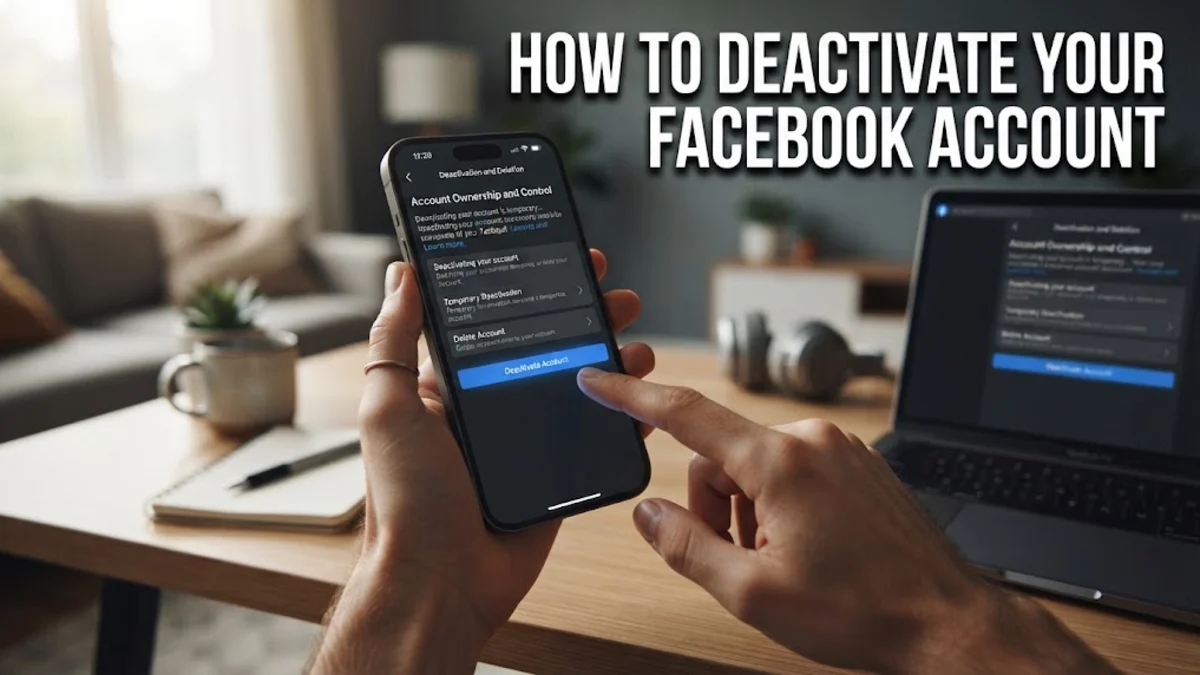
If you want to step away from social media without losing your photos, messages, or friend list, deactivating your profile is the best solution. Deactivating hides your timeline, posts, and name from public searches, giving you total privacy while keeping the door open to return whenever you are ready.
Unlike permanent deletion, which purges your personal records permanently after a grace period, deactivation is reversible at any time. This guide walks you through the exact steps to deactivate Facebook on desktop and mobile through Meta Accounts Center, how to manage Messenger, and how to avoid accidental reactivation.
Deactivation vs. Deletion: Understanding the Differences
Before changing your account status, you must understand how Meta treats deactivation compared to permanent deletion. Deactivating your account places your profile into an inactive state. Your timeline vanishes, your name is removed from most shared posts, and other members cannot search for your profile or view your photos. However, Meta preserves your personal data on secure servers so you can pick up right where you left off if you decide to come back.
Permanent account deletion, by contrast, starts a 30-day countdown after which your profile, photos, comments, and archives are wiped permanently. If you simply need a mental health break, want to minimize your online footprint for job hunting, or wish to restrict data collection temporarily, deactivation is the safer choice.
| Feature | Account Deactivation | Account Deletion |
|---|---|---|
| Profile Visibility | Hidden immediately from everyone | Hidden immediately; deleted after 30 days |
| Messenger Access | Optional (can remain active) | Permanently deleted |
| Data Retention | Photos, posts, and friends saved | All media and posts deleted permanently |
| Reactivation | Instant upon signing back in | Impossible after 30 days |
| Admin Pages | Unpublished if sole administrator | Deleted if no other administrators exist |
Essential Preparations Before You Deactivate
Taking a few precautions before deactivating your account prevents unexpected headaches later. The most critical step involves checking any Facebook Pages or professional groups where you hold admin privileges. If you are the sole administrator of a business Page or community group, that Page will automatically become unpublished and invisible to customers the moment you deactivate your personal profile.
To keep your brand or community active while you are away, assign full admin access to another trusted colleague or secondary profile before proceeding. You should also consider downloading a backup archive of your personal information, which includes your photos, direct messages, and contacts:
- Open Facebook in a browser and navigate to Settings & privacy > Settings.
- Select Accounts Center, then click Your information and permissions.
- Click Download your information and choose Download or transfer information.
- Select the data range you need, pick HTML or JSON format, and confirm your request. Meta will notify you by email when your file is ready to download.
How to Deactivate Facebook on Desktop
Meta manages profile settings through the centralized Accounts Center interface across both desktop browsers and mobile devices. Deactivating through your computer web browser takes less than two minutes once you know where the setting resides.
- Log in to your account at
facebook.comusing your preferred browser. - Click your profile picture in the top-right corner of the screen and select Settings & privacy > Settings.
- In the left sidebar, click the Accounts Center card (or See more in Accounts Center).
- Under the Account settings heading, click Personal details.
- Select Account ownership and control, then click Deactivation or deletion.
- Choose the Facebook profile you want to put on hold.
- Select the radio button next to Deactivate account and click Continue.
- Enter your account password when prompted to verify your identity.
- Choose a reason for leaving from the list provided, configure your email notification preferences, and click Deactivate My Account.
Your screen will log out automatically, confirming that your timeline and public assets are no longer visible to other users.
How to Deactivate Facebook on Mobile (iOS and Android)
If you prefer using your smartphone or tablet, you can complete the deactivation process directly inside the official Facebook app on iPhone, iPad, or Android devices. The interface mirrors the desktop Accounts Center workflow.
- Open the Facebook app on your mobile device.
- Tap the Menu tab (your profile avatar with three horizontal lines) in the bottom-right corner on iOS or top-right on Android.
- Tap the gear icon in the top corner to open Settings & privacy.
- Tap the Accounts Center banner at the top of your screen.
- Under Account settings, tap Personal details.
- Select Account ownership and control, then tap Deactivation or deletion.
- Tap your primary Facebook profile.
- Ensure Deactivate account is selected, then tap Continue.
- Type your current password and tap Continue.
- Select your deactivation reason and review the auto-reactivate settings. Tap Continue, then confirm by tapping Deactivate My Account.
Once finished, the app redirects to the login screen. You can safely remove the app from your home screen or uninstall it without affecting your saved data on Meta servers.
Managing Messenger and Third-Party App Logins
One significant advantage of deactivating rather than deleting your profile is the option to continue using Facebook Messenger. During the deactivation process, Meta asks if you want to keep Messenger active. If you check this option, your friends can still search for your name in Messenger, send private messages, and initiate video calls. Your profile photo remains visible within chat threads, but clicking on it will not lead to an active Facebook timeline.
However, if your goal is complete digital disconnection, you must also deactivate Messenger manually. Open the Messenger app, tap your profile avatar, scroll down to Accounts Center > Personal details > Account ownership and control, and select deactivation for Messenger as well.
Be aware of third-party apps and websites where you selected Log in with Facebook (such as Spotify, Pinterest, or mobile games). Attempting to log into these third-party platforms with your Facebook credentials after deactivation can trigger an automatic reactivation of your Facebook profile. To prevent this, change your login method on those services to an email address and standalone password before you deactivate Facebook.
How to Reactivate Your Account and Prevent Accidental Reopening
Reactivating your profile is intentionally straightforward. Whenever you decide to resume using Facebook, navigate to the login page on a browser or open the official mobile app. Enter your associated email address or phone number along with your password. Once you complete any two-factor authentication prompts, your profile instantly restores all photos, friends, groups, and settings exactly as you left them.
Because reactivation happens automatically upon any successful login, accidental reactivation is common. Common culprits include connected Instagram accounts sharing Accounts Center settings, automated social media schedulers, or tapping a Facebook share widget on an external site while your browser still caches your authentication tokens. To avoid unwanted reactivation, log out of all browser sessions before deactivating and unlink your Facebook profile from Instagram in Accounts Center if you plan to keep using Instagram actively.
The bottom line
Deactivating your Facebook account provides an immediate privacy shield without permanently wiping your memories, connections, or conversations. By managing your Pages in advance, disconnecting third-party site logins, and deciding whether to keep Messenger active, you can take an uninterrupted break from social media on your own terms.
Frequently asked questions
Can people still see my comments after I deactivate Facebook?
Most of your past comments and posts on friends' timelines will disappear while your profile remains deactivated. However, your name may still appear on shared group lists or in direct chat histories as plain text without an active hyperlink to your profile.
How long can my Facebook account remain deactivated?
There is no time limit. Your account will stay deactivated indefinitely until you choose to log back in with your username and password, unless you selected an automatic reactivation window (such as 1 to 7 days) during the setup flow.
Does deactivating Facebook delete my photos and friend list?
No. All of your photos, albums, friend connections, groups, and personal messages are securely stored on Meta servers. Everything is restored immediately once you reactivate your account.
Will my friends know that I deactivated my account?
Facebook does not send notifications when someone deactivates their account. To other users, your profile will simply no longer appear in search results, and your name on existing message threads will appear without a profile link.
Can I deactivate Facebook but keep my Instagram account active?
Yes. While both platforms exist inside Meta Accounts Center, deactivating your Facebook profile does not deactivate your Instagram profile. They are managed independently under the Deactivation or deletion menu.