What Is iPadOS in Storage Explained
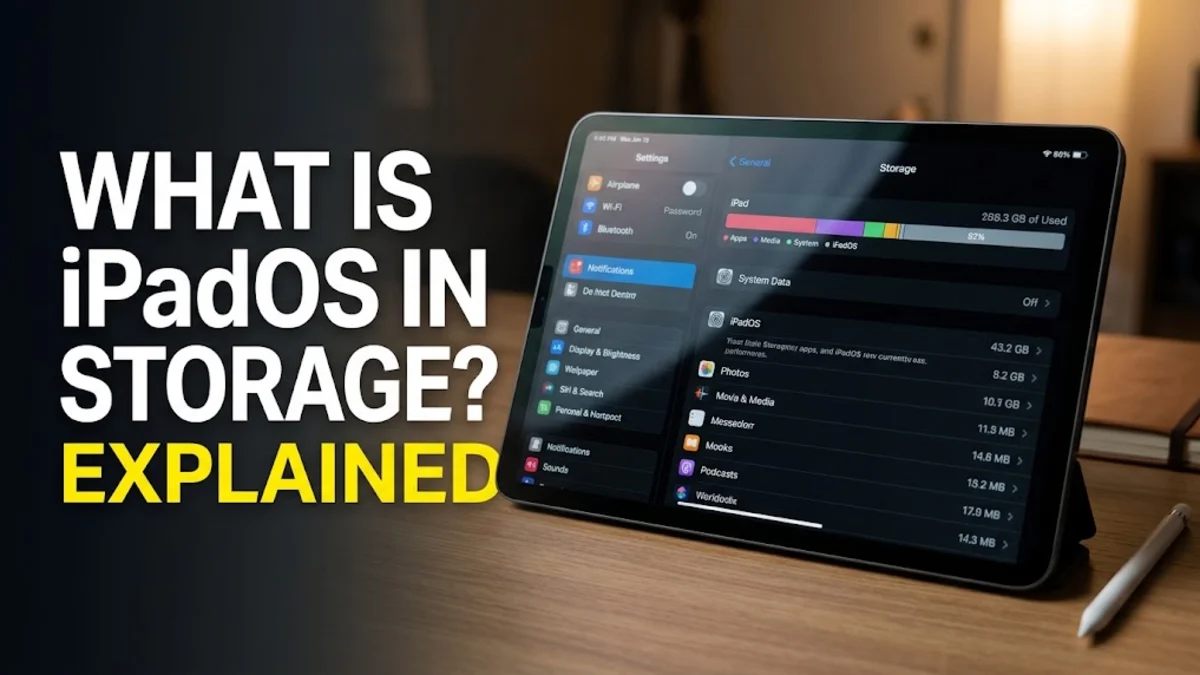
When you check the storage capacity of your tablet, you might notice a category labeled iPadOS taking up a significant portion of your drive. Understanding what iPadOS in storage actually means helps you manage your device capacity more effectively and determine how much space remains for your personal apps, photos, and media files.
This storage segment represents the core operating system software required to run your device, along with associated system files that manage hardware features, user interfaces, and background tasks. While you cannot delete these core files directly, knowing how they interact with your device storage allows you to maintain optimal device performance over time.
Core Operating System Architecture
At its fundamental level, iPadOS is the specialized operating system developed by Apple specifically for tablet hardware. Unlike traditional desktop environments, iPadOS is engineered to balance high performance with energy efficiency, managing touch inputs, multi-tasking windows, graphics rendering, and peripheral connectivity seamlessly. The storage space allocated to iPadOS contains the foundational code that boots your device, controls the display drivers, and provides the security frameworks necessary to protect your personal data from unauthorized access.
When you update your tablet, the installation package replaces older operating system components with newer versions. Because modern tablet features require sophisticated frameworks for augmented reality, machine learning, and advanced multitasking, the physical footprint of the operating system naturally scales with each major software release. This structural requirement ensures your hardware can execute complex background processes without lag or system instability.
Difference Between iPadOS and System Data
It is very common to confuse the dedicated iPadOS storage category with the separate System Data category often displayed right next to it in your settings menu. The iPadOS label strictly accounts for the primary operating system build and essential built-in software assets. In contrast, the System Data category encompasses cached files, Siri voices, downloaded fonts, temporary log files, and persistent browser caches accumulated during daily use.
Knowing this distinction helps you troubleshoot storage warnings more accurately. While the main operating system requirement remains relatively stable until the next software update occurs, the System Data bucket fluctuates constantly based on your browsing habits, streaming activity, and background app refreshes. If your storage is unexpectedly full, examining the System Data segment is usually more fruitful than worrying about the core operating system size.
Why Operating System Storage Varies by Device Model
You might notice that the storage size attributed to iPadOS differs slightly when comparing your tablet to a friend's device or looking across different hardware generations. This variance occurs because Apple tailors the operating system build to match the specific capabilities and hardware architecture of each distinct processor and display configuration. Devices with advanced Neural Engine chips or specialized pro-motion display controllers require specific driver libraries that add to the base software footprint.
Furthermore, local language packs, regional dictionaries, and accessibility profiles installed on your device contribute to the overall software volume. When you configure your tablet for a specific region during initial setup, the system provisions localized frameworks that remain embedded within the core operating system storage allocation to ensure instantaneous response times for localized features and text prediction engines.
How to Check Your Detailed Storage Breakdown
Reviewing your exact storage allocation requires navigating through the native configuration menus on your tablet. To view this information, open Settings, select General, and then tap on iPad Storage. At the top of this screen, you will see a color-coded horizontal bar representing your total capacity utilization divided among apps, media, system software, and miscellaneous data categories.
Below this visual graph, the system displays a comprehensive list of all installed applications sorted by the amount of storage space they consume. Tapping on any individual app reveals options to either offload the application to save space while keeping personal documents intact or delete the application entirely. Reviewing this list regularly allows you to identify heavy resource consumers and reclaim valuable megabytes.
Effective Methods to Reclaim Device Capacity
Although you cannot uninstall or directly shrink the core iPadOS storage block, you can aggressively manage other areas of your device to ensure you never run out of room. Clearing Safari website data, deleting offline streaming media, and purging old message attachments are proven methods to recover significant storage space quickly. You should also audit your downloaded document folders and remove unused third-party utilities that accumulate hidden cache files.
Another highly effective technique is utilizing cloud storage solutions like iCloud Drive or third-party cloud services to offload large media libraries. By enabling optimized storage settings for photos and documents, your tablet automatically keeps miniature previews locally while storing full-resolution masters securely in the cloud, keeping your internal drive clear for essential tasks and smooth operating system execution.
Impact of Software Updates on Storage Management
Keeping your tablet updated is essential for security and feature enhancements, but major updates temporarily require extra breathing room during the installation process. When downloading a new version of the operating system, the device needs sufficient free space to unpack compressed installation archives before replacing older system files. If your storage is completely maxed out, the update process will pause and prompt you to temporarily remove non-essential apps.
Once the installation finishes successfully, the temporary unpacking files are automatically purged by the system, often resulting in a slight net gain in available free space compared to what you had right before starting the update. Planning ahead by maintaining at least ten gigabytes of free headroom ensures your device can process routine security patches and minor maintenance releases without interruption.
The bottom line
The iPadOS storage category is a vital, non-negotiable component that keeps your tablet secure, responsive, and fully functional. By understanding what makes up these system files and learning how to manage your remaining device capacity through regular cleanups and cloud integration, you can maintain optimal tablet performance for years to come.
Frequently asked questions
Can I delete the iPadOS storage category to free up space?
No, you cannot delete or uninstall the core iPadOS storage category because it contains the essential operating system files required to run your tablet hardware and user interface.
Why does the iPadOS file size increase over time?
The operating system footprint grows as Apple introduces new frameworks, security protocols, and advanced hardware features through major software updates designed for modern tablet models.
What is the difference between iPadOS storage and System Data?
iPadOS storage holds the core operating system and built-in apps, whereas System Data includes temporary caches, system logs, browser data, and background download files.
How much free storage should I keep on my iPad?
It is recommended to keep at least 10 to 15 percent of your total storage capacity free to allow the operating system to process background tasks, cache files, and software updates smoothly.
Does resetting my iPad reduce the size of the iPadOS storage?
Performing a factory reset removes accumulated temporary files and can slightly optimize overall storage distribution, but the base operating system footprint will remain largely the same.