How to Fix AirPods Not Working on One Side
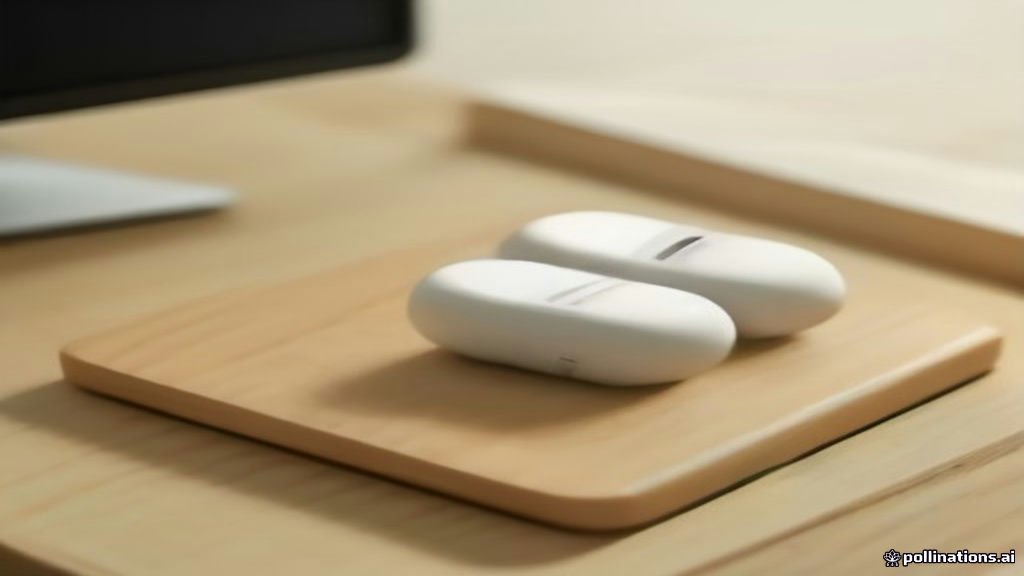
When your AirPods are not working on one side, the problem is usually caused by a drained battery, dirty charging contacts, an uncentered stereo balance setting, or a temporary Bluetooth desync between the two earbuds. In most cases, you can restore sound to both ears within minutes without booking a repair appointment.
This troubleshooting guide walks you through the proven fixes from quickest to most comprehensive. Whether you use AirPods 4, AirPods Pro, or an earlier model, follow these steps to get both earbuds working in sync again.
Why One AirPod Stops Playing Audio
AirPods operate as two separate wireless receivers that communicate independently with your charging case and host device before syncing into a stereo pair. Because each earbud manages its own battery cell and Bluetooth radio, a minor failure on one side immediately leaves you with audio in only one ear.
The most common underlying causes include:
- Uneven battery drain: One earbud may have lost contact with the charging pins inside the case, remaining completely drained while the other is at 100%.
- Pocket lint and debris: Compacted dirt at the bottom of the charging case prevents the silver contact rings at the base of the stem from drawing current.
- Shifted stereo balance: An accidental adjustment in iOS Accessibility settings can route 100% of the audio channel to the left or right ear.
- Bluetooth handshake errors: The primary earbud connects to your iPhone, but the secondary earbud fails to sync to the primary channel.
Step 1: Check Battery Status and Charging Contacts
The first item an experienced technician checks is whether the non-working AirPod is simply out of power. Open your AirPods charging case next to your unlocked iPhone while keeping both earbuds inside. Wait for the animated battery card to appear on your display. If one earbud displays an empty battery icon or fails to show up next to the working side, it is not charging.
Take the silent AirPod out of the case, inspect the metallic contacts at the very bottom of the stem, and reinsert it firmly. Ensure you feel the magnetic pull snap the earbud into place. Check the status light on the case: it should amber-pulse or flash to indicate that charging has engaged. Leave both earbuds inside the closed case connected to a verified charger for at least fifteen minutes before testing them again.
Step 2: Clean the Stem Contacts and Charging Wells
Dust, skin oils, and pocket lint frequently settle at the bottom of the case charging wells. This creates an invisible barrier between the gold spring pins in the case and the silver contact band at the base of the AirPod stem, preventing that specific earbud from charging or waking up.
To clean them safely without damaging sensitive hardware, follow these guidelines:
- Use dry materials only: Never use water, liquid cleaners, or isopropyl alcohol directly inside the charging wells, as moisture can short-circuit the internal charging circuit.
- Clean the well: Use a dry, lint-free cotton swab (Q-tip) to gently swab the bottom cavity of the affected charging slot. Lightly rotate it to loosen compacted debris.
- Wipe the stem: Clean the contact surface on the bottom of the AirPod stem using a dry microfiber cloth. Avoid sharp metal needles or paperclips, which scratch the plating and cause permanent charging resistance.
- Clear the speaker mesh: Inspect the earbud speaker grilles. Heavy earwax buildup can muffle the sound so severely that the earbud seems dead, even when it is fully connected and active.
Step 3: Verify the Audio Balance in iOS Settings
Sometimes both AirPods are charged, connected, and operating normally, but your iPhone is instructed to send no sound to one side. iOS includes accessibility controls for hearing balance that can accidentally slide all the way to one channel during system updates or accidental screen touches.
To inspect your balance slider on your iPhone or iPad:
- Open Settings.
- Scroll down and tap Accessibility.
- Under the Hearing section, tap Audio & Visual.
- Look at the Balance slider. The marker must sit exactly in the middle at 0.00. If the slider is pushed toward L or R, drag it back to the exact center.
- While on this screen, ensure Mono Audio is toggled to your preferred state. If you are testing stereo audio, leave it turned off.
Step 4: Perform a Full Factory Reset of Your AirPods
If the battery is charged and the balance is centered, the two earbuds likely suffered a firmware desynchronization. A full factory reset clears the saved pairing memory on the earbuds and forces them to re-establish a synchronized stereo link from scratch.
Follow this exact sequence to complete a clean reset:
- Place both AirPods in their charging case and close the lid. Wait thirty seconds.
- Open the lid of the charging case.
- On your iPhone, navigate to Settings > Bluetooth, locate your AirPods in the list, tap the More Info icon (an "i" inside a circle), and tap Forget This Device. Confirm your choice.
- With the case lid open, press and hold the setup button on the back of the case (or double-tap the front capacitive touch zone on newer AirPods 4 models).
- Hold the button for approximately fifteen seconds until the status light flashes amber a few times, then flashes continuous white.
- Bring the case close to your iPhone and follow the on-screen setup prompts to reconnect.
Step 5: Test on Another Device and Check for Hardware Faults
If one side continues to fail after a complete reset, you need to isolate whether the fault lies within your iPhone or inside the individual AirPod. Pair the AirPods with a Mac, iPad, PC, or another family member's phone. If both sides produce sound on the second device, your primary phone has a stuck audio daemon that requires a forced restart or a network setting reset.
To refresh your iPhone's connection stack, go to Settings > General > Transfer or Reset iPhone > Reset > Reset Network Settings. Keep in mind that this clears your saved Wi-Fi passwords and paired Bluetooth profiles. If the earbud remains completely silent across multiple devices and fails to display a charging icon in the battery widget, the internal lithium battery in that individual earbud has likely failed and requires replacement through Apple Support.
The bottom line
When your AirPods are not working on one side, dirty charging pins, an uncharged bud, or an uncentered audio balance slider are the most frequent culprits. Systematically cleaning the contacts and executing a hardware reset resolves the problem for the vast majority of users. If a single earbud shows zero signs of life across multiple host devices, reach out to an authorized service provider to discuss a single-earbud replacement.
Frequently asked questions
Why does one AirPod battery drain faster than the other?
AirPods designate one earbud as the primary microphone for phone calls and Siri commands. The designated microphone earbud consumes battery significantly faster. You can set the microphone to always use the left or right earbud in your Bluetooth settings to balance wear over time.
Can I replace just one AirPod if it is broken?
Yes. Apple and authorized service centers sell individual replacement left or right AirPods. Once you receive the replacement unit, place both the old and new buds into your existing charging case and perform a factory reset to pair them together.
Why does my iPhone battery widget only show one AirPod?
The battery widget only shows individual percentages when the two AirPods have different battery levels or when one is outside the case while the other is inside. If an AirPod is completely dead or fails to make contact with the charging pins, the case cannot read it, causing it to disappear from the widget entirely.
How do I know if the AirPod charging port is physically broken?
Use a flashlight to look straight down into both charging wells of the case. Each well contains two small metallic contact pins at the base. If a pin is bent, pushed down into the housing, or corroded green, the affected earbud will not be able to draw power.