Why Is Your Android Phone Downloading Apps by Itself
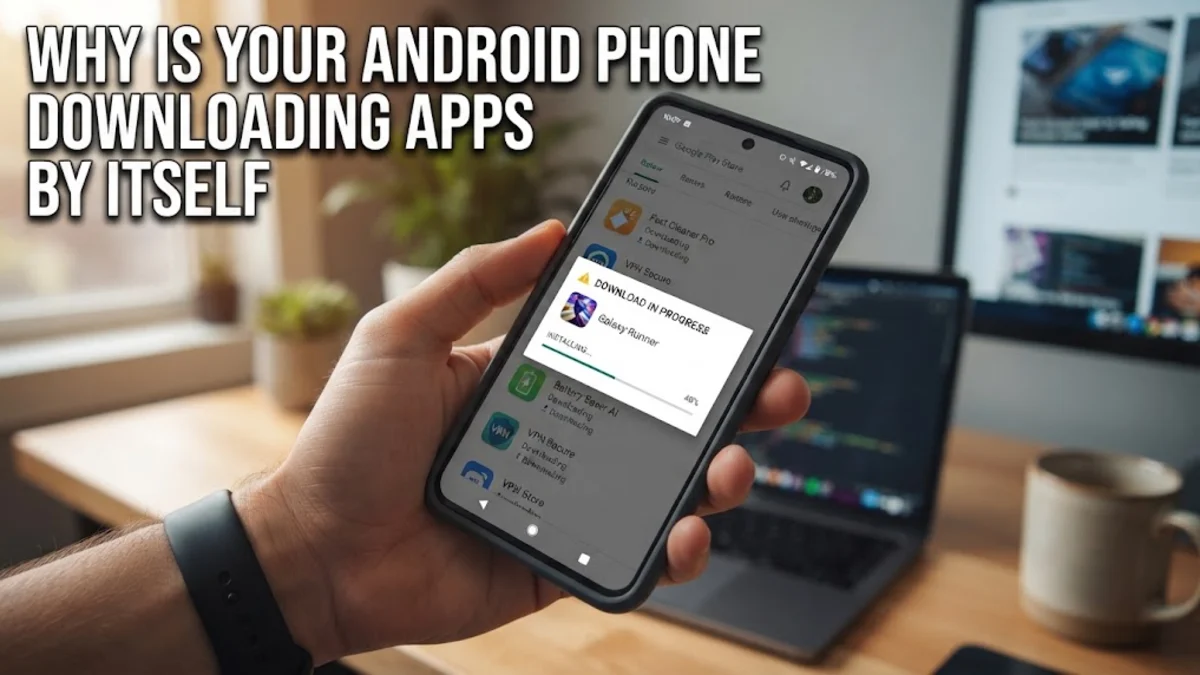
Finding that your Android phone is downloading apps by itself can be alarming and frustrating. It often eats up your mobile data, drains your battery, and clutters your home screen with unwanted software.
Fortunately, this behavior is usually caused by automated settings within the Google Play Store, pre-installed carrier software, or occasionally a rogue application. Understanding the root cause lets you quickly take control and stop unauthorized downloads once and for all.
Check Google Play Store Auto-Update and Install Settings
The most common reason an Android phone downloads apps without your explicit command is that the Google Play Store is configured to automatically install updates or recommended applications. When background updates are enabled, Google Play may pull down new versions or companion apps whenever your device connects to Wi-Fi. To fix this, you need to adjust your Play Store preferences directly within the app interface. Open the Google Play Store, tap your profile icon in the top right corner, and select Settings. From there, tap on Network preferences and look for Auto-update apps. Set this option to Don't auto-update apps to prevent any background installations.
Additionally, check the General section for any promotional or recommendation settings that suggest new tools based on your usage history, and turn those toggles off to ensure complete control over your device storage. Reviewing these options stops Google from pre-emptively queuing up software recommendations that automatically populate your home screen upon installation.
Investigate Third-Party App Stores and Sideloaded Applications
If you frequently download APK files from the web or use alternative app stores like the Amazon Appstore, Samsung Galaxy Store, or third-party repositories, these platforms often run independent background services that install updates or sponsored suggestions automatically. Samsung devices, for example, feature Galaxy Store auto-update settings that operate separately from Google Play. To stop this behavior, open your device Settings, navigate to Apps or Application manager, and locate any alternate store applications you have installed. Check their individual settings menus to disable automatic background downloads and update notifications.
Furthermore, review your browser download history to ensure no malicious scripts or unintended APK files were queued up for installation during recent web browsing sessions. Managing permissions carefully prevents external platforms from triggering silent installations on your phone without your explicit awareness or consent.
Review Carrier Bloatware and Pre-Installed Partner Apps
Many Android phones purchased through mobile network operators come pre-loaded with carrier management software or partner promotional tools. Services like carrier app managers or device setup wizards are frequently programmed to silently download sponsored games, streaming services, and utility apps in the background shortly after a system update or SIM card reinsertion. To stop these carrier-driven installations, open your phone Settings > Apps > See all apps, and look for carrier-specific services such as AT&T App Spotlight, Verizon App Manager, or similar branded software.
Tap on the application, select Disable or Force stop if available, and revoke its background data privileges. Stopping these automated carrier managers permanently halts unwanted promotional installations and helps reclaim valuable internal storage space on your device without impacting your core network connectivity.
Scan for Malware and Rogue Background Services
In some cases, a ghost application or aggressive adware masquerading as a utility tool can trigger automated browser redirects and silent app downloads. If your phone continues to install random applications even after adjusting your store settings, your device may be infected with adware or a rogue background service. Start by booting your phone into Safe Mode, which temporarily disables all third-party apps and helps isolate the source of the behavior. While in Safe Mode, navigate to Settings > Apps and carefully review your installed application list for any unfamiliar names, blank icons, or apps with generic descriptions. Uninstall any suspicious software immediately.
Following this manual inspection, run a comprehensive security scan using Google Play Protect or a trusted mobile security solution to detect and quarantine any lingering malware or unauthorized scripts operating in the background. Ensuring your system security is up to date prevents compromised background services from executing unauthorized payloads.
Clear Google Play Store Cache and Reset App Preferences
Corrupted system cache data within the Google Play Store or Google Play Services can sometimes cause system routines to misbehave, resulting in erratic queue behavior and phantom downloads. Clearing the cached data forces the system to rebuild its operational files and often resolves lingering background glitches. To clear the cache, go to Settings > Apps > Google Play Store > Storage & cache, and tap Clear cache followed by Clear storage. Repeat this process for Google Play Services if necessary to ensure clean execution paths.
After clearing the cache, restart your phone to apply the fresh system state. Finally, you can reset all app preferences by going to Settings > System > Reset options > Reset app preferences, which restores default system behaviors without erasing your personal files, effectively neutralizing any corrupted automation rules or stuck download queues.
The bottom line
Stopping your Android phone from downloading apps by itself is usually a matter of adjusting Google Play Store preferences, disabling carrier bloatware, and auditing installed applications. By following these structured troubleshooting steps, you can secure your device, protect your mobile data, and regain complete control over what software lives on your phone.
Frequently asked questions
Why are random games appearing on my home screen?
Random games usually appear due to carrier bloatware managers, aggressive auto-update settings in alternate app stores, or promotional recommendations enabled in the Google Play Store. Disabling these features stops the automatic installations.
Can a virus cause my phone to download apps automatically?
Yes, aggressive adware or malicious software can trigger automated background downloads to generate ad revenue or push fraudulent software. Running a security scan and checking for unfamiliar apps in your settings will resolve this.
How do I stop Samsung Galaxy Store from downloading apps?
Open the Samsung Galaxy Store app, tap the menu icon or your profile, go to Settings, and turn off auto-update apps and promotional notifications to prevent unwanted background downloads on Samsung devices.
Does disabling auto-updates affect app performance?
No, disabling auto-updates only prevents applications from updating or installing automatically without your permission. You can still manually update your apps whenever you choose through the Google Play Store.
What should I do if apps keep downloading after changing settings?
If unauthorized downloads persist, boot your phone into Safe Mode to check for rogue third-party apps, clear the Google Play Store cache, or perform a factory reset as a last resort after backing up your important data.