Why Is My PC Lagging? How to Fix It
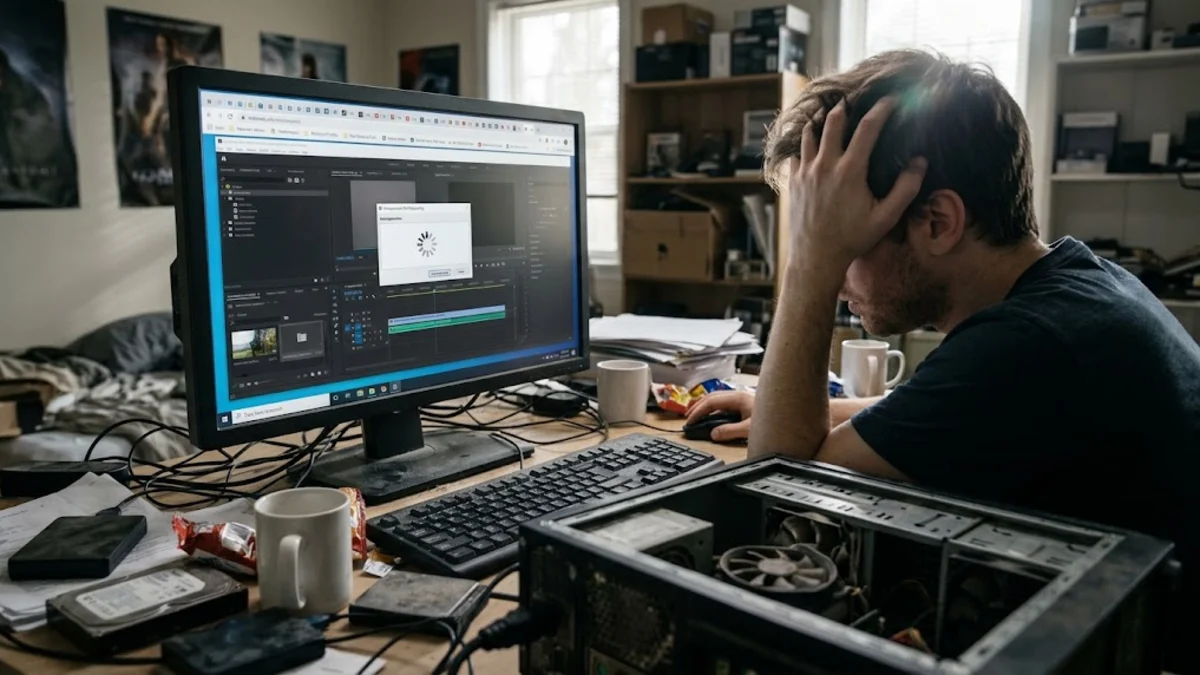
A lagging personal computer can disrupt your daily workflow, delay applications, and cause frustrating system freezes. When your computer suddenly crawls to a halt, it is usually a sign that your hardware resources are overwhelmed or background software is consuming too much processing power.
Troubleshooting PC slowdowns involves systematically identifying the root cause, from memory hogs and outdated drivers to thermal throttling and background malware. By following a structured approach, you can quickly restore your computer to its optimal speed.
Check Resource Usage in Task Manager
When your computer starts lagging unexpectedly, the very first step is to find out which program or process is monopolizing your hardware. Windows includes a built-in utility that gives you a live look at your CPU, memory, disk, and network utilization. Press Ctrl + Shift + Esc on your keyboard to open the Task Manager directly, then click on the More details view if you see a simplified window.
Look at the Processes tab and check the top columns for high percentages. If CPU, Memory, or Disk usage is sitting near 100 percent, identify the specific application causing the spike. You can right-click the misbehaving app and select End task to immediately free up resources. If a core system process is causing the high usage, note its name so you can research whether it requires an update or a specific configuration fix.
Disable Unnecessary Startup Apps
Many applications are configured by default to launch automatically every time you turn on your computer. Over time, as you install more software, dozens of background utilities can start up simultaneously, draining your memory and slowing down your system boot and everyday performance long after you reach the desktop.
To clean up your startup list, open the Task Manager again using Ctrl + Shift + Esc and navigate to the Startup tab. Review the list of applications and look at their Startup impact rating. Right-click any non-essential program, such as game launchers, update helpers, or chat applications that you do not need running immediately, and select Disable. This prevents them from consuming system resources in the background.
Free Up Storage Space and Clean Temp Files
Your operating system relies on free space on your primary drive to manage virtual memory and temporary files. When your hard drive or SSD is nearly full, Windows struggles to perform routine background tasks, resulting in severe lagging and file transfer slowdowns. Keeping at least fifteen percent of your drive completely empty is crucial for smooth performance.
To clear out unnecessary files safely, go to Settings > System > Storage. Turn on Storage Sense to let Windows automatically clean up temporary files and old system data. Alternatively, you can click on Temporary files, review the categories such as previous Windows installations or download caches, and select Remove files to reclaim valuable gigabytes of storage space.
Update Graphics and System Drivers
Outdated or corrupted hardware drivers are a frequent culprit behind sudden system stutters, visual lagging, and poor gaming performance. Graphics card manufacturers regularly release patches that resolve performance bottlenecks, memory leaks, and compatibility conflicts with modern applications and operating system updates.
To check for driver updates, right-click the Start menu and select Device Manager. Expand categories like Display adapters and processors, right-click your hardware device, and choose Update driver. For dedicated graphics cards, it is best to visit the manufacturer's official software suite, such as NVIDIA GeForce Experience or AMD Software, to install the latest game-ready or studio drivers directly.
Scan for Malware and Background Threats
Malicious software, adware, and crypto-mining trojans are designed to hide quietly in the background while stealing your computer processing power for illicit tasks. If your PC lags even when you have few applications open, a background infection might be silently draining your CPU capacity.
Open Windows Security from your system tray or search for it in the taskbar. Navigate to Virus & threat protection and click on Scan options. Choose Full scan for a thorough check of all files and running programs on your storage drives. If the scanner detects any suspicious threats, follow the on-screen prompts to quarantine and remove them safely.
Manage Power Plans and Prevent Overheating
Physical hardware performance can be severely restricted if your computer is running on an improper power profile or suffering from thermal throttling due to dust buildup. When internal components get too hot, your processor automatically slows down its clock speed to prevent permanent hardware damage, causing noticeable lag.
Open the Control Panel and navigate to Hardware and Sound > Power Options, ensuring your power plan is set to Balanced or High Performance rather than Power Saver. Additionally, physically inspect your desktop or laptop vents, clean out accumulated dust with compressed air, and ensure adequate airflow around your device to keep operating temperatures low.
The bottom line
A lagging computer can be frustrating, but identifying the root cause through Task Manager, cleaning up startup apps, and maintaining free storage space will usually restore your PC speed. Regular maintenance keeps your system running smoothly and prevents future slowdowns.
Frequently asked questions
Why is my PC lagging even with high-end specs?
High-end hardware can still lag if background malware is running, drivers are outdated, system storage is completely full, or applications are experiencing memory leaks.
How much free disk space do I need to stop lag?
It is recommended to keep at least fifteen to twenty percent of your primary boot drive free so Windows has enough room for virtual memory paging files.
Does cleaning temporary files actually speed up a computer?
Yes, removing accumulated temporary files frees up disk space and reduces clutter that can slow down file indexing and system search operations.
How often should I update my graphics drivers?
You should check for graphics driver updates every month or whenever a major new video game or software suite update is released.
Can overheating cause my PC to lag?
Absolutely. When processors or graphics cards reach high temperatures, they trigger thermal throttling to reduce speed and prevent damage, causing heavy stuttering.