How to Fix a Loud Laptop Fan on Windows 11
A laptop fan that is constantly loud is usually a sign that your hardware is working harder than it should to dissipate heat. When your processor or graphics card generates heat, the cooling system ramps up the fan speed to prevent thermal throttling or hardware damage. If your fan sounds like a jet engine even during basic tasks, it is likely due to high CPU usage, blocked air vents, or outdated system firmware.
Identify and Close High-Resource Background Processes
Adjust Windows Power and Thermal Modes
Clean the Cooling Vents and Heatsinks
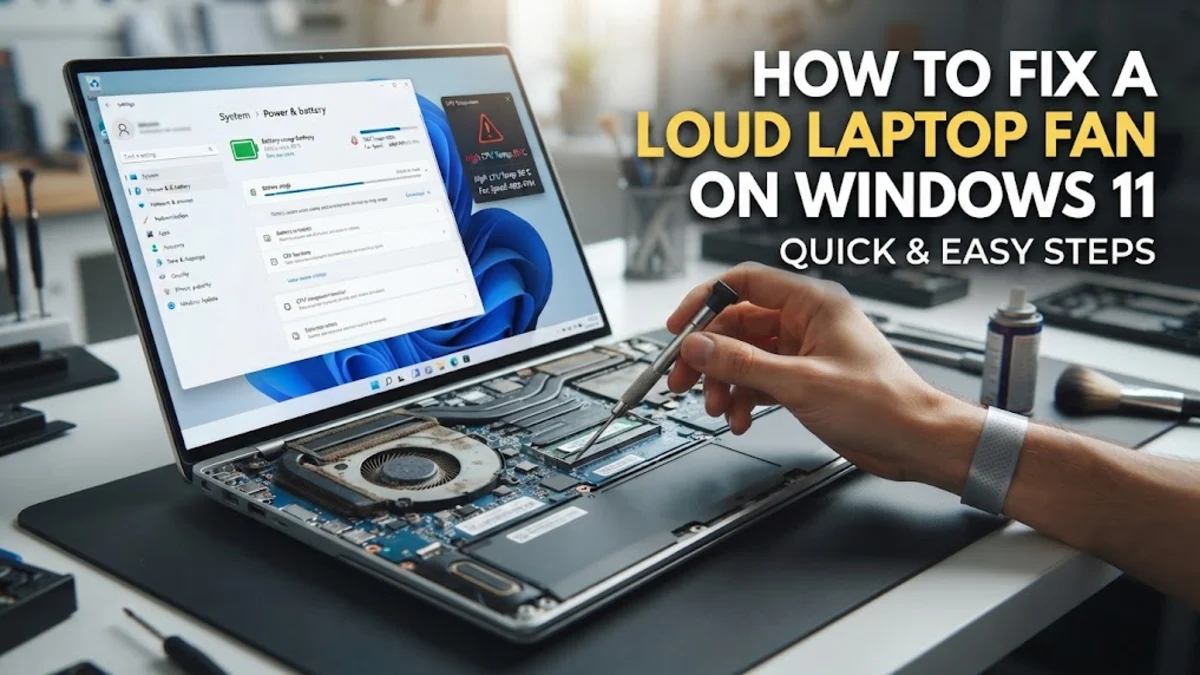
Physical obstructions are a major cause of fan noise. Over time, dust, pet hair, and lint accumulate inside the laptop's cooling fins and on the fan blades. This debris acts as an insulator, trapping heat inside the chassis and forcing the fan to spin at maximum speed to compensate for the reduced airflow. To fix this, first shut down your laptop and unplug it from the charger. Locate the intake and exhaust vents, which are usually found on the bottom or the sides of the device. Use a can of compressed air to blow short bursts into the vents. It is a common mistake to blow long, continuous streams of air, which can cause the fan to spin too fast and damage the bearings. If you feel comfortable doing so, removing the back panel of the laptop allows for a much more thorough cleaning. Use a soft brush or a microfiber cloth to gently wipe the fan blades. Ensure you do not use a vacuum cleaner, as these can generate static electricity that may fry sensitive electronic components on the motherboard.
Improve Airflow and Surface Placement
Where you place your laptop significantly impacts its ability to stay cool. Laptops are designed to pull in cool air from the bottom and exhaust hot air through the sides or back. If you use your laptop on a bed, couch, or carpet, the soft surface will conform to the bottom of the device and completely block the intake vents. This causes heat to build up almost instantly, leading to a loud fan. Always use your laptop on a hard, flat surface like a desk or a dedicated laptop stand. For users who frequently perform heavy tasks like 4K video rendering or gaming, a cooling pad with integrated fans can provide an extra boost of airflow to the underside of the chassis. Even a simple change like propping up the back of the laptop with a small book can increase the gap between the desk and the intake vents by a few millimeters, which is often enough to lower the internal temperature by several degrees and reduce the noise level.
Manage Browser Efficiency and Tab Overload
Update the BIOS and System Firmware
msinfo32, and pressing Enter. Look for the BIOS Version/Date entry. Download the update specifically for your model and follow the instructions carefully. Note that you must keep your laptop plugged into a power source during a BIOS update; if the computer loses power during this process, it could become unbootable. These updates often include thermal management improvements that can permanently solve fan noise issues.The bottom line
A loud laptop fan is almost always a symptom of heat management issues. By identifying resource-heavy apps in Task Manager, switching to a more efficient power mode, and ensuring your air vents are free of dust, you can significantly reduce the noise level. Regular maintenance, such as using hard surfaces and keeping your firmware updated, will ensure your laptop remains quiet and performs optimally throughout 2026 and beyond.
Frequently asked questions
Is it normal for my laptop fan to be loud when charging?
Yes, it is normal. Charging the battery generates additional heat inside the chassis. When you combine this with the heat from the CPU and GPU, the cooling system must work harder, resulting in higher fan speeds.
Can I use software to manually control my laptop fan speed?
While apps like SpeedFan or HWMonitor can monitor temperatures, most modern laptops restrict manual fan control to the manufacturer's own software (like MyASUS or Alienware Command Center) to prevent users from accidentally overheating their hardware.
Why is my fan loud even when I'm not doing anything?
This is usually caused by background tasks like Windows Update, cloud backups (OneDrive/Google Drive), or malware. Check the Task Manager to see if a specific process is using a high percentage of your CPU while the system is idle.
Does a loud fan mean my laptop is dying?
Not necessarily. It usually just means the system is hot. However, if the fan is making a grinding, rattling, or clicking sound, it may indicate a failing bearing, and the fan assembly should be replaced.