How to Set Up and Use Your Samsung Galaxy S25 Ultra
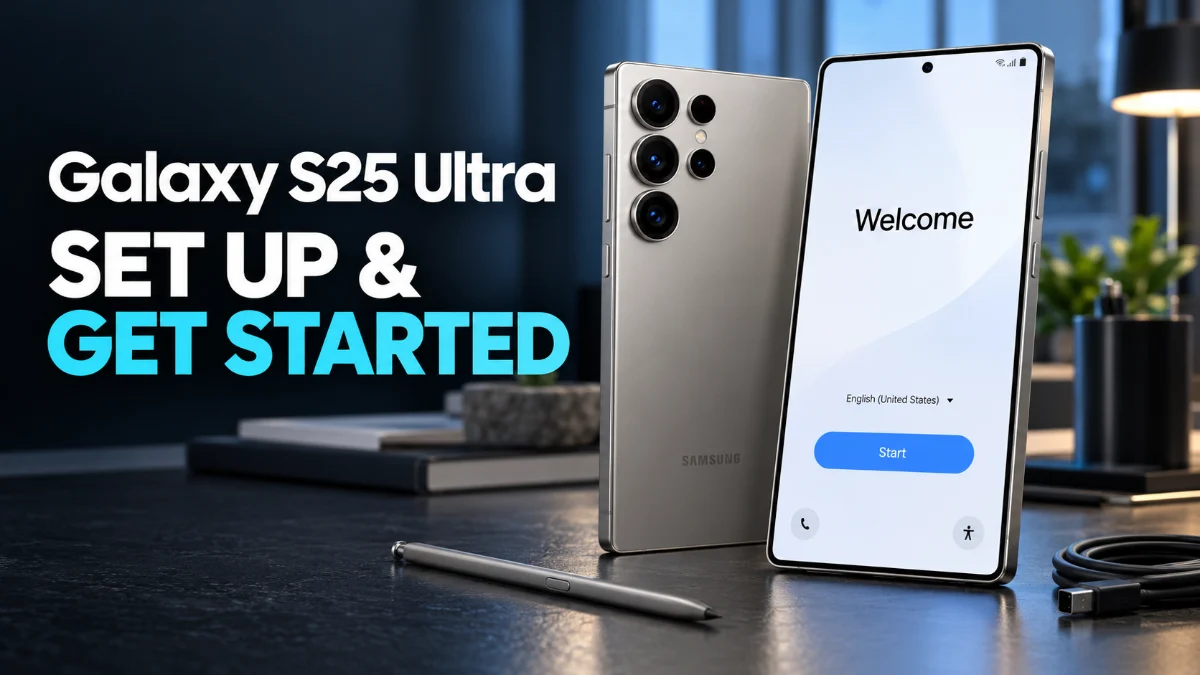
In this guide, we will walk you through the essential steps to transfer your data, optimize your high-resolution display, and configure the latest Galaxy AI features. We will also address common troubleshooting scenarios you might encounter during your first week of use to ensure your device runs smoothly and efficiently.
Setting Up Your Device with Smart Switch
The first task with your new Samsung Galaxy S25 Ultra is migrating your personal data. Samsung Smart Switch remains the most reliable method for transferring photos, contacts, and messages. For the fastest results in 2026, use a high-quality USB-C to USB-C cable to connect your old phone directly to the S25 Ultra. While wireless transfer is convenient, a wired connection is significantly more stable and can handle the 512GB or 1TB storage capacities found in this model without timing out.
To begin, navigate to Settings > Accounts and backup > Bring data from old device. You will be prompted to download Smart Switch on your old phone if it is not already installed. Once connected, you can select specific items to move. A common mistake is trying to transfer everything at once, including large system caches or temporary files. Instead, prioritize your Messages, Contacts, and Photos. Note that some secure banking apps and encrypted messaging platforms like WhatsApp may require an internal backup to the cloud (like Google Drive) before they can be fully restored on the new hardware.
Optimizing the Dynamic AMOLED Display
The Samsung Galaxy S25 Ultra features a stunning display capable of reaching 3000 nits of brightness, but it is often set to a lower resolution out of the box to preserve battery. To experience the full detail of the panel, go to Settings > Display > Screen resolution and select QHD+ (3120 x 1440). This is particularly important if you use your phone for photo editing or watching 8K video content. Be aware that higher resolutions will slightly increase battery consumption, though the LTPO technology in 2026 is highly efficient at managing this.
Another essential setting is Motion smoothness. Ensure this is set to Adaptive to take advantage of the 1Hz to 144Hz variable refresh rate. This allows the phone to drop to 1Hz when you are reading static text, saving power, and ramp up to 144Hz when you are gaming or scrolling. If the screen feels too warm or cool, you can adjust the Eye Comfort Shield or manually tweak the White Balance under the Screen mode settings. Below is a comparison of display modes available in 2026:
| Mode | Refresh Rate | Ideal Use Case |
|---|---|---|
| Adaptive | 1Hz - 144Hz | Standard Daily Use |
| Standard | 60Hz | Maximum Battery Saving |
| Vision Booster | Auto-Brightness Max | Direct Sunlight Usage |
Mastering the 200MP Camera and Video
The camera system on the Samsung Galaxy S25 Ultra is built around a massive 200MP main sensor. However, the camera app defaults to 12MP to save space and improve low-light performance through pixel binning. To take a full-resolution 200MP shot, open the Camera app, tap the Aspect Ratio icon at the top of the viewfinder, and select 200MP. Use this mode only when you have excellent lighting and want to capture maximum landscape detail for large prints.
For video enthusiasts, the 2026 model supports 8K recording at 60fps. To enable this, go to Video Mode, tap the Resolution icon, and select 8K60. If you notice your videos are shaky, check that Super Steady is enabled, though this feature often limits the resolution to 4K. If you find the camera app is lagging, try clearing the app cache by going to Settings > Apps > Camera > Storage > Clear cache. Avoid clearing data unless you want to reset all your custom photography preferences.
Configuring Advanced Galaxy AI Features
By 2026, Samsung has deeply integrated Galaxy AI into the One UI experience. Features like Live Translate and Note Assist can drastically improve productivity, but they must be configured first. Navigate to Settings > Advanced features > Advanced intelligence to see the full list of AI tools. From here, you can enable Live Translate for phone calls, which uses on-device processing to translate conversations in real-time without sending data to a cloud server, ensuring better privacy.
If the AI features are not working as expected, ensure you are signed into your Samsung Account. Many of these features, particularly generative photo editing, require an active internet connection and a verified account. If you prefer to keep all processing on the device for security reasons, look for the toggle Process data only on device within the Advanced Intelligence menu. Note that this may slightly reduce the accuracy of complex generative tasks compared to cloud-based processing.
Battery Health and Charging Optimization
The 5000mAh battery in the S25 Ultra is robust, but the way you charge it in 2026 dictates how long it will last over the years. Samsung now offers a Battery protection menu under Settings > Battery. We recommend using the Adaptive setting, which charges the phone to 80% and then finishes the final 20% just before you wake up, based on your sleep patterns. This prevents the battery from sitting at 100% for several hours, which causes chemical wear over time.
If you need a quick top-up, ensure you are using a 45W or 65W Samsung-certified PPS (Programmable Power Supply) charger. If the phone is not fast charging, check Settings > Battery > Charging settings and make sure Fast charging is toggled on. If the device gets too warm while charging, it will automatically throttle speeds to protect the internal components. This is normal behavior, especially if you are using the phone for intensive tasks while it is plugged in.
Maximizing S-Pen Productivity
The S-Pen is more than just a writing tool; it is a remote control for your Samsung Galaxy S25 Ultra. To customize its behavior, go to Settings > Advanced features > S Pen > Air actions. Here, you can set what happens when you hold the button and flick the pen. For example, you can set it to open the camera or skip tracks in Spotify. If the S-Pen is not connecting, simply slide it back into the phone for 30 seconds to let it sync and charge its internal capacitor.
One of the most useful features in 2026 is Screen off memo. You can take notes without even unlocking the phone by pulling out the pen while the screen is black. If you find the pen's pressure sensitivity is off, check for any third-party cases with magnets, as these are known to interfere with the S-Pen's electromagnetic resonance (EMR) field. If the tip of the S-Pen becomes worn or scratchy, use the included nib extraction tool to replace it with a fresh one, as a damaged tip can eventually mar the screen's protective coating.
Troubleshooting Performance and Connectivity
If your Samsung Galaxy S25 Ultra feels sluggish or apps are crashing, the first step should always be a soft restart. Hold the Power and Volume Down buttons simultaneously for about 10 seconds until the device vibrates and the logo appears. For persistent connectivity issues with Wi-Fi 7 or 5G, you can reset your network settings without losing your personal data. Go to Settings > General management > Reset > Reset mobile network settings. This will clear saved Wi-Fi passwords and Bluetooth pairings but often fixes signal drops.
If you encounter a bug that prevents the screen from responding, you can enter the Recovery Menu to clear the system cache partition. To do this, turn the phone off, then connect it to a computer via USB. Hold Volume Up and Power until the recovery screen appears. Use the volume keys to navigate to Wipe cache partition and the power key to select it. This removes temporary system files that can cause conflicts after a major software update. Never select Wipe data/factory reset unless you have a full backup and intend to erase the phone completely.
The bottom line
The Samsung Galaxy S25 Ultra is a sophisticated piece of technology that benefits greatly from personalized configuration. By taking the time to set up your display, camera, and AI features correctly, you ensure a smoother experience throughout the device's seven-year update lifecycle. Always keep your software updated to the latest version to receive the newest security patches and feature enhancements released by Samsung in 2026.
Frequently asked questions
Does the Samsung Galaxy S25 Ultra have an SD card slot?
No, the S25 Ultra does not feature expandable storage via an SD card. It relies on internal storage options (up to 1TB) and cloud services like OneDrive or Google Drive for additional space.
How do I take a screenshot on the S25 Ultra?
You can take a screenshot by quickly pressing the Power and Volume Down buttons simultaneously. Alternatively, you can use the Palm Swipe gesture by going to Settings > Advanced features > Motions and gestures.
Is the S25 Ultra waterproof?
The device has an IP68 rating, meaning it is resistant to dust and can withstand being submerged in up to 1.5 meters of fresh water for up to 30 minutes. However, it is not recommended for use in salt water or pools.
How do I enable 5G on my S25 Ultra?
5G is enabled by default if your carrier supports it. You can manage this by going to Settings > Connections > Mobile networks > Network mode and ensuring 5G/LTE/3G/2G (auto connect) is selected.