How to Set Up Your Google Pixel 9a

Setting up your new Google Pixel 9a is a straightforward process that takes you from unboxing to customizing your home screen in just a few minutes. Whether you are switching from an older Android device or moving over from an iPhone, the built-in setup assistant guides you through every necessary step.
This guide covers everything you need to get your Pixel 9a up and running, including data transfers, security configuration, network connections, and essential system preferences to optimize your daily experience.
Initial Power-On and Language Selection
When you first power on your Google Pixel 9a by pressing and holding the power button until the Google logo appears, you will be greeted by the welcome screen. Here, you need to select your preferred language and region. Tap the dropdown menu to choose your language, then tap the arrow button to proceed. If you are vision or hearing impaired, you can also access accessibility settings from this exact screen by tapping the accessibility icon in the corner.
Next, insert your physical SIM card if you are not using an eSIM. While you can proceed without cellular service by relying solely on Wi-Fi, having your network connection established early ensures a smoother activation process, especially when downloading carrier settings and verifying your Google account credentials during the initial setup wizard.
Connecting to Wi-Fi and Checking for Updates
After choosing your language, the setup wizard prompts you to connect to a secure wireless network. Select your home or office Wi-Fi network from the list of available connections and enter your password. Once connected, your Pixel 9a will automatically check for critical system updates and security patches. It is vital to let this process finish before proceeding further to ensure your device runs the latest software version right out of the box.
If the update check takes a few moments, do not restart your phone. Allow the download to complete over your Wi-Fi network. After the update installs, the device may briefly reboot before returning you directly to where you left off in the configuration sequence, ensuring a secure and stable operating environment.
Transferring Data from Your Old Phone
One of the most important steps in setting up your Google Pixel 9a is bringing your contacts, messages, photos, and apps over from your previous phone. Using the included Quick Switch Adapter and a compatible cable, connect your old device directly to your Pixel 9a when prompted on the screen. Alternatively, you can restore data wirelessly from a Google Drive backup if you are coming from another Android phone or have an existing cloud backup.
Once connected, select the specific items you wish to copy. You can choose to transfer everything or selectively uncheck large media folders if you prefer to start fresh. Keep both devices connected and unlocked until the transfer progress bar reaches completion, which usually takes anywhere from five to fifteen minutes depending on the total volume of data.
Signing In and Configuring Google Services
When prompted, sign in using your primary Google account email and password. This links your device to your Gmail, Google Drive, Google Photos, and the Google Play Store. If you use two-factor authentication, keep your secondary device nearby to approve the sign-in request promptly. Signing in also activates Android backup services, keeping your future app data safe in the cloud.
Following your sign-in, review the Google services privacy toggles. You can choose whether to enable backup to Google Drive, location services, and usage data sharing for diagnostic purposes. We recommend reviewing each toggle carefully to match your personal privacy preferences before tapping accept and moving forward to security configurations.
Setting Up Biometric Security and Screen Lock
Securing your Pixel 9a is essential for protecting your personal information. The setup assistant will prompt you to set a secure screen lock, which can be a numeric PIN, a complex password, or a pattern swipe. Make sure to choose a combination you can easily remember but others cannot easily guess, as this serves as your fallback security measure.
After setting your PIN or password, you will be guided to register your fingerprint for biometric unlocking. Follow the on-screen instructions by placing your finger repeatedly on the screen sensor until the registration circle fills completely. You can also register additional fingers later by navigating to Settings > Security & privacy > Device unlock > Fingerprint Unlock.
Customizing Display and Navigation Preferences
The final phase of the initial setup lets you customize the visual presentation and interaction style of your Pixel 9a. You can choose between Light theme and Dark theme, or enable automatic switching based on the time of day. Additionally, you can adjust your display size and text scaling to ensure readability across all installed apps.
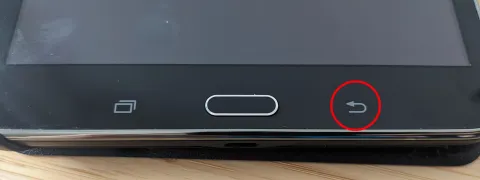
You will also select your preferred system navigation mode. You can opt for modern gesture navigation—where you swipe inward from the edges to go back and swipe up to go home—or revert to the classic three-button navigation layout if you prefer traditional on-screen buttons. You can change these preferences at any time via Settings > System > Gestures.
The bottom line
Setting up your Google Pixel 9a correctly ensures your device is secure, updated, and tailored to your daily needs from day one. By transferring your data cleanly and configuring your security preferences properly, you are ready to explore everything your new smartphone has to offer.
Frequently asked questions
Can I set up my Pixel 9a without a Wi-Fi connection?
Yes, you can skip the Wi-Fi setup step, but you will need an active cellular connection with mobile data enabled to sign into your Google account and download critical system updates during setup.
How long does the data transfer take from an old phone?
The time required depends entirely on how much data you are moving. Small transfers with contacts and messages take only a few minutes, while moving tens of gigabytes of photos and apps can take up to twenty minutes.
Can I add more fingerprints later?
Yes. You can add up to five different fingerprints by going to Settings, selecting Security & privacy, tapping Device unlock, and choosing Fingerprint Unlock.
What should I do if my data transfer fails halfway through?
If the cable transfer stalls, disconnect both devices, restart your Pixel 9a, and choose the wireless restore option via Google Drive backup for a more stable transfer process.