Fix Samsung Phone Speaker Not Working During Call
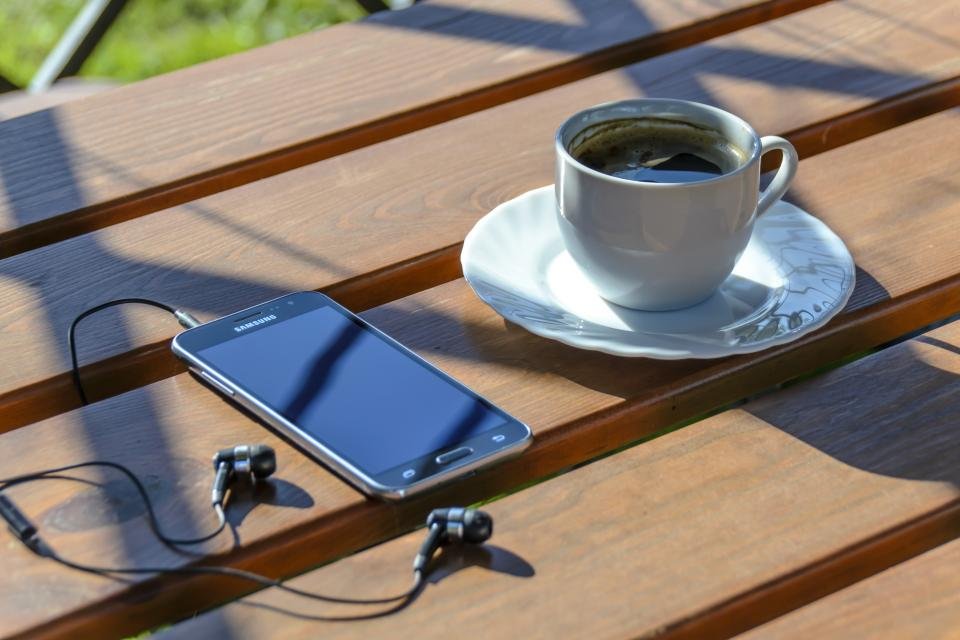
Dealing with a Samsung phone speaker not working during a call can make everyday communication frustrating, leaving you unable to hear callers clearly or use speakerphone. Fortunately, this issue is frequently caused by temporary software glitches, minor audio routing errors, or accumulated debris rather than permanent hardware failure.
By following a systematic troubleshooting process, you can quickly identify the root cause and restore normal audio functionality to your Galaxy device without needing an immediate trip to a repair center.
Check Volume Levels and Audio Profiles
When you notice that your Samsung phone speaker is not working during a call, the very first thing to check is your active volume levels. Many users accidentally adjust media volume or ringtone volume instead of the specific in-call volume slider. During an active phone call, press the physical volume up button on the side of your device to ensure the in-call volume is turned up to an audible level.
Additionally, check your sound profile settings by swiping down from the top of your screen to open the quick settings panel. Make sure your phone is not stuck in Mute or Vibrate mode, and verify that Do Not Disturb is disabled, as these settings can sometimes interfere with call audio routing. If you notice the volume slider moving by itself or refusing to adjust, restart your device immediately to clear out any temporary software freezes affecting the audio subsystem.
Clean the Earpiece Grille and Speaker Ports
Pocket lint, dust, makeup, and earwax commonly accumulate inside the earpiece grille and bottom speaker ports over time, significantly muffling or completely blocking call audio. Take a close look at the top earpiece speaker mesh using a flashlight to inspect for visible blockages or debris buildup.
To clean the grille safely, use a clean, dry, ultra-soft toothbrush or an anti-static brush to gently sweep away loose particles across the mesh surface. Avoid inserting sharp metallic objects like needles, paperclips, or SIM ejector tools into the speaker openings, as this can easily puncture the delicate waterproof acoustic membrane and cause permanent, expensive hardware damage to your speaker assembly.
Disconnect Bluetooth and Audio Accessories
A very common reason for call audio failing on Samsung phones is invisible audio routing to a previously paired Bluetooth device, wireless headset, or smart speaker left in another room. When your phone remains connected to a Bluetooth accessory in the background, your phone routes call audio to that device instead of the internal earpiece or loudspeaker.
To fix this, swipe down to open your quick settings panel and tap the Bluetooth icon to turn off Bluetooth completely. Alternatively, go to Settings > Connections > Bluetooth and ensure no wireless headphones, car audio systems, or smartwatches are actively connected. Once Bluetooth is disabled, place a test call to see if normal sound returns to your phone speaker.
Test in Safe Mode to Rule Out Third-Party Apps
Third-party phone dialers, VoIP apps, audio recorders, and equalizer utilities can occasionally hijack your phone audio routing, causing the main speaker to fail during standard cellular calls. To determine if an installed application is causing the interference, you need to boot your Samsung phone into Safe Mode, which temporarily disables all downloaded third-party apps.
To enter Safe Mode, press and hold the side power key and volume down button until the power menu appears, then touch and hold the Power off icon until the Safe mode prompt pops up. Tap Safe mode to confirm. Once your phone boots up with Safe Mode displayed in the corner, test a phone call. If the speaker works properly in Safe Mode, a recently installed app is the culprit, and you should uninstall suspicious communication or audio modification apps.
Clear App Cache and Phone App Data
Corrupted cache files inside the default system Phone app can cause unexpected glitches during voice calls, including audio dropouts and speaker failure. Clearing out old temporary data forces the application to rebuild a clean environment without losing your call logs or personal contacts.
To clear the app cache, open Settings > Apps > Phone. Tap on Storage, and then select Clear cache at the bottom of the screen. If the problem persists after clearing the cache, you can also tap Clear data, keeping in mind that this will reset any customized preferences within the native Phone app back to factory defaults.
Reset Network Settings and System Preferences
Corrupt network configurations or system-level preference glitches can disrupt cellular radio communication and audio processing during phone calls. Resetting your network settings restores Wi-Fi, Bluetooth, and mobile data configurations back to their original factory defaults without erasing your personal photos, videos, or downloaded files.
To perform this reset, navigate to Settings > General management > Reset > Reset network settings. Tap Reset settings and confirm your PIN or pattern when prompted. Keep in mind that you will need to reconnect to your Wi-Fi networks and re-pair your Bluetooth accessories afterward, but this step often resolves stubborn hardware communication faults.
The bottom line
Fixing a Samsung phone speaker not working during a call usually comes down to resolving a Bluetooth routing glitch, clearing physical debris from the earpiece, or addressing app conflicts. If you have worked through all these software and cleaning steps and the speaker still produces no sound during calls, the issue may stem from a physical hardware failure such as a blown speaker component, requiring professional inspection at an authorized service center.
Frequently asked questions
Why can I hear media and videos, but call audio does not work?
Samsung phones use two separate speakers and audio channels: a louder multimedia speaker at the bottom for videos and music, and a smaller earpiece speaker at the top for phone calls. If media plays fine but calls are silent, the earpiece speaker is likely blocked by debris, disabled by a software glitch, or failing.
Will clearing app data delete my contacts or call history?
Clearing the cache of the Phone app is completely safe. Clearing app data on the native system Phone app typically resets app preferences, but your core contacts and call history are securely synced with your Samsung or Google account and will not be permanently lost.
How can I tell if my Samsung phone speaker is physically broken?
If you have tested the phone in Safe Mode, performed a factory network reset, ensured no Bluetooth devices are connected, and thoroughly cleaned the grille with no success, the internal speaker hardware may be physically damaged or disconnected.
Can a screen protector block my Samsung phone speaker?
Yes. Poorly installed or overly thick tempered glass screen protectors can accidentally cover or overlap the top earpiece grille, muffling or completely blocking call audio. Check your screen protector alignment and replace it if it obstructs the speaker mesh.
Does updating my software fix speaker issues?
Installing the latest software update often resolves known bugs and system audio glitches. Go to Settings > Software update > Download and install to check for pending system patches.