How to Write ChatGPT Photo Editing Prompts
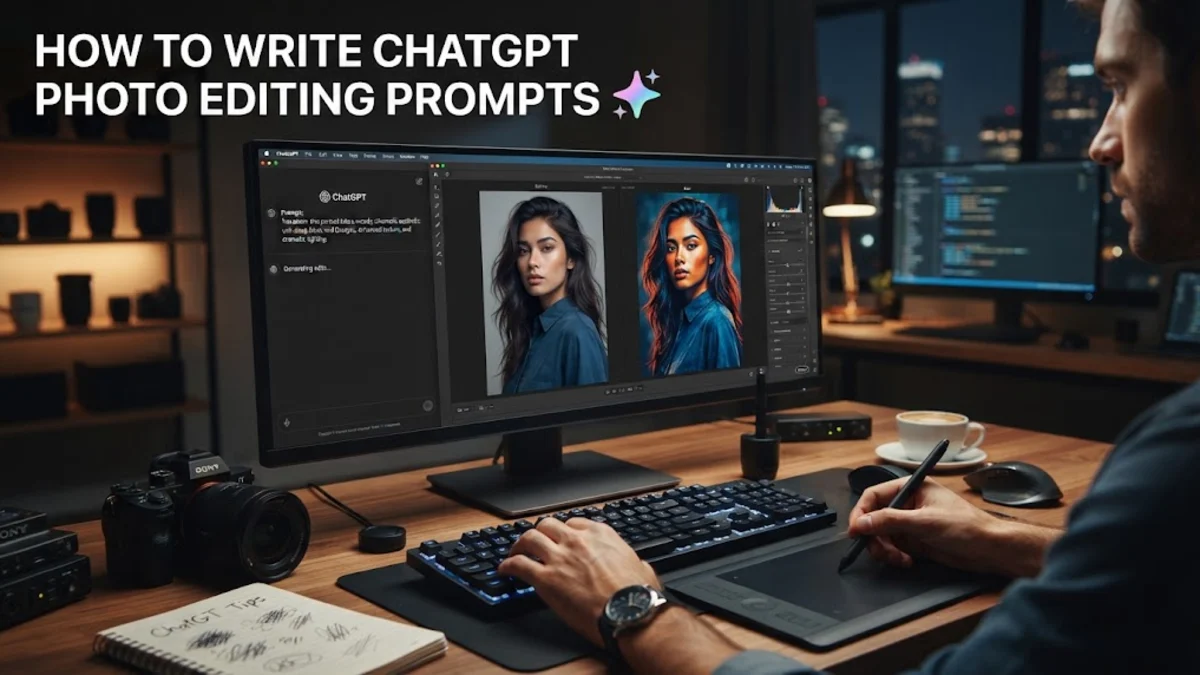
Mastering chatgpt photo editing prompts allows you to leverage conversational artificial intelligence to guide image generation, plan retouching workflows, and brainstorm creative adjustments for your digital media projects. By providing precise instructions and descriptive constraints, you can bridge the gap between your raw visuals and your creative vision without needing years of advanced design experience.
Whether you are preparing marketing materials, optimizing social media visuals, or restoring personal photographs, structuring your requests correctly ensures the AI understands context, subject matter, and exact styling requirements. This guide covers practical strategies to write detailed prompts, avoid common pitfalls, and achieve professional results every time.
Understand the Core Anatomy of an Effective Photo Editing Prompt
Writing successful chatgpt photo editing prompts starts with understanding the basic structure that AI language and vision models rely on. A weak prompt usually consists of a vague command like make this picture look better, which leaves too much room for misinterpretation. Instead, a strong prompt breaks down into clear components including the primary subject, the desired stylistic adjustments, lighting parameters, and specific color grading instructions.
When you interact with multimodal AI models that support image inputs, you must first upload your source photograph and then pair it with a context-rich instruction. For example, specify whether you want to alter the background, sharpen facial features, or completely overhaul the mood. By treating the AI like a human assistant and outlining every step clearly, you eliminate ambiguity and drastically reduce the number of revision iterations required to reach your final goal.
Step 1: Upload Your Image and Define the Primary Objective
The first practical step in your editing workflow is attaching your source file to the chat interface and immediately stating your overarching goal. Click the attachment icon or drag and drop your image file into the active chat window, ensuring the resolution is high enough for the model to analyze fine details. Once uploaded, type a clear opening sentence that defines the main objective, such as preparing a portrait for a corporate website or adjusting a landscape photo for a travel blog.
Avoid overwhelming the model with too many conflicting demands in your initial prompt. Focus on the single most important fix first—whether that is correcting a severe under-exposure issue or removing distracting background elements. Once the AI acknowledges the image and applies the primary correction, you can proceed with secondary enhancements in subsequent conversational turns to maintain precise control over the output quality.
Step 2: Specify Lighting, Shadows, and Color Adjustments
Lighting can completely transform the atmosphere of a photograph, making it crucial to articulate your lighting preferences clearly within your chatgpt photo editing prompts. Instead of asking for brighter lighting, specify exact adjustments such as lifting the shadows in the foreground, reducing harsh highlights on skin tones, or shifting the color temperature toward a warmer golden hour aesthetic. You can also reference specific lighting styles like soft diffuse studio lighting or dramatic cinematic chiaroscuro.
Color grading is another vital element that benefits from explicit instructions. Mention color palettes by name or describe the mood you want to evoke, such as muted pastel tones, vibrant saturation, or high-contrast monochromatic black and white. Giving the AI concrete benchmarks helps it generate precise textual guides that you can execute in your editing software or apply directly if the platform supports native image manipulation tools.
Step 3: Direct Subject Isolation and Background Modifications
Many photo editing tasks involve separating the main subject from an unwanted or distracting background. When crafting prompts for this purpose, clearly identify the foreground subject and define the exact parameters for the background replacement or blur effect. For instance, you might instruct the model to simulate a shallow depth of field with a wide aperture look, or ask it to completely replace an urban background with a clean, minimalist studio backdrop.
Be mindful of edge details such as hair strands, translucent fabrics, or complex shadows when describing isolation tasks. Asking the AI to pay special attention to edge refinement prevents the final output from looking artificially cut out or pasted together. If the initial background modification looks too harsh, refine your prompt by asking the AI to soften the transition blur and match the ambient light spill from the new environment onto your primary subject.
Step 4: Iterate and Refine with Conversational Follow-Ups
One of the greatest advantages of using conversational AI for creative tasks is the ability to iterate through continuous feedback loops. Your first prompt rarely yields a flawless result on the first try, so treat the process as a collaborative dialogue. If the skin smoothing looks too aggressive or the contrast is too high, reply with specific corrective commands like reduce the contrast adjustment by half and restore natural skin texture details.
Keeping your feedback objective and targeted helps the model understand precisely which parameters to dial back or amplify. Avoid starting a brand-new chat session for minor tweaks; keeping the context within the same conversation thread allows the AI to reference the history of your edits and maintain consistency across your entire batch of adjustments.
Common Mistakes to Avoid When Writing Prompts
Even experienced creators often stumble into common traps that degrade the quality of AI-assisted photo editing. The most frequent mistake is using overly technical jargon without context, or conversely, being far too brief. Finding the right balance requires descriptive, plain-English instructions that clearly communicate both the technical adjustments and the artistic intent behind your project.
Another pitfall is ignoring the limitations of compressed or low-resolution source images. No matter how detailed your prompt is, an AI cannot invent pixels that do not exist in a blurry or heavily pixelated source photo. Always start with the highest possible resolution image file, and ensure your instructions align realistically with the fundamental quality and composition of the original photograph.
The bottom line
Writing effective chatgpt photo editing prompts is a skill that combines creative vision with clear, structured communication. By breaking down your editing goals into logical steps—ranging from initial image analysis and lighting adjustments to background modifications and iterative refinement—you can unlock powerful AI workflows that save time and elevate your visual content.
Frequently asked questions
Can ChatGPT edit my photos directly?
ChatGPT can analyze images, suggest adjustments, write code for image processing scripts, and guide your workflow in dedicated photo editing software, though direct in-chat pixel manipulation depends on the specific platform features and tools available in your current version.
What is the best way to structure an image prompt?
Start by uploading your image, then clearly state the subject, the primary adjustment needed, specific lighting and color parameters, and any desired changes to the background or composition.
How do I fix blurry results from AI photo suggestions?
Ensure you are uploading high-resolution source files and explicitly ask the model to preserve fine details, sharpen edges, and avoid over-processing or smoothing textures excessively.
Can I use ChatGPT prompts for batch photo editing?
Yes, you can establish a consistent prompt template detailing specific lighting and color grading rules, then apply that same structural instruction across multiple images within your workflow.
Do I need a paid subscription to use image prompts?
Basic multimodal features and image analysis are available across various tiers, but advanced image generation and specialized editing tools may require upgraded subscription plans depending on current platform updates.