How to Connect AirPods to Android
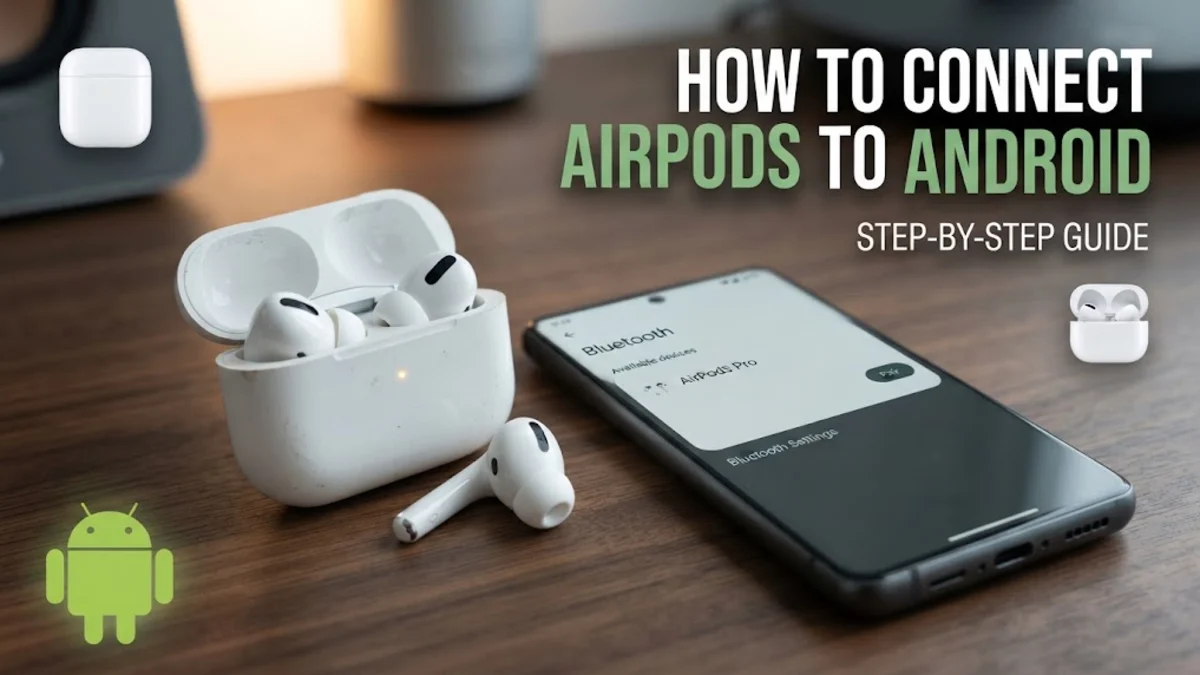
Connecting AirPods to an Android device is a common task for users who prefer Apple's hardware but enjoy the flexibility of the Android ecosystem. While AirPods are designed to work seamlessly within the Apple ecosystem, they utilize standard Bluetooth technology, which means they are compatible with virtually any Android smartphone or tablet available in 2026. You can still enjoy high-quality audio, active noise cancellation, and transparency modes without owning an iPhone.
Understanding Bluetooth Compatibility on Android
However, there are trade-offs you should be aware of before committing to this setup. On Android, you will lose access to native battery indicators, automatic ear detection (where music pauses when you take an earbud out), and the ability to customize gesture controls. Furthermore, Apple's proprietary Spatial Audio with dynamic head tracking and the 'Find My' network integration are generally unavailable on Android. Despite these omissions, many users still choose this combination because the acoustic performance and noise-canceling capabilities of AirPods Pro and AirPods 4 remain among the best in the industry for 2026.
Putting Your AirPods into Pairing Mode
If you are using the AirPods Max, the process is slightly different since there is no charging case to open. Remove the headphones from their Smart Case. On the right ear cup, find the noise control button (the long button next to the Digital Crown). Press and hold this button until the status light on the bottom of the right ear cup flashes white. For the newer AirPods 4 models released around 2026, some versions may feature a capacitive touch area on the front of the case for pairing instead of a physical button. In this case, double-tap the front of the case while the lid is open to initiate the same white pulsing light.
Connecting AirPods via Android Settings
Tap on the name of your AirPods in the list. A prompt may appear asking for permission to access your contacts and call history; this is necessary if you want to use the earbuds for phone calls. Tap Pair to confirm the connection. Once the status changes to 'Connected', the pulsing white light on your AirPods case will turn solid for a moment and then disappear. Your audio is now routed through the AirPods. If the device appears in the list but fails to connect, turn your phone's Bluetooth off and back on again, and ensure the AirPods haven't automatically re-connected to a nearby iPad or Mac in the vicinity.
What Features Work and What Is Missing?
The table below summarizes the feature availability for AirPods on Android in 2026:
| Feature | Android Availability | Notes |
|---|---|---|
| Audio Playback | Full Support | Works with all apps and high-quality codecs. |
| Noise Cancellation | Hardware Controlled | Can be toggled via earbud stems. |
| Battery Status | Partial/Third-Party | Requires a separate app to view levels. |
| Ear Detection | Not Supported | Music will not pause when removed. |
| Siri Voice Assistant | Not Supported | Cannot trigger Siri; Google Assistant requires apps. |
| Spatial Audio | Limited/None | Dynamic head tracking is disabled. |
Using Third-Party Apps for Better Control
Another excellent choice is CAPpod. This app is lightweight and focuses on providing a stable battery notification in your status bar. Some of these apps even allow you to trigger Google Assistant with a double-tap, effectively replacing the Siri functionality. To set this up, download your preferred app from the Google Play Store, grant the necessary location and Bluetooth permissions (required for scanning BLE signals), and configure the 'Ear Detection' or 'Assistant' toggles within the app settings. Keep in mind that these apps may slightly increase battery consumption on your phone as they constantly monitor for the AirPods' signal.
Troubleshooting AirPods Connection Issues
Common mistakes include trying to pair while the earbuds are already connected to a nearby iPhone. Apple devices are very 'aggressive' with their connections; if a MacBook or iPhone is nearby, it might snatch the connection before your Android phone has a chance. To prevent this, temporarily disable Bluetooth on your Apple devices during the initial setup. Additionally, if the volume feels extremely low even when your phone is turned up, go to Settings > System > Developer options and look for Disable absolute volume. Toggling this switch can often fix synchronization issues between the phone's volume slider and the AirPods' internal volume scale.
The bottom line
Connecting AirPods to an Android device is a straightforward process that allows you to enjoy premium hardware on a different platform. While you lose some of the ecosystem-specific features, the core experience remains high-quality and reliable. By using third-party apps and knowing how to manually trigger pairing mode, you can make your AirPods feel right at home on any Android phone in 2026.
Frequently asked questions
How do I check the AirPods battery on Android?
Unlike on an iPhone, Android doesn't show the battery percentage in the Bluetooth menu by default. You will need to download a third-party app like MaterialPods or CAPpod from the Google Play Store to see the exact battery levels for each earbud and the case.
Does Active Noise Cancellation work on Android?
Yes, Active Noise Cancellation (ANC) and Transparency Mode work on Android. You can cycle through these modes by long-pressing the stem on the AirPods Pro or the noise control button on the AirPods Max.
Why is the volume so low on my Android phone?
This is often due to a feature called 'Absolute Volume.' You can fix this by enabling Developer Options in your Android settings and toggling the 'Disable absolute volume' switch, or by adjusting the volume directly on the AirPods if using a model with swipe controls.
Can I update AirPods firmware using an Android phone?
No, AirPods firmware updates require an iOS, iPadOS, or macOS device. If you use AirPods with Android, it is a good idea to occasionally connect them to a friend's iPhone or a Mac to ensure they receive the latest software updates.