How to Set Up and Use Your Google Pixel 10 Pro
Unboxing your new Google Pixel 10 Pro opens up a world of advanced Android features, exceptional photography tools, and deep artificial intelligence integration. Getting started smoothly ensures you make the most of your device right out of the box.
This guide walks you through the essential setup procedures, customization options, battery optimization techniques, and advanced features designed to help you master your new smartphone.
Initial Setup and Data Transfer
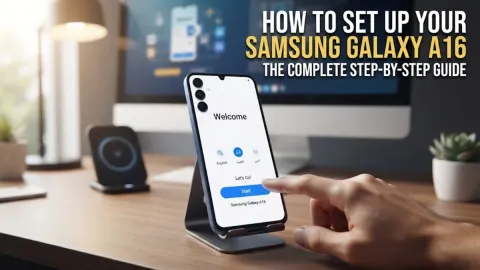
When you power on your Google Pixel 10 Pro for the first time, you will be greeted by the welcome screen. Follow the on-screen prompts to connect to your Wi-Fi network and insert your physical SIM card or activate your eSIM. During the setup wizard, the system will prompt you to transfer your data from your old phone. If you are switching from an iPhone or another Android device, simply connect the two phones using a compatible USB-C cable or use your Google Account cloud backup to restore your apps, contacts, photos, and messages seamlessly.
Make sure you sign in with your primary Google Account to enable automatic syncing across all your devices. You will also be prompted to set up biometric security, including fingerprint recognition under the display and facial recognition. Take your time during this step to register multiple fingerprints for effortless unlocking. Once the initial setup finishes, let the phone sit connected to Wi-Fi for a few minutes so it can download and apply any pending system updates and background app installations without interruption.
Customizing Display and Material You Themes
The Pixel 10 Pro features a stunning, high-refresh-rate OLED display that adapts dynamically to your viewing habits to save power. To tailor the look and feel to your personal preferences, navigate to Settings > Display > Colors to choose between adaptive and natural color profiles. You can also adjust the screen resolution and enable smooth display features to ensure maximum fluidity when scrolling through web pages and navigating the user interface.
Material You allows the entire operating system to dynamically match your current wallpaper. To customize this, long-press any empty space on your home screen and select Wallpaper & style. Here, you can pick from curated color palettes, apply dark theme schedules, and customize app icon themes so they match your chosen wallpaper aesthetic. Setting up your display correctly not only improves visual comfort during long reading sessions but also enhances daily usability.
Optimizing Battery Life and Adaptive Charging
Battery management on the Google Pixel 10 Pro is heavily driven by machine learning to ensure your phone easily lasts through a full day of heavy usage. To check your current power consumption and manage background app restrictions, go to Settings > Battery > Battery usage. If you notice specific apps draining power in the background, you can restrict their activity or enable adaptive battery settings to let the system automatically limit power to apps you rarely open.
Another essential feature to enable is Adaptive Charging, found under Settings > Battery > Charging. This feature slows down charging speed overnight when you plug your phone in before bed, protecting your battery's long-term health by bringing it to a full charge just before your usual alarm goes off. Pairing this with the extreme battery saver mode during travel ensures your phone stays functional even when power sources are scarce.
Managing Storage and Cloud Backup
Keeping your device storage organized is crucial for maintaining snappy performance. To review how your space is being utilized, open Settings > Storage. The system provides a clear breakdown of apps, media, and cached files. You can tap on Free up space to let the phone automatically detect unused apps, duplicate photos, and temporary files that safe to delete without losing important data.
For long-term media preservation, configure your Google Photos and Google Drive settings to back up your memories automatically over Wi-Fi. Utilizing cloud storage prevents data loss if your phone is lost or damaged. You can also set up Smart Storage to automatically remove backed-up photos and videos from your local device storage after a set period, ensuring you never run out of room for new apps and recordings.
Mastering Advanced Camera and AI Features
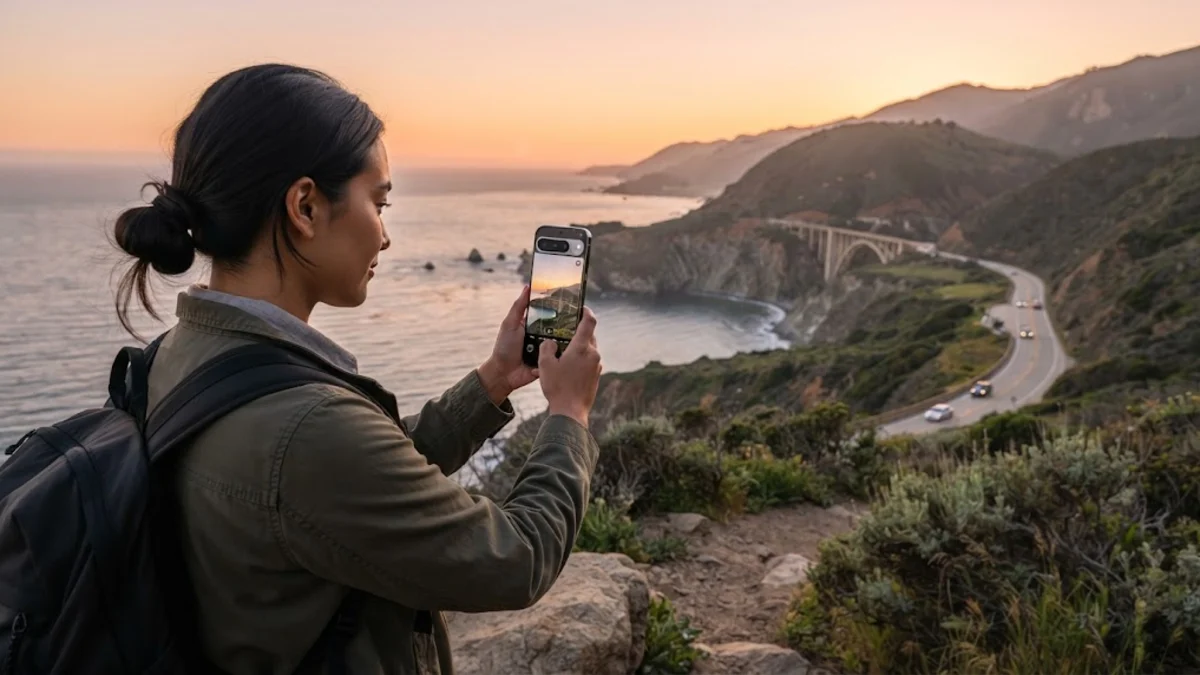
The camera system on the Google Pixel 10 Pro is packed with powerful computational photography tools and generative AI capabilities. Open the Camera app and swipe through modes like Night Sight, Portrait, and Panorama to explore the hardware capabilities. Utilizing the dedicated telephoto lens and ultra-wide sensor allows you to capture crisp details in challenging lighting conditions without needing external accessories or complex manual settings.
Beyond taking photos, leverage built-in AI editing features such as Magic Eraser and photo unblur directly within the Google Photos app. You can tap on unwanted background objects or adjust lighting tones with simple taps. Additionally, explore the integrated Gemini assistant by holding down the power button or saying the wake phrase, allowing you to summarize articles, draft messages, and interact with your phone using natural conversational prompts.
The bottom line
Setting up and mastering your Google Pixel 10 Pro transforms your everyday mobile experience into a streamlined, highly personalized routine. By optimizing your settings, keeping your battery healthy, and exploring advanced AI and camera tools, you will get the absolute most out of your device.
Frequently asked questions
How do I transfer data from an old iPhone to my Pixel 10 Pro?
During the initial setup process, connect your iPhone to the Pixel using a USB-C cable and follow the on-screen prompts to securely transfer contacts, photos, messages, and accounts.
How can I extend my Pixel 10 Pro battery life?
Enable Adaptive Battery and Adaptive Charging in your settings, limit background app activity for unused apps, and use Dark Theme to reduce OLED power consumption.
Where can I find the display color and theme settings?
You can customize your visual preferences by going to Settings > Display > Colors, and adjust your overall theme through the Wallpaper & style menu on your home screen.
How do I use the built-in AI assistant on the Pixel 10 Pro?
Press and hold the power button or use your voice to activate Gemini, allowing you to ask questions, search your screen, and draft text messages effortlessly.
What is the best way to free up storage space on my phone?
Navigate to Settings > Storage and tap on Free up space to let the system automatically detect and remove temporary files, cached data, and unused apps.