Google Account vs Chrome Account: Key Differences
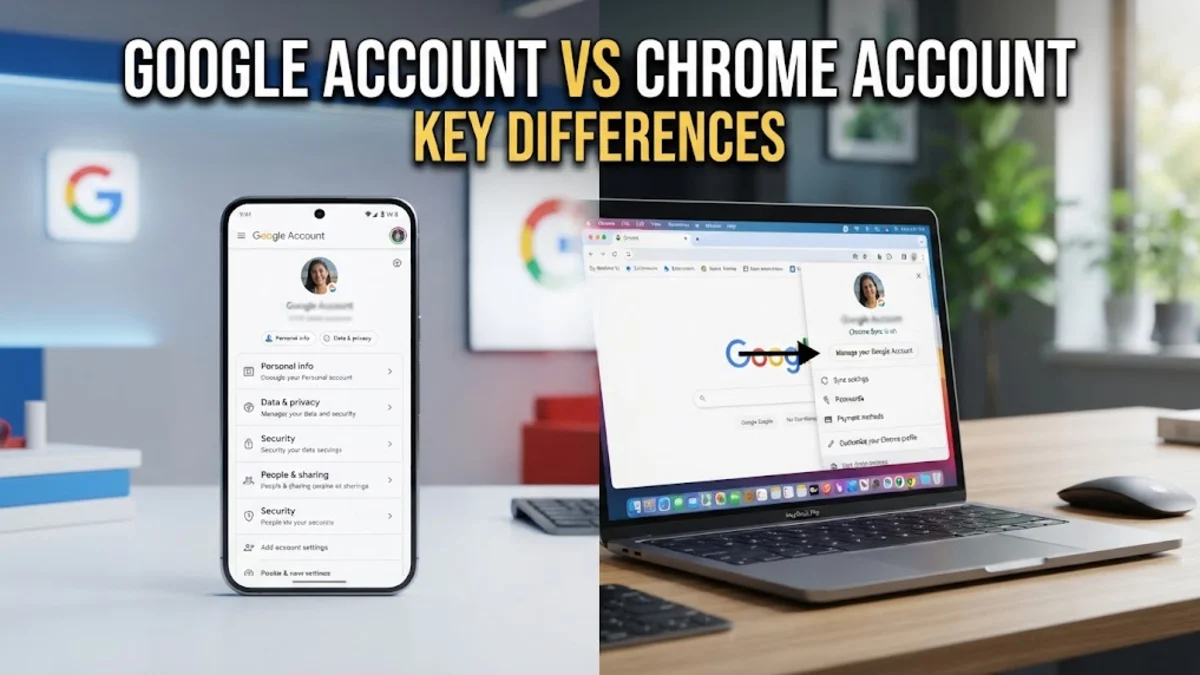
When browsing the web, logging into a website often feels identical to logging into your browser. If you use Google services, you might wonder whether your Google Account and your Chrome account are the exact same thing. The short answer is that a Google Account is your master cloud identity, whereas a Chrome account—formally called a Chrome profile—is an application-level container that syncs your local browsing data across devices.
Core Definitions: Identity vs Browser Environment
In contrast, what most people refer to as a Chrome account is actually a signed-in Google Chrome profile. A Chrome profile lives locally inside the Chrome application on your computer, tablet, or phone. When you sign into Chrome using your Google Account, the browser binds your local settings—such as open tabs, bookmarks, extensions, form autofill information, and browsing history—to that Google credential. In technical terms, the Google Account is the identity provider, while the Chrome profile is the client software environment utilizing that identity to sync your local digital workspace.
How Authentication Differs Between Web and Browser
Signing into Chrome at the application level performs a deeper administrative action. By linking your Google Account directly to the Chrome client, you activate Google Chrome Sync. This tells Chrome to continuously monitor your browsing activity and mirror it to Google's cloud infrastructure. If you navigate to Settings > You and Google inside Chrome, you can view your current sync status. If you share a computer with family members or colleagues, signing into Chrome without creating a separate profile can inadvertently expose your bookmarks, active sessions, and browsing history to anyone else sitting at that desk.
Privacy Implications and Cloud Data Syncing
Once you sign into a Chrome profile with sync enabled, data collection expands significantly to include your local browser telemetry. Chrome transmits your complete browsing history, saved website passwords, credit card autofill forms, installed browser extensions, and active web permissions back to your Google storage. If you want to use the Chrome browser without transmitting local navigation history to your account, you can either keep sync disabled or switch off specific categories under Settings > You and Google > Sync and Google services > Manage what you sync.
Password Security and the Sync Passphrase
When stored inside a signed-in Chrome profile, passwords sync automatically across your devices so you can auto-fill credentials on login forms. For enhanced protection, Chrome allows you to configure a dedicated Sync Passphrase. You can set this up by opening Chrome and navigating to Settings > You and Google > Sync and Google services > Encryption options. Choosing to create your own passphrase encrypts your synced passwords and browsing data on your physical device before transmitting it to the cloud. Google cannot read this data, meaning that even if an attacker compromises your Google Account password, they cannot decrypt your synced browser passwords without your local passphrase.
Managing Multiple Profiles for Work and Personal Life
Creating distinct Chrome profiles completely separates these digital environments. Each Chrome profile maintains its own sandboxed database of cookies, browser extensions, history, cache, and saved credentials. To create a clean separation between your identities:
- Click on your profile avatar icon in the upper-right corner of the Chrome application window.
- Scroll down to the Other profiles section and select Add.
- Choose Sign in to link your work or school Google Account, or select Continue without an account to maintain a strictly local profile.
- Name your profile and select a distinctive color theme so you can instantly recognize your workspace.
Using keyboard shortcuts like Ctrl + Shift + M on Windows or Command + Shift + M on macOS allows you to switch between separate browser profiles effortlessly without ever cross-contaminating your work and personal browsing sessions.
Google Account vs Chrome Profile: Feature Comparison
| Feature | Google Account | Chrome Account (Profile) |
|---|---|---|
| Primary Function | Identity provider for Google cloud web services | Application-level workspace container and sync client |
| Platform Availability | Any modern browser or operating system | Requires Google Chrome browser installed locally |
| Data Stored | Gmail messages, Drive files, YouTube history, Photos | Bookmarks, extensions, active tabs, browsing history |
| Access Method | Web login via account credentials, 2FA, or passkeys | Profile icon inside the Chrome browser toolbar |
| Cross-Browser Utility | Full access via Safari, Edge, Firefox, or Brave | Restricted strictly to the Google Chrome browser ecosystem |
| End-to-End Encryption | Account-level controls and Google cloud security | Optional custom on-device Sync Passphrase |
As illustrated above, your Google Account serves as the foundational key, while your Chrome profile is the vehicle that delivers your personalized web configuration across desktop and mobile computers.
How to Prevent Chrome from Automatically Signing In
To decouple web authentication from browser-level profile sync, open Chrome on your desktop and go to Settings > You and Google > Sync and Google services. Scroll down to the Other Google services heading and toggle off Allow Chrome sign-in. When this switch is disabled, you can sign into Gmail, YouTube, or Google Docs inside individual browser tabs while keeping your local Chrome browser completely unlinked from your cloud identity. This ensures your local browsing history, temporary cookies, and active tabs never automatically upload to Google servers.
The bottom line
A Google Account is your centralized identity across Google cloud applications, while a Chrome account is a browser-specific profile that manages your local tools, extensions, and sync preferences. By understanding how these two systems interact, you can configure your sync settings, use passphrases, and create isolated profiles to keep your browsing private, organized, and secure.
Frequently asked questions
Can I use Google Chrome without a Google Account?
Yes. You can download, install, and use Google Chrome entirely as a guest or with a local profile without ever signing into a Google Account. Your bookmarks, browsing history, and extensions will remain stored locally on your device rather than syncing across other computers.
Does signing out of Gmail sign me out of Chrome?
Not necessarily. If you have the 'Allow Chrome sign-in' setting enabled, signing out of a web service may also trigger a prompt to disconnect your browser profile. However, if your browser profile is independently signed in with sync activated, signing out of Gmail in a web tab will leave your Chrome profile and its synced bookmarks active.
Is a Chrome account safe on a shared family computer?
Signing into a single Chrome profile on a shared computer is not recommended because other household members can view your search history, bookmarks, and saved passwords. Instead, configure separate Chrome profiles for each family member, or utilize Guest Mode to prevent data cross-contamination.
What happens if I delete my Chrome profile?
Deleting a Chrome profile removes the local copy of your browsing history, cached website data, bookmarks, and saved login cookies from that specific device. It does not delete your Google Account, and any data previously synchronized to your cloud account remains secure and accessible when you sign in on another device.
What is a Chrome Sync Passphrase?
A Sync Passphrase is an optional security phrase you create locally to encrypt your synced Chrome data before it leaves your computer. When configured, Google cannot read your synced browsing history or passwords stored in the cloud, and you must enter the passphrase whenever you set up a new device.