How to Fix Wi-Fi Connected No Internet in 2026
When your device shows a strong Wi-Fi signal but refuses to load web pages, you are likely dealing with a Wi-Fi connected no internet error. This frustrating problem usually means your device is successfully communicating with your router, but the router itself cannot reach the wider web.
Fixing this issue involves working through a logical troubleshooting sequence, starting with quick hardware power cycles and moving toward deeper network configuration checks on your computer, phone, or router.
Restart Your Router and Modem
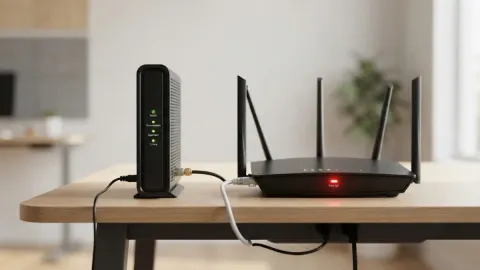
The quickest and most effective first step when troubleshooting a Wi-Fi connected no internet error is to perform a complete power cycle of your networking hardware. Over time, routers and modems can experience memory leaks, software glitches, or routing table corruption that temporarily blocks external traffic while keeping the local wireless network active. Unplug both your modem and your wireless router from the wall electrical outlet. Leaving them disconnected for at least thirty seconds allows all internal capacitors to drain completely, clearing any temporary cache or jammed data packets.
After waiting thirty seconds, plug your modem back in first and wait for the status lights to stabilize, which usually takes about one to two minutes. Once the modem shows a steady online connection, plug your router back into power and wait for its lights to turn solid. Reconnect your device to the wireless network and check if web pages load normally. If the issue persists, the problem lies deeper within your network settings or outside your home.
Run the Built-In Network Troubleshooter
Both Windows and macOS include built-in diagnostic tools designed to automatically detect and repair common network bottlenecks, IP configuration errors, and DNS failures. If you are using Windows, you can launch this tool by navigating to Settings > System > Troubleshoot > Other troubleshooters and running the Network and Internet troubleshooter. This utility scans your network adapter, checks your default gateway, and attempts to restart local networking services automatically.
For Mac users, you can hold down the Option key and click the Wi-Fi icon in the menu bar, then select Open Wireless Diagnostics. Follow the on-screen prompts to analyze your wireless environment and identify interference or configuration conflicts. These built-in tools often pinpoint exact errors that would take much longer to diagnose manually, saving you valuable time during troubleshooting.
Check Physical Cable Connections
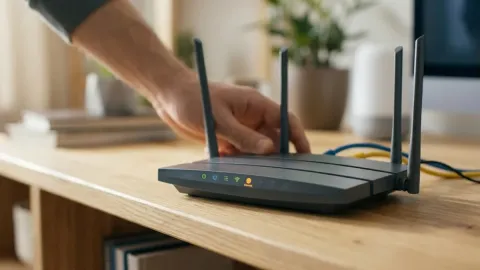
A surprisingly common cause of a Wi-Fi connected no internet status is a loose, damaged, or disconnected physical cable between your wall jack and your modem or router. Walk over to your networking setup and inspect every single cable. Ensure the coaxial cable or fiber optic line plugged into the back of your modem is screwed on tightly and not frayed. Next, check the Ethernet cable connecting your modem's LAN port to your router's WAN or Internet port. Unplug the Ethernet cable, listen for a secure clicking sound when reinserting it, and verify that the corresponding link light on both devices turns on.
If you have a spare Ethernet cable lying around, swap it out with the current one to rule out a broken internal wire. Cable degradation happens frequently due to pet damage, accidental pulls, or age. Ensuring your physical infrastructure is sound guarantees that your router actually receives the data signal sent by your Internet Service Provider.
Flush DNS and Reset Network Settings
Corrupted local DNS cache or messed-up IP configurations on your device can make it look like the internet is down even when your connection is fine. To clear the DNS cache on a Windows PC, open the Start menu, type cmd, right-click Command Prompt, and select Run as administrator. Type ipconfig /flushdns and press enter. Follow this by typing ipconfig /release and then ipconfig /renew to request a fresh IP address from your router. Mac users can open the Terminal app and run sudo dscacheutil -flushcache; sudo killall -HUP mDNSResponder to achieve the same result.
If basic commands do not work, you can perform a complete network reset on your device. On Windows, go to Settings > Network & internet > Advanced network settings > Network reset. On an iPhone or Android phone, navigate to your system settings, locate reset options, and choose Reset network settings. This will wipe saved Wi-Fi passwords and Bluetooth connections, but it frequently clears out stubborn software glitches causing the no internet error.
Verify IP Address and DHCP Settings
When a device connects to Wi-Fi but displays no internet, it may have failed to obtain a valid IP address from the router's DHCP server, resulting in a self-assigned IP address starting with 169.254. To check this on Windows, open Command Prompt and type ipconfig, then look for the IPv4 Address. If it starts with 169.254, your computer cannot communicate with the router's DHCP service. Log into your router's administration panel using the gateway IP address listed in your network settings, and ensure that the DHCP server is enabled.
Sometimes, setting a manual static IP address or changing your DNS servers to a public provider like Cloudflare (1.1.1.1) or Google (8.8.8.8) bypasses local routing issues. Update your IPv4 DNS settings in your network adapter properties, save the changes, and reconnect to your wireless network to see if normal web browsing is restored.
Contact Your Internet Service Provider
If you have restarted your modem and router, checked all physical cables, flushed your DNS cache, and verified your device settings without success, the problem is likely outside your home. Internet service providers frequently experience localized outages, scheduled maintenance, or line damage due to weather or construction work. Call your ISP's technical support line or check their official mobile application to see if an outage is reported in your neighborhood.
When you speak with an ISP representative, ask them to run a remote line test to check the signal strength and noise margins coming into your modem. If they detect a fault on their end, they can dispatch a technician or reset your port from their central office, bringing your home internet connection back online quickly and permanently.
The bottom line
Fixing a Wi-Fi connected no internet issue requires a systematic approach, starting with a simple power cycle of your router and moving toward software diagnostics and cable checks. By carefully working through these steps, you can pinpoint the exact cause and get your network running smoothly again.
Frequently asked questions
Why does my Wi-Fi say connected but have no internet?
This usually means your device is successfully communicating with your router, but your router cannot communicate with your internet service provider or the wider web due to a hardware glitch, cable issue, or ISP outage.
How do I know if the problem is my router or my internet provider?
If you can log into your router's admin panel and other devices on the same Wi-Fi network also lack internet access, the issue is either your modem, router, or ISP. If only one device lacks internet, the problem is likely on that specific device.
Does restarting my router delete my Wi-Fi password?
No, simply unplugging your router and plugging it back in will not erase your custom Wi-Fi name or password. Those settings are safely stored in the router's permanent flash memory.
What is a 169.254 IP address error?
An IP address starting with 169.254 is a link-local address assigned by your operating system when it cannot obtain a proper IP address from your router's DHCP server, indicating a communication failure between the device and router.