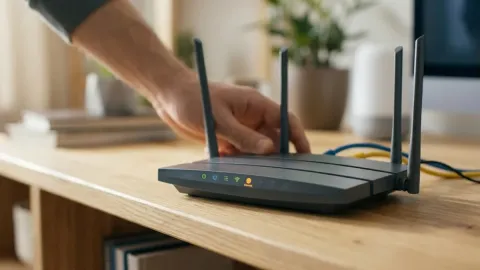
Router Not Working but Modem Is: How to Fix It
Troubleshooting this mismatch does not require calling your internet service provider right away. By following a structured series of network checks, you can isolate whether the problem is physical, configuration-based, or handshake-related and restore your home connection quickly.
Step 1: Verify Direct Modem Connectivity
Before tweaking router settings, you must verify that the modem is genuinely delivering a working internet stream. Modem indicator lights can be misleading; a solid WAN or Online light indicates an active link to your ISP headend, but it does not guarantee active data throughput or DNS resolution.
To confirm active throughput, take an Ethernet cable directly from the modem LAN port (or 2.5 Gbps port on newer DOCSIS 3.1 and fiber optical network terminals) and plug it into the Ethernet port of a laptop or PC. Turn off the computer Wi-Fi to force the connection through Ethernet. Open your browser and navigate to several websites. If the computer connects and loads pages normally, the modem and incoming service line are confirmed healthy. If your computer also fails to access the web, the issue resides with your modem provisioning, coax or fiber signal levels, or an ISP network outage, which requires contacting your provider.
Step 2: Perform a Sequential Power Cycle
Standalone modems and wireless routers exchange network handshake parameters during bootup. If you reboot both devices simultaneously, the router frequently finishes booting before the modem establishes a downstream carrier lock, causing the router to abandon its DHCP request and assign itself a dead WAN link.
A sequential power cycle forces a fresh network handshake in the proper chronological order:
- Unplug the power cables from both your modem and your Wi-Fi router.
- Wait at least 60 seconds to allow the capacitors in both devices to discharge fully and clear volatile memory buffers.
- Plug in the modem power cable first. Wait two to three full minutes until all upstream, downstream, and internet indicator lights become solid and stable.
- Plug the power cable back into your Wi-Fi router. Allow it two full minutes to negotiate an IP address from the modem and initialize Wi-Fi radios.
Once the router status indicator turns white or green, reconnect your phone or computer to the Wi-Fi network and check for internet access.
Step 3: Inspect the Ethernet Cable and Port Mappings
A damaged or misplaced patch cable between your modem and router is one of the most common causes of this issue. Modern routers feature multiple Gigabit or multi-gigabit Ethernet jacks on the rear panel, but only one is designated for the incoming modem signal. Connecting the modem cable into a standard LAN port instead of the dedicated WAN or Internet port prevents the router routing engine from processing traffic.
Verify that your Ethernet patch cable connects securely into the modem single data port and terminates in the port labeled WAN or Internet on your router (often highlighted in yellow or blue). Listen for an audible click when inserting each connector. If the port LEDs do not illuminate, replace the patch cable with a verified Cat 6 or Cat 6a cable. Internal copper pair fractures can sustain link synchronization while dropping transmission packets entirely.
Step 4: Release and Renew the Router WAN IP Address
When your modem changes its external IP allocation or reboots after an ISP update, the router attached to it may retain an expired WAN IP lease. When this occurs, the router tries to send outbound traffic to a dead gateway, resulting in connected devices showing connected without internet.
You can force the router to request a fresh public IP directly from the administrative web console:
- Connect your computer to the router via Wi-Fi or a LAN cable.
- Open a browser and navigate to your router gateway address, typically
192.168.1.1,192.168.0.1, or10.0.0.1. - Sign in with your administrator credentials.
- Go to Advanced > Network > Internet (or WAN Setup depending on your router brand such as AsusWRT, Netgear, or TP-Link).
- Locate the WAN IP or Internet IP Address section and click Release, followed by Renew.
Wait 30 seconds. If the router acquires a valid public IPv4 address and subnet mask instead of showing 0.0.0.0, test your connection.
Step 5: Eliminate Local Subnet Conflicts
If your ISP provided a combination modem-router gateway that you connected to a secondary standalone router, both devices might be attempting to operate on the identical local subnet, such as 192.168.1.1. When two routing devices share the same IP space, packet routing fails completely because the secondary router cannot distinguish between internal client traffic and upstream WAN traffic.
To resolve this conflict, change the local LAN IP range of your personal router:
- Inside your router management dashboard, navigate to Advanced Settings > LAN > LAN IP.
- Change the router IP address from
192.168.1.1to192.168.2.1or10.0.1.1. - Ensure the subnet mask remains
255.255.255.0. - Click Apply or Save.
Your router will reboot and reassign new DHCP addresses across all connected devices under the new subnet, eliminating routing collisions. Alternatively, access your ISP modem settings and put it into Bridge Mode, which disables its internal router and DHCP server entirely.
Step 6: Clone the Registered MAC Address
Many cable and fiber internet service providers bind your internet session to the Media Access Control (MAC) physical hardware address of the very first device connected to their modem. If you recently swapped routers or tested your connection with a PC plugged directly into the modem, the ISP system may lock traffic to that computer MAC address, ignoring your router completely.
You can bypass this restriction by using the MAC Clone feature built into your router firmware:
- Connect the PC that successfully accessed the internet when plugged into the modem to your router via Ethernet or Wi-Fi.
- Open the router web dashboard and go to Network > WAN > MAC Address.
- Select the option labeled Clone Current Computer MAC or Use Computer MAC Address.
- Click Save and reboot the router.
By mimicking the hardware address of the verified computer, the router passes the ISP authentication filter and receives full data routing privileges.
Step 7: Perform a Factory Reset on the Router
If your modem passes data, cables are verified, and IP settings fail to sync, the router routing table or internal NVRAM configuration may be corrupted. A factory reset restores default factory routing parameters, clearing corrupted firewall tables, misconfigured VLAN tags, and broken custom DNS routes.
To perform a clean hardware reset, locate the recessed Reset button on the back or bottom of the router. While the unit is powered on, use a straightened paperclip to press and hold the button for 10 to 15 seconds until the power LED flashes amber or blinks rapidly. Release the button and wait three to four minutes while the router restores default firmware settings. Once restarted, run through the initial setup wizard using the default Wi-Fi network name and password printed on the router bottom label.
The bottom line
A router that fails to distribute internet while the modem is fully operational usually suffers from an unrenewed WAN lease, an IP subnet collision, or a handshake error during startup. By verifying the physical connection with a fresh cable, powering your hardware in sequence, and configuring proper WAN IP and MAC parameters, you can quickly reconnect your devices without waiting for technical support.
Frequently asked questions
Why does my modem have internet but my router shows no connection?
This problem usually occurs because the router has not obtained a dynamic WAN IP address from the modem, there is a subnet collision where both units share 192.168.1.1, or the ISP has locked the connection to a different device MAC address.
Which port on the router connects to the modem?
The Ethernet cable coming from the modem must always plug into the port labeled WAN or Internet on the back of your router, never into the numbered LAN ports (1 through 4).
Do I need to enable bridge mode on my modem?
If your modem is a gateway combination unit containing built-in Wi-Fi and routing features, enabling bridge mode disables its routing functions, preventing double NAT and IP address conflicts with your standalone router.
Can a bad Ethernet cable cause my router to drop connection while the modem works?
Yes. A worn or damaged patch cable can deliver enough electrical continuity to show an active link light while dropping data packets, preventing the router from establishing an internet handshake.
Why does power cycling in a specific order matter?
The modem must finish locking onto external provider frequencies and initialize its internal DHCP server before the router boots. If the router finishes booting first, it sends requests into an unready modem and fails to obtain an IP address.