How to Fix an Android Phone That Won't Turn On
This guide walks you through a step-by-step troubleshooting process to diagnose the root cause and safely bring your Samsung, Pixel, or other Android phone back to life, starting with the simplest fixes and moving toward advanced recovery methods.
Understanding Why Your Android Phone Won't Turn On
Before attempting any technical fixes, it helps to understand why your device might be failing to boot up. The most common culprit is a deep battery discharge, which happens when the battery level drops so low that the phone lacks even the minimal power required to light up the charging indicator LED or screen. In these cases, simply plugging the phone in for a few seconds will not work; the device needs sustained power to revive its cells.
Another frequent cause is a severe software crash or firmware glitch. Even when the display is entirely black and the phone feels completely dead, the operating system might be frozen in a background loop. Hardware damage, such as a clogged charging port, a faulty wall adapter, or water exposure, can also disrupt the power delivery cycle. Identifying these potential triggers allows you to systematically test each component until your phone responds.
Charge Your Phone Properly and Test the Cable
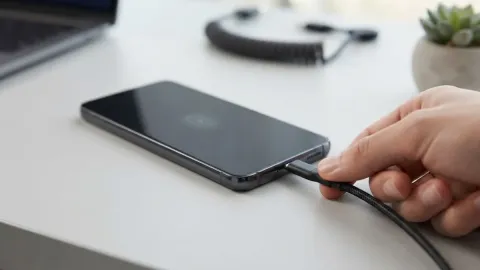
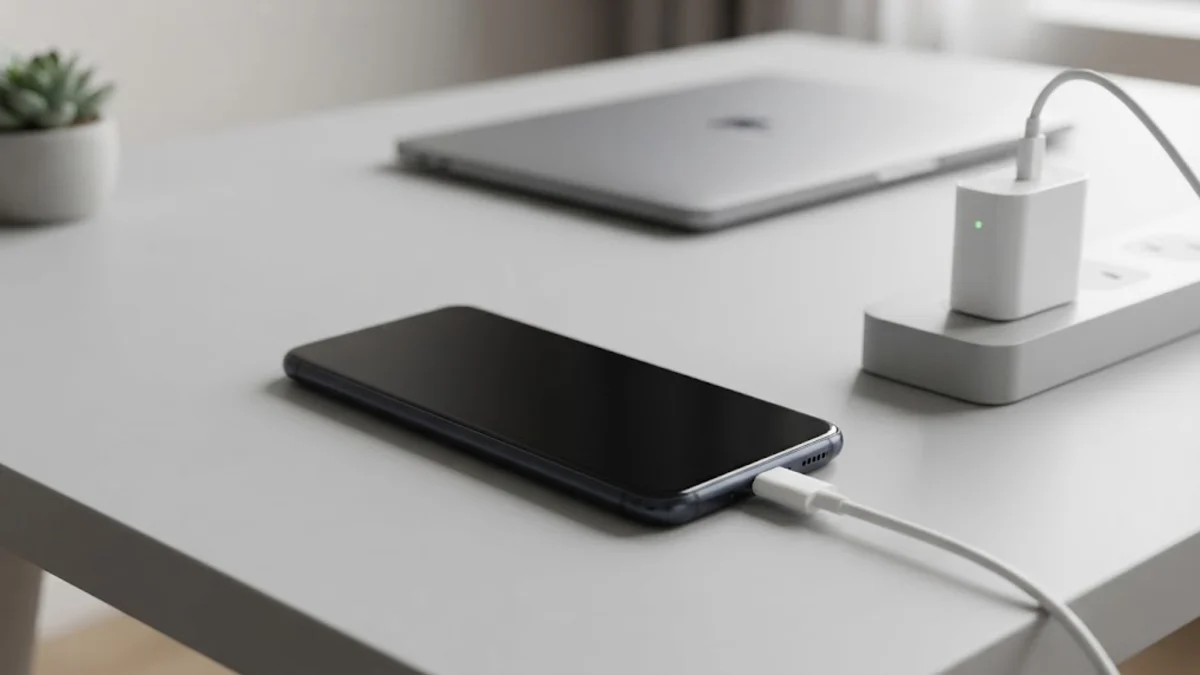
When dealing with a phone that won't turn on, always start by connecting it to a known working wall outlet rather than a computer USB port, which provides significantly less electrical current. Use the original manufacturer cable and power brick if possible, as third-party accessories may not deliver the proper voltage required to jump-start a deeply depleted battery. Leave the phone undisturbed to charge for at least 30 minutes without attempting to turn it on.
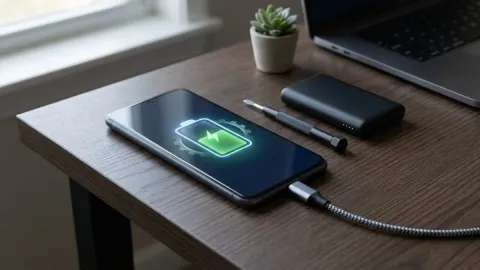
If the screen remains completely black after 30 minutes, inspect your charging accessories for signs of damage or try swapping out the cable and adapter with another compatible set. Sometimes, a faulty charging brick or a frayed cord is the sole reason your phone was not receiving power in the first place. Once you have connected a verified power source, look closely for a small LED status light or a battery charging icon on the display, which indicates that power is flowing correctly into the device.
Perform a Force Restart on Your Device
If your battery has adequate charge or has been plugged in for a while but the screen remains stubbornly black, your phone may be experiencing a system freeze. A force restart cuts power to the motherboard temporarily and forces the hardware to reboot completely, bypassing a crashed software environment. To perform a force restart on most modern Android devices, press and hold both the Power button and the Volume Down button simultaneously for at least 15 to 30 seconds.
Keep holding the buttons until you feel a physical vibration or until the device manufacturer logo appears on the screen. If your phone logo appears, you can release the buttons and let the operating system finish booting up normally. Note that some older or specific device models may require holding the Power button alone or combining it with the Volume Up button instead. If nothing happens after 30 seconds of holding the buttons, proceed to check the physical hardware interface.
Inspect and Clean the Charging Port
Pocket lint, dust, and microscopic debris frequently accumulate inside the USB-C or Micro-USB port of an Android phone over time. This debris creates a physical barrier that prevents the charging cable pins from making solid contact with the internal connectors, preventing the device from charging or turning on. Take a bright flashlight and carefully examine the inside of your phone charging port to see if you notice any compacted lint or foreign material.
If you spot debris, use a non-conductive wooden toothpick or a clean, dry interdental brush to gently scrape and remove the buildup. Never use metal sewing needles, paperclips, or pins, as these can easily scratch the delicate gold contacts inside the port or cause a short circuit in the battery management system. After cleaning out the port, plug your charging cable back firmly into the device and wait a few minutes to see if the charging indicator activates.
Boot Your Phone into Recovery Mode
If your phone vibrates or lights up when connected to power or buttons are pressed, but it gets stuck in a boot loop or fails to load the home screen, you may need to access Recovery Mode. Recovery Mode is a built-in diagnostic environment that operates independently of the main Android operating system, allowing you to clear corrupted system cache or perform troubleshooting tasks safely.
To enter Recovery Mode on most Android phones, turn the device completely off, then press and hold a specific combination of buttons—typically Power and Volume Down—until the bootloader menu appears on your display. Use the volume buttons to highlight options and the power button to select. Navigate to the option labeled Wipe cache partition and confirm your selection. Clearing the system cache removes temporary files that often cause boot failures without erasing any of your personal photos, messages, or downloaded apps.
What to Do If Your Phone Is Completely Unresponsive
If you have tested multiple chargers, cleaned the port, performed a force restart, and attempted to access recovery mode with zero response from the device, the issue is likely rooted in physical hardware failure. Internal components such as the motherboard, power IC chip, or battery cell may have suffered permanent degradation, wear, or physical damage from a drop or liquid exposure.
At this stage, attempting further software fixes is ineffective. Your best course of action is to visit an authorized service center or contact your phone manufacturer support channel for a professional hardware diagnostic assessment. If your device is still covered under a standard warranty or extended insurance plan, a technician can evaluate whether the battery or mainboard requires professional repair or replacement.
The bottom line
Fixing an Android phone that refuses to turn on usually comes down to resolving a drained battery, clearing a software freeze, or cleaning out a blocked charging port. By methodically working through these troubleshooting steps, you can quickly determine whether the issue requires a simple accessory replacement or professional technical support.
Frequently asked questions
Why won't my Android phone turn on even when plugged in?
This usually happens when the battery has suffered deep discharge, requiring 20 to 30 minutes of continuous charging before registering power. It can also be caused by a faulty charging cable, a blocked charging port, or a frozen software state.
How do I force my Android phone to restart?
Press and hold both the Power button and the Volume Down button simultaneously for 15 to 30 seconds until the phone vibrates or the manufacturer logo appears on the screen.
Will a force restart delete my personal data?
No, a standard force restart or soft reboot only interrupts power to the system temporarily and will not delete your photos, messages, apps, or personal settings.
Can a dirty charging port stop a phone from turning on?
Yes. Pocket lint and debris can prevent the charging cable from making proper contact, stopping the phone from receiving the electrical current needed to power on.
What should I do if none of these fixes work?
If the phone remains completely unresponsive to power sources, button combinations, and port cleaning, it likely has a hardware failure and should be taken to an authorized repair center.