What Is Windows 11 S Mode and Should You Switch?
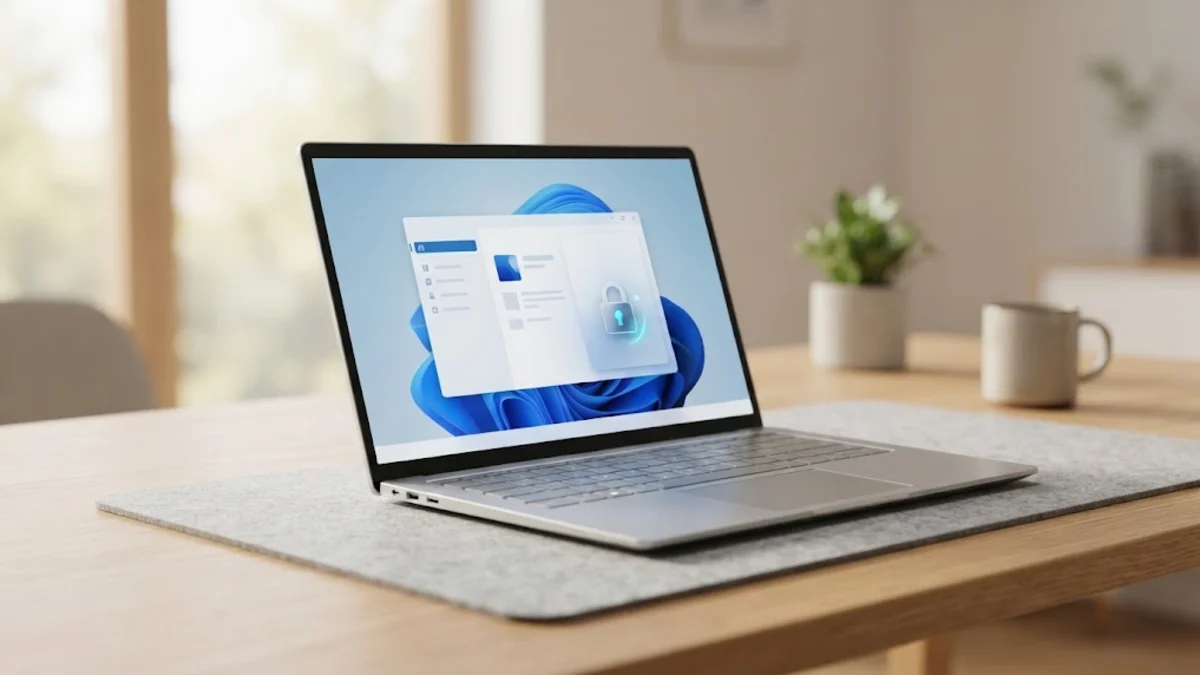
Windows 11 S Mode is a streamlined version of the operating system designed specifically for enhanced security, faster performance, and extended battery life. When enabled, it restricts your device to running exclusively verified applications downloaded directly from the official Microsoft Store. While this setup provides a robust shield against malware and accidental system clutter, it also limits your ability to install traditional desktop programs like Google Chrome, Steam, or custom developer utilities. Understanding how this feature works helps you decide whether to keep your PC locked down or switch to the standard edition.
Core Security Benefits of Windows 11 S Mode
The primary advantage of running Windows 11 S Mode is its uncompromising focus on device security. Because the operating system blocks the installation of traditional executable files downloaded from random web sources, the risk of downloading malicious software, trojans, or ransomware drops significantly. Every single app available through the Microsoft Store undergoes a rigorous verification process by Microsoft to ensure it meets strict safety and privacy standards. Furthermore, applications run within isolated security containers or sandboxes, preventing them from modifying critical system files or accessing unauthorized hardware components. This makes S Mode an exceptional choice for student laptops, shared family computers, or corporate environments where users might accidentally click on dangerous links or sketchy download buttons while browsing the web.
Performance and Battery Optimization Advantages
Beyond security, Windows 11 S Mode is engineered to deliver superior hardware efficiency, making it ideal for budget-friendly laptops and lightweight portables with modest specifications. Traditional desktop applications often install background services, startup tasks, and updater utilities that consume valuable RAM and drain battery life even when you are not actively using them. S Mode restricts applications from spawning rogue background processes, ensuring your system resources remain focused entirely on the active task at hand. This optimized resource management results in noticeably faster boot times, smoother multitasking when handling web browsing and office documents, and hours of extra battery life on a single charge. If your laptop tends to struggle with sluggish performance after a few months of heavy usage, the controlled environment of S Mode prevents background bloatware from accumulating over time.
Limitations and App Restrictions You Will Face
While the security and performance perks are compelling, the restrictions imposed by Windows 11 S Mode can become a major bottleneck depending on your daily computing needs. You cannot install standard programs using downloaded setup files ending in extensions like .exe or .msi. This means popular tools such as Google Chrome, Firefox, professional Adobe creative apps, and complex gaming platforms like Steam or Epic Games will not run out of the box unless equivalent versions are officially hosted in the Microsoft Store. Additionally, S Mode enforces Microsoft Edge as your default web browser and Bing as your default search engine for core system links, restricting your ability to change these defaults system-wide. If your workflow relies on specialized software that lacks a Microsoft Store counterpart, you will quickly find these boundaries frustrating.
How to Check If Your PC Is Running S Mode
How to Permanently Switch Out of S Mode
Comparing Windows 11 S Mode and Standard Windows 11
| Feature | Windows 11 S Mode | Standard Windows 11 |
|---|---|---|
| App Installation | Microsoft Store apps only | Any downloaded .exe or .msi file |
| Default Browser | Locked to Microsoft Edge | Fully customizable |
| Security Level | High (sandboxed ecosystem) | Standard (relies on Defender/user caution) |
| Battery Efficiency | Optimized and restricted | Varies based on installed background apps |
| Reversibility | Can switch out permanently | Cannot return to S Mode once left |
The bottom line
Windows 11 S Mode is a fantastic feature for users who prioritize safety, streamlined performance, and long battery life above all else. However, if you require specialized third-party software or prefer freedom in customizing your web browsing experience, switching out of S Mode takes only a few moments through the Microsoft Store.
Frequently asked questions
Is there a fee to switch out of Windows 11 S Mode?
No, switching out of S Mode is completely free of charge for all supported Windows 11 editions.
Can I switch back to S Mode after leaving it?
No, the transition is irreversible unless you perform a complete factory reset of your operating system.
Will I lose my files when switching out of S Mode?
No, switching out of S Mode preserves all your personal files, photos, and documents without any data loss.
Can I use Google Chrome in S Mode?
You can only use Google Chrome if a compatible version is offered directly within the Microsoft Store interface.
Does S Mode protect against all computer viruses?
While it blocks most unauthorized executable malware, caution is still required when opening files and browsing the web.