How to Fix Router No Internet
Dealing with a sudden loss of internet connectivity can disrupt your entire day, leaving you searching for a reliable way to fix router no internet errors. Whether your Wi-Fi devices show a connected symbol without data or completely drop the network, troubleshooting the root cause gets you back online fast.
This guide walks you through a practical, step-by-step process to diagnose and resolve router connection failures, from basic cable checks to advanced network resets, ensuring your home network runs smoothly.
Check Physical Connections and Cables
Loose, damaged, or disconnected cables are the most common and easily overlooked culprits when your router loses internet access. Over time, Ethernet cables can slip out of place, or pets and foot traffic can damage the lines connecting your wall jack, modem, and router. Start your troubleshooting journey by physically inspecting every single cable linked to your networking hardware to ensure a secure fit.
Examine the main Ethernet cable running from your wall outlet or optical network terminal to the internet or WAN port on your modem. Next, check the cable connecting the modem to the router's WAN or internet port. If any cable shows signs of fraying, bending, or damage, replace it immediately with a high-quality Cat6 cable. Unplug each connector and push it back in firmly until you hear a distinct click, confirming a secure physical connection before moving on to power diagnostics.
Perform a Power Cycle on Your Modem and Router
Temporary glitches in your network hardware memory can freeze routing tables and drop external connections, making a complete power cycle essential. Simply rebooting your devices clears temporary cache, resets network handshakes, and re-establishes a clean connection with your internet service provider. Turn off both your standalone modem and your wireless router by pulling their power adapters straight out of the electrical wall outlets.
Wait for at least 60 seconds to let the internal capacitors fully discharge and clear any lingering electrical charge. Plug your modem back in first and wait a couple of minutes until its status lights stabilize, indicating it has successfully acquired a signal from the street. Once the modem is fully online, plug your router back into power and give it another two minutes to boot up, broadcast its wireless signals, and reassign local IP addresses to your connected devices.
Inspect Status Lights and Indicator LEDs
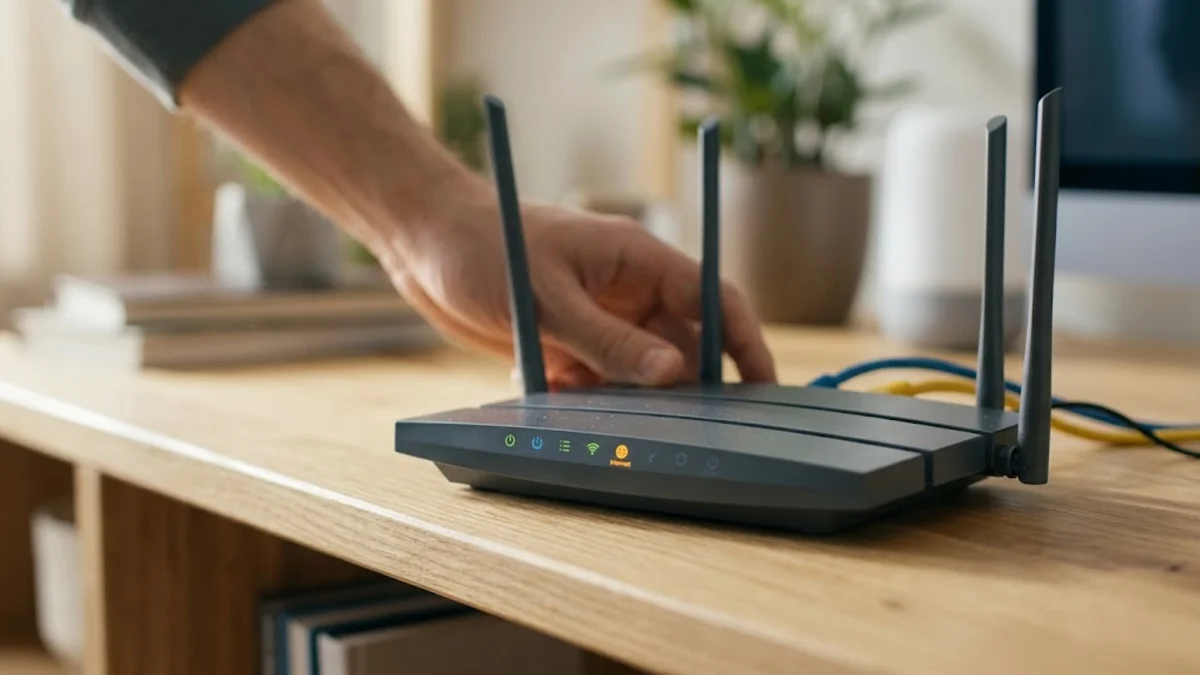
Your router and modem feature a series of LED indicator lights designed to communicate the exact health status of your network. Learning how to interpret these lights saves valuable troubleshooting time by pointing directly to where the failure originates. Look closely at the internet icon, global globe symbol, or WAN LED, which typically turns solid green or white when an active internet connection is present.
If the internet LED is blinking continuously, flashing red, or completely dark, your router is communicating with your local devices but failing to reach the wider web. A blinking light usually indicates negotiation with your internet service provider, while a solid red or amber light signifies an authentication failure or a complete lack of upstream signal. Cross-reference your router model manual to understand your specific manufacturer indicator codes, as a persistently red light often points straight to an active service outage.
Check for Outages with Your Internet Service Provider
Sometimes the issue has nothing to do with your personal hardware and stems entirely from maintenance work, severed fiber lines, or equipment failures at your internet service provider. Before spending hours reconfiguring your equipment, verify whether your neighborhood or wider region is experiencing an unexpected service outage. You can check your provider mobile app on your cellular data connection or visit their official outage status page.
Major providers offer automated phone lines and status maps that instantly report local downtime or scheduled maintenance affecting your street address. If an outage is confirmed, all you can do is wait for their field technicians to restore service. However, if your provider reports normal operations in your area while your connection remains dead, the fault lies within your home setup, and you should continue down the troubleshooting checklist.
Release and Renew IP Address or Reset Network Settings
If your router connects to the internet but your individual computer or phone refuses to load web pages, your device might hold a corrupted local IP configuration or DNS cache. On a Windows computer, open your command prompt, type ipconfig /release followed by ipconfig /renew, and hit enter to clear old routing tables. Mac users can navigate to System Settings > Network > Details > TCP/IP and click renew DHCP lease.
If clearing local IP configurations on individual devices fails, you may need to perform a soft reset of the router settings via its admin dashboard. Connect a computer to your router via Ethernet or Wi-Fi, open a web browser, and enter your router gateway IP address. Log in using your admin credentials, locate the system tools or management menu, and select the option to reboot or restart the router software environment without wiping your custom Wi-Fi passwords and network configurations.
Update Router Firmware or Access Admin Panel
Outdated router firmware often contains bugs, security vulnerabilities, or compatibility issues that break external internet connectivity over time. Manufacturers frequently release software patches that resolve connection drops and improve stability with modern internet protocols. Access your router admin control panel using the default gateway address printed on the physical sticker underneath your hardware unit.
Once logged into the dashboard, look for a tab labeled Administration, Advanced Settings, or Firmware Update. Check for available updates directly through the interface, or download the latest firmware file from the manufacturer official support site if manual installation is required. Keeping your firmware current ensures optimal compatibility with your internet service provider network standards and prevents recurrent unexpected disconnects.
The bottom line
Fixing a router with no internet connection requires a systematic approach, starting from simple physical cable checks and progressing through power cycles, LED indicator analysis, and firmware updates. By following these structured steps, you can quickly isolate the problem, determine whether your provider or your hardware is at fault, and restore reliable connectivity to your home network.
Frequently asked questions
Why do my router lights show connection but I have no internet?
This usually happens when your modem loses communication with your internet service provider or your router DNS settings are misconfigured, even though local Wi-Fi transmission works fine.
Should I press the physical reset button on my router?
Only use the physical reset button as a last resort. Holding it down for 10 seconds will restore factory default settings, erasing your custom Wi-Fi network name and password.
How long should I leave my router unplugged during a power cycle?
Leaving your modem and router unplugged for at least 60 seconds ensures that all internal capacitors drain completely and temporary memory cache clears out entirely.
Why does my internet drop out at the same time every day?
Daily drops often indicate scheduled ISP maintenance in your area, thermal overheating of your router hardware, or interference from heavy electronic devices nearby.
Can a bad Ethernet cable cause my router to lose internet?
Yes, a damaged or low-quality Ethernet cable between your modem and router can disrupt data packets, preventing the router from maintaining a stable upstream connection.