How to Fix Samsung Galaxy Keyboard
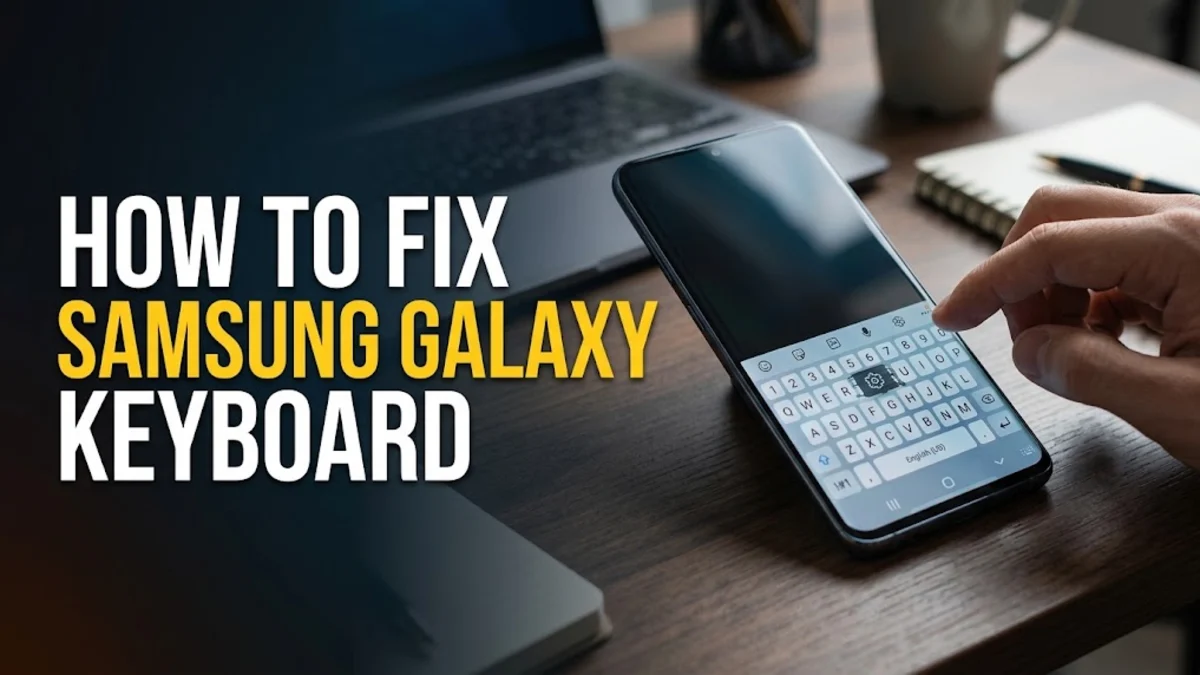
Dealing with a freezing, lagging, or completely unresponsive keyboard on your Samsung Galaxy phone can grind your daily communication to a complete halt. Whether the predictive text has stopped working, the keys are registering incorrectly, or the app keeps crashing entirely, typing out messages becomes an exercise in frustration.
Fortunately, most keyboard glitches on Samsung devices stem from temporary cache corruptions or software conflicts that you can resolve in just a few minutes without losing any important personal data or settings.
Clear the Cache and Data of Samsung Keyboard
The most common reason your Samsung Galaxy keyboard begins lagging or freezing is corrupted temporary cache files. Over months of heavy typing, autocorrect dictionaries and cache files can bloat, causing severe performance drops. Clearing this data forces the application to build a fresh, clean cache without deleting your custom dictionary entries.
To clear your keyboard cache, open your device settings and navigate through the menus. Tap on Settings > Apps, and scroll down until you locate Samsung Keyboard. Tap on it, select Storage, and then press Clear Cache at the bottom of the screen. If the problem persists after clearing the cache, return to this menu and select Clear Data as well. Keep in mind that clearing data will reset your keyboard preferences back to factory defaults, but it provides a clean slate for fixing persistent crashes.
Restart Your Samsung Galaxy Phone
It sounds simple, but a routine device restart is often the fastest remedy for sudden keyboard malfunctions. Background processes, memory leaks, or temporary system glitches can freeze system-level apps like the default keyboard. Giving your phone a complete power cycle clears active RAM and stops rogue background tasks that might be interfering with touch input response.
Press and hold the Side Key and the Volume Down button simultaneously for a few seconds until the power menu appears on your display. Tap Restart and wait for your phone to boot back up completely. Once your Galaxy device reaches the lock screen, unlock it and open any messaging app to test whether the keyboard responsiveness has returned to normal. If the issue was caused by a temporary system hiccup, this quick reboot should restore smooth typing immediately.
Reset Samsung Keyboard Settings to Default
Misconfigured settings, broken language packs, or conflicting input options can cause your Samsung keyboard to behave erratically. Reverting all keyboard configurations back to their original factory state helps isolate whether a specific custom setting is triggering the malfunction. This step removes custom themes, text shortcuts, and layout adjustments.
To reset your keyboard, go to Settings > General Management > Samsung Keyboard Settings. Scroll down through the options menu and tap on Reset to default settings. Confirm your choice by selecting Reset keyboard settings on the confirmation prompt. After the reset completes, open a note or chat app to check if typing is smooth and if predictive text operates correctly. You can then re-apply your preferred themes and customized options one by one.
Check for System and App Updates
Running an outdated version of One UI or an older keyboard build can lead to compatibility bugs, especially after a recent major operating system upgrade. Samsung frequently releases software patches designed to fix known bugs, improve touch sensitivity, and optimize overall system performance across Galaxy devices.
First, check for system software updates by heading to Settings > Software Update > Download and Install. If an update is waiting, connect to Wi-Fi and install it. Next, check for keyboard updates by opening the Galaxy Store, tapping on Menu > Updates, and installing any pending updates available for the Samsung Keyboard. Keeping both your Android operating system and your built-in apps updated ensures maximum stability and eliminates known software glitches.
Boot Into Safe Mode to Check for App Interference
Sometimes, a recently downloaded third-party application, screen overlay, or custom font app can conflict with your system keyboard, causing freezing or unexpected shutdowns. Booting your Samsung Galaxy into Safe Mode temporarily disables all downloaded third-party applications, allowing you to determine whether a rogue app is causing your keyboard problems.
To enter Safe Mode, press and hold the physical power and volume down buttons until the power off menu appears. Touch and hold the Power Off icon on your screen until the Safe Mode prompt pops up, then tap it to confirm. Your phone will restart, and you will see a Safe Mode watermark in the corner of the screen. Test your keyboard in a built-in app like Samsung Notes or Messages. If the keyboard works perfectly in Safe Mode, a recently installed app is causing the conflict. Uninstall your most recent downloads one by one until the issue disappears in normal mode.
Switch to an Alternative Keyboard App
If you have tried all troubleshooting steps and your default Samsung keyboard continues to lag or crash, you can bypass the issue entirely by installing an alternative third-party keyboard from the official app store. Google's Gboard or Microsoft SwiftKey are excellent, highly reliable alternatives that offer robust predictive typing, voice input, and customizable themes.
Open the Google Play Store, search for Gboard, and install it on your device. Once installed, open the Gboard app and follow the on-screen setup wizard to enable it as your primary input method, or navigate to Settings > General Management > Keyboard list and default to switch your active keyboard. Using an alternative keyboard not only solves your immediate typing frustrations but also gives you access to advanced multilingual typing features and cloud-based predictive intelligence.
The bottom line
Fixing a malfunctioning Samsung Galaxy keyboard is usually a straightforward process involving cache clearing, settings resets, or software updates. By working through these troubleshooting steps systematically, you can eliminate annoying lags, freezes, and crashes, ensuring your phone returns to a smooth, reliable typing experience.
Frequently asked questions
Why does my Samsung keyboard keep stopping?
This error typically occurs due to corrupted cache files, a temporary software glitch, or a conflict with a newly installed application. Clearing the keyboard cache or restarting your phone usually resolves it.
Will clearing my keyboard data delete my saved words?
Yes, clearing the keyboard data will reset your personal dictionary, custom shortcuts, and saved predictions back to factory defaults, but it will not affect your personal photos, contacts, or messages.
How do I switch back to the default Samsung keyboard?
You can change your active keyboard anytime by going to Settings > General Management > Keyboard list and default, and selecting your preferred keyboard from the list.
Why is my Samsung keyboard lagging when I type?
Keyboard lag is often caused by low available RAM, heavy background processes, or an outdated system software version. Restarting your phone and installing the latest software update typically fixes the lag.