How to Fix Microsoft Excel Not Working Today
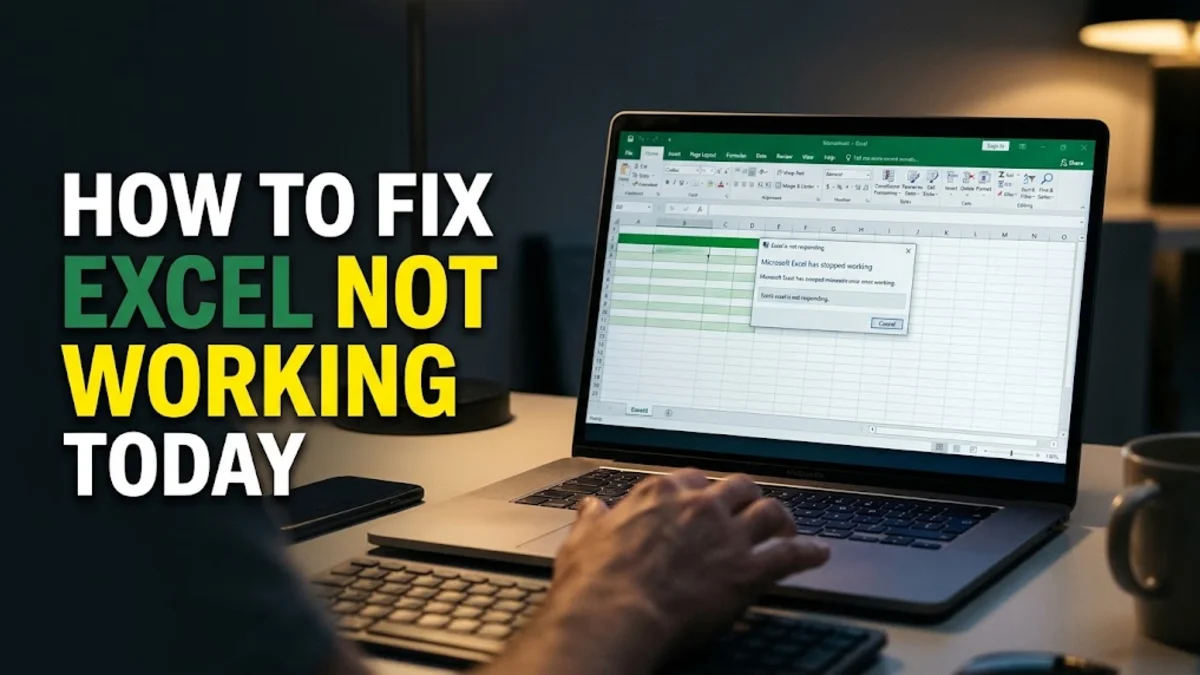
When Microsoft Excel refuses to open, freezes on startup, or crashes while loading your work, troubleshooting the issue quickly is essential to get back on track. Whether you are facing sudden software corruption, a conflicting add-in, or an incomplete system update, isolating the root cause lets you apply the right fix without losing your important data.
This guide walks you through the most effective methods to diagnose and resolve Excel errors on Windows and macOS. By following these structured steps from quick safe mode tests to full Office repairs, you can restore your spreadsheet application to normal working order in no time.
Launch Excel in Safe Mode to Test Add-Ins
A corrupted or outdated third-party add-in is one of the most common reasons Microsoft Excel stops working unexpectedly. When an add-in conflicts with a recent Office update or system patch, the application may freeze immediately upon launch or throw silent error codes. Testing Excel in Safe Mode bypasses all external add-ins, startup files, and custom templates, helping you determine if an extension is causing the crash.
To launch Excel in Safe Mode on Windows, press the Windows Key + R to open the Run dialog box, type excel /safe, and press Enter. On a Mac, hold down the Control key while clicking the Excel icon to launch it in safe mode. If Excel opens successfully without crashing, you can disable your installed add-ins one by one via File > Options > Add-Ins to identify and remove the faulty component permanently.
Perform a Quick or Online Repair of Microsoft Office
Core system files associated with Microsoft Excel can occasionally become damaged or unregistered due to abrupt computer shutdowns or disk errors. When individual components of the Microsoft 365 suite fail to respond, repairing the entire installation package is often the fastest and most reliable solution. Windows provides a built-in repair utility designed specifically to scan and replace corrupted Office binaries without affecting your personal documents.
To run this tool on Windows, open your system settings by navigating to Settings > Apps > Installed Apps or Apps & Features. Locate Microsoft 365 or your specific Office edition in the list, click the three-dot menu icon, and select Modify. Choose the Quick Repair option first, as it runs locally and takes only a few minutes. If the application continues to malfunction, return to the menu and select Online Repair, which downloads fresh application files directly from Microsoft servers.
Clear Temporary Files and Excel Cache Data
Over time, accumulated temporary files, auto-recovery caches, and registry keys can conflict with normal Excel operations, leading to frozen screens or failure to load workbooks. Clearing out stale temporary data forces the application to build fresh configuration files upon startup, which often resolves persistent performance bottlenecks and sudden crash loops.
On Windows, you can clear temporary files by pressing the Windows Key + R, typing %temp%, and deleting safe-to-remove temporary cache files related to Microsoft Office. Additionally, check the default template folder located at C:\Users\YourUsername\AppData\Roaming\Microsoft\Excel and rename or remove any corrupted Excel15.xlb or custom startup files. Restart your computer entirely after clearing these directories to ensure all background Excel processes are fully terminated before launching the program again.
Update Microsoft Excel and Your Operating System
Running an outdated version of Microsoft Excel alongside a newly updated operating system frequently triggers compatibility errors and unexpected application shutdowns. Microsoft regularly releases security patches, bug fixes, and stability improvements through official update channels. Ensuring both your system and your productivity suite are fully up to date prevents known bugs from disrupting your workflow.
To check for pending Office updates, open any working Microsoft Office application or Excel itself if it allows access, then go to File > Account > Update Options > Update Now. Concurrently, check your operating system updates by visiting Settings > Windows Update on Windows or System Settings > General > Software Update on macOS. Install any available updates, reboot your system, and test Excel to see if the issue is resolved.
Disable Hardware Graphics Acceleration
Hardware graphics acceleration utilizes your computer graphics processing unit (GPU) to render visual elements faster within Microsoft Office apps. However, outdated graphics drivers or incompatible display hardware can cause Excel to crash, freeze, or display blank white windows upon startup. Disabling this feature forces your processor to handle rendering tasks, bypassing GPU conflicts entirely.
If you can open Excel in Safe Mode, you can disable this setting permanently by going to File > Options > Advanced. Scroll down to the Display section and check the box labeled Disable hardware graphics acceleration. Click OK to save your changes and restart Excel normally. If you cannot open the application at all, you can disable this feature by modifying the Windows Registry under the Office graphics registry key, though testing via Safe Mode remains the safest approach.
Check for Conflicting Antivirus or Background Apps
Aggressive third-party antivirus suites, real-time file scanners, or background utility software can sometimes mistake legitimate Excel processes or macro executions for security threats. When security software locks active Excel temporary files or blocks macro execution hooks, the application may freeze or refuse to open altogether.
To verify if third-party security software is causing the problem, temporarily disable your antivirus real-time protection or perform a clean boot of your operating system. To perform a clean boot on Windows, open the System Configuration utility by typing msconfig in the Run dialog, navigate to the Services tab, check Hide all Microsoft services, click Disable all, and restart your computer. If Excel functions normally during a clean boot, inspect your background applications and adjust your antivirus exception lists to exclude Microsoft Office executable files.
The bottom line
Fixing Microsoft Excel when it stops working usually comes down to isolating software conflicts, clearing corrupted cache data, or repairing your Office installation package. By methodically applying these troubleshooting steps, you can eliminate root causes and restore reliable performance.
Frequently asked questions
Why does Microsoft Excel keep freezing on startup?
Excel typically freezes on startup due to conflicting third-party add-ins, corrupted template files, or outdated graphics drivers. Launching the application in Safe Mode helps identify and remove the offending extension.
Will repairing Microsoft Office delete my spreadsheets?
No, running a Quick or Online Repair of Microsoft Office modifies only the application system files and will not touch, delete, or alter your personal Excel workbooks stored on your computer.
How do I open Excel in Safe Mode on Windows?
Press the Windows Key + R on your keyboard, type excel /safe into the Run dialog box, and press Enter to launch Excel without loading any add-ins or extensions.
What should I do if Excel gives an unlicensed product error?
Make sure you are signed into the correct Microsoft account associated with your Microsoft 365 subscription, or verify your license key status under File > Account.
Can outdated Windows updates cause Excel to crash?
Yes, missing critical operating system updates can create API conflicts with modern Office apps. Keeping both Windows and Microsoft 365 updated prevents these compatibility crashes.