Why Is My Samsung Galaxy Screen So Dark and How to Fix It
Is your Samsung Galaxy screen frustratingly dark, even when you slide the brightness bar all the way to the top? This common issue often stems from automated display settings, battery-saving features, or light sensor glitches that restrict backlight output to preserve power. Here is how to diagnose the underlying cause and bring your display back to full clarity using built-in One UI controls.
Check Adaptive Brightness and Extra Dim Settings
The most frequent reason a Samsung Galaxy screen appears too dark is that automated display features are actively working against your manual input. Adaptive brightness monitors your environment and adjusts the backlight automatically, which can sometimes misinterpret ambient light levels and keep your screen dimmer than necessary. Additionally, a feature called Extra Dim lowers the minimum brightness level significantly, which is helpful in dark rooms but makes the phone nearly invisible outdoors.
To fix this, go to Settings > Display and toggle off Adaptive brightness if it is causing erratic dimming. While you are there, scroll down and make sure the Extra Dim toggle is turned off. If you prefer keeping adaptive brightness active, you can retrain the algorithm by manually sliding the brightness bar up whenever the phone makes it too dark; over time, the system learns your preferred brightness levels for specific lighting conditions.
Disable Power Saving and Device Care Modes
Samsung Galaxy phones include aggressive battery management tools designed to stretch your battery life throughout the day. When Power Saving mode is enabled, one of its default restrictions is to limit the maximum CPU speed and automatically reduce screen brightness by up to ten percent. If your phone is running low on battery or if a routine automation rule triggers Power Saving mode in the background, your screen will remain artificially dimmed regardless of your manual adjustments.
To check if power management is causing the issue, swipe down twice from the top of your screen to open the quick settings panel and look for the Power Saving tile. If it is highlighted, tap it to turn it off. For a more permanent check, navigate to Settings > Battery and device care > Battery > Power saving and ensure it is disabled or configured so that it does not automatically restrict display brightness during standard daytime use.
Turn Off Eye Comfort Shield and Adaptive Color Tone
Display enhancements like Eye Comfort Shield and Adaptive Color Tone alter the color temperature and contrast of your screen to reduce eye strain, particularly during evening hours. While these features are great for sleeping patterns, they can cast a heavy yellow or amber tint over the display and reduce perceived brightness, making text and images look washed out and dim under bright indoor lighting.
To test if color filters are the culprit, open your settings and tap Settings > Display > Eye Comfort Shield and turn the toggle off. If you notice an immediate improvement in clarity and brightness, you can either leave it disabled or tap into its menu to adjust the color temperature slider to a cooler tone and set a custom schedule so it only activates late at night. Also, check that Adaptive color tone is toggled off if your device supports it, as it modifies display colors based on ambient light sensors.
Clean and Test the Ambient Light Sensor
Your Samsung Galaxy phone relies on a tiny ambient light sensor, usually located near the top speaker grille or embedded beneath the screen depending on your specific model. If this sensor is blocked by dust, grease smudges, a thick screen protector, or a poorly designed phone case, the phone may falsely register that you are in a dark room and refuse to increase the display brightness when you step outside.
Inspect the top area of your phone screen closely. Wipe the glass clean with a microfiber cloth to remove oils and debris. If you are using a tempered glass screen protector with a cutout error or an opaque border that overlaps the sensor area, consider replacing it with a clear, high-quality protector designed specifically for your Galaxy model. Test the sensor by moving your phone from a dark room into a brightly lit area to see if the display responds accordingly.
Boot Into Safe Mode to Check for Rogue Apps
Sometimes, third-party applications downloaded from the Google Play Store can interfere with system overlays, screen filters, or display permissions. Apps that promise blue-light filtering, custom screen dimming, or automatic wallpaper changes can lock your display into a dark state if they encounter a software bug or conflict with One UI.
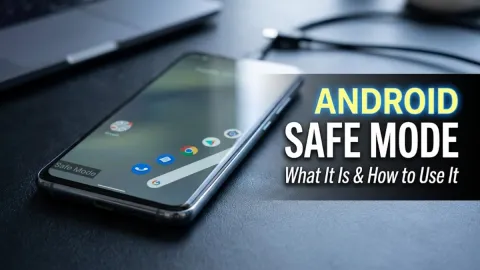
To determine if a downloaded app is causing your screen issue, press and hold the power and volume down buttons until the power menu appears, then tap and hold the Power off icon until the Safe mode prompt pops up. Tap Safe mode to restart your phone. Once in Safe mode, check your screen brightness. If the screen functions normally, a recently installed app is responsible. Restart your phone normally to exit Safe mode and uninstall any suspicious display-related apps one by one until the problem resolves.
The bottom line
A dark Samsung Galaxy screen can be frustrating, but it is almost always caused by software settings, automated battery savers, or light sensor obstructions rather than hardware failure. By checking your adaptive brightness, turning off power-saving restrictions, and keeping your screen sensors clean, you can restore full visibility to your display and enjoy a bright, clear experience every time you pick up your phone.
Frequently asked questions
Why does my Samsung screen get dark by itself?
Your screen likely gets dark automatically because Adaptive Brightness or Power Saving mode is turned on. The phone adjusts display levels based on ambient lighting and battery percentage.
How do I turn off Extra Dim on my Samsung Galaxy?
Go to Settings > Display and toggle off Extra Dim. You can also add the Extra Dim shortcut to your quick settings panel by swiping down from the top of the screen.
Can a screen protector cause my Samsung screen to be dark?
Yes. Thick, tinted, or poorly aligned screen protectors can block the ambient light sensor at the top of the phone, tricking the device into keeping the backlight dim.
Where is the brightness sensor on a Samsung phone?
On most modern Samsung Galaxy models, the ambient light sensor is located near the top bezel next to the front-facing camera or hidden underneath the upper portion of the OLED display.
What should I do if my screen is dark even at maximum brightness?
Check for active Power Saving modes, disable Eye Comfort Shield, clean the top light sensor, or restart your phone in Safe mode to check for conflicting third-party apps.