How to Fix a Google Pixel That Stopped Working
When your Google Pixel suddenly stops working, freezes completely, or refuses to turn on, it can disrupt your entire day. Fortunately, most unresponsive Pixel issues stem from temporary software glitches or depleted batteries rather than permanent hardware failures.
Force Restart Your Google Pixel
When your Google Pixel freezes or stops responding to touch inputs, a standard power down might not work because the operating system is locked up. A forced restart bypasses the frozen software interface and cuts power directly to the processor, allowing the device to boot fresh. This is always the quickest and most effective first step when your phone completely locks up.
To perform a force restart, press and hold the Power button and the Volume Up button simultaneously for about 10 to 15 seconds. Keep holding them until you feel a vibration or until the Google logo appears on the screen. Once the logo pops up, release the buttons and let the phone complete its normal boot sequence. If the screen remains black and shows no signs of life, your battery may be completely drained, which leads us to the next troubleshooting step.
Check the Battery and Charging Hardware
A Pixel phone that appears to have stopped working might simply have a completely depleted battery. When a lithium-ion battery drains past a certain critical threshold, the phone may take several minutes of continuous charging before it shows any indicator light or charging animation on the screen. Never assume a charger is working just because it is plugged into the wall outlet.
First, inspect your USB-C cable and power brick for any visible damage, dust, or bent pins. Plug your phone into a certified wall charger rather than a computer USB port, as computers supply significantly less current. Leave the phone undisturbed on the charger for at least 30 minutes. If the charging port has accumulated pocket lint, gently clean it out using a non-conductive wooden toothpick before trying another cable and adapter combination.
Boot into Safe Mode to Diagnose Rogue Apps
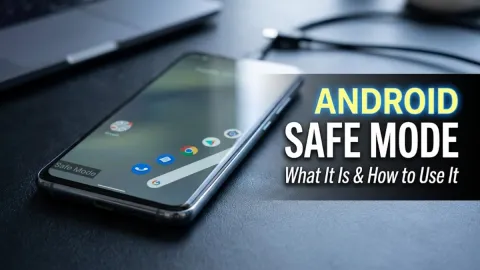
If your Pixel turns on but immediately freezes, crashes, or reboots randomly, a recently installed third-party application is frequently the culprit. Safe Mode temporarily disables all downloaded applications, allowing you to run your phone on core system software only. If your phone works normally in Safe Mode, you can narrow down the issue to a problematic app and safely uninstall it.
To enter Safe Mode, press and hold your phone's Power button until the power menu appears on your screen. Tap and hold the Power off option on the screen until a prompt appears asking if you want to Reboot to safe mode. Tap OK. Your phone will restart, and you will see a Safe Mode watermark in the bottom corner of the screen. If the freezing stops, navigate to Settings > Apps > See all apps to uninstall suspicious applications.
Clear System Cache via Recovery Mode
Corrupted system cache files can cause severe performance degradation, boot loops, or complete system failure on Google Pixel devices. Clearing the system cache partition deletes temporary files that the operating system no longer needs, forcing the device to build fresh, uncorrupted files without deleting your personal photos, messages, or downloaded applications.
To access Recovery Mode, turn your phone completely off. Press and hold the Power button and the Volume Down button at the same time until you see the bootloader screen, which features an Android mascot lying on its back. Use the Volume Down button to cycle through the options until you highlight Recovery mode, then press the Power button to select it. When the 'No command' screen appears, hold the Power button and tap the Volume Up button once. Use the volume buttons to select Wipe cache partition and confirm your choice.
Perform a Factory Reset as a Last Resort
If you have exhausted all other troubleshooting methods and your Google Pixel still refuses to work properly, a factory reset is your final option for software-level recovery. This process wipes all user data, system settings, and corrupted files from the internal storage, restoring the device to its original out-of-the-box state. Ensure your phone is connected to a stable power source before proceeding to prevent it from shutting down midway.
If you can access your menus, navigate to Settings > System > Reset options > Erase all data (factory reset). If your phone cannot boot into the operating system at all, you will need to perform the factory reset through the Recovery Mode menu by selecting Wipe data / factory reset using the volume and power buttons. Keep in mind that you will need to sign back into your primary Google account after the reset finishes.
The bottom line
Fixing a Google Pixel that has stopped working usually requires methodically moving from simple power resets to software diagnostics. By systematically checking your hardware, booting into safe mode, and clearing corrupted cache files, you can resolve most common issues and restore your phone to full working order.
Frequently asked questions
Why did my Google Pixel freeze and stop working suddenly?
Sudden freezing is usually caused by a rogue background application, a low memory condition, or a temporary glitch in the Android system interface.
Will a force restart delete my personal data?
No, a force restart simply reboots the device hardware and software without altering or deleting any of your stored photos, messages, or files.
What should I do if my Pixel screen remains completely black?
Connect the phone to a high-output wall charger using a verified USB-C cable and let it charge undisturbed for at least 30 minutes before attempting a force restart.
How do I exit Safe Mode on my Google Pixel?
To exit Safe Mode, simply restart your phone normally by holding the power button and selecting restart, or by holding the power button for 30 seconds.
Can a hardware defect cause my Pixel to stop working?
Yes, failing internal components, water damage, or a degraded battery can cause permanent hardware failure requiring professional repair.