How to Fix Outlook Not Sending Emails
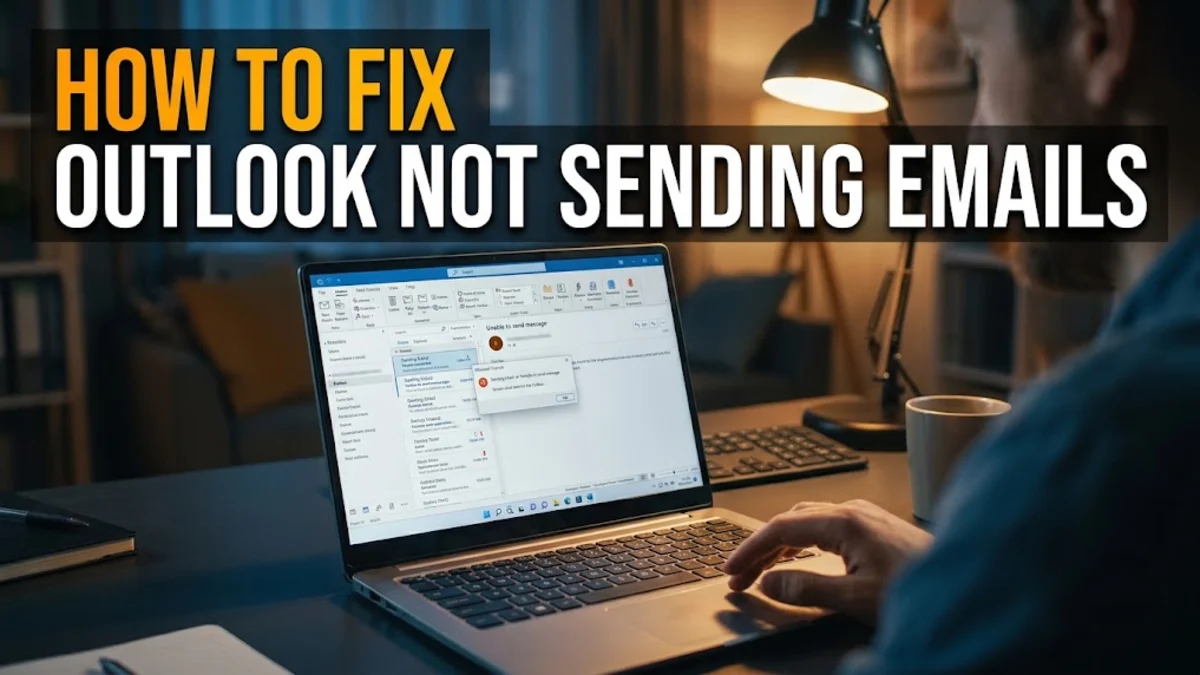
When Microsoft Outlook refuses to send emails, urgent messages stall in your Outbox and disrupt your workflow. This issue affects both the classic desktop client and the new Outlook interface on Windows, often leaving you wondering whether the problem lies with your internet connection, credentials, or email server settings.
In most cases, email delivery stops due to an oversized attachment, corrupted account credentials, conflicting third-party add-ins, or an accidental toggle of the offline mode. Here is a systematic troubleshooting guide to diagnose why your Outlook is not sending emails and resolve the bottleneck step by step.
Check Connection Status and Disable Work Offline Mode
Clear Oversized Attachments Stuck in the Outbox
Verify Outgoing SMTP Server Settings and Authentication
| Protocol | Port Number | Encryption Method |
|---|---|---|
| SMTP (Standard Secure) | 587 | STARTTLS |
| SMTP (Legacy SSL) | 465 | SSL/TLS |
| IMAP (Incoming) | 993 | SSL/TLS |
| POP3 (Incoming) | 995 | SSL/TLS |
Launch Outlook in Safe Mode to Isolate Faulty Add-Ins
outlook.exe /safe, and press Enter. If prompted, select your default profile and click OK. Create a test email addressed to yourself and send it. If the message sends without hesitation, a conflicting add-in is the culprit.
To identify and remove the troublesome add-in, stay in Outlook and click File > Options > Add-ins. At the bottom of the window, ensure the Manage dropdown is set to COM Add-ins and click Go. Uncheck all active add-ins, click OK, and restart Outlook normally. Re-enable your add-ins one by one while sending test emails until you find the tool causing the transmission failure.Repair Your Outlook Data File or Rebuild the Local Cache
C:\Program Files\Microsoft Office\root\Office16 (or your active installation path) and launch SCANPST.EXE. Browse to your PST file, click Start to scan for structural inconsistencies, and select Repair if errors appear.
If you use an Exchange or IMAP account with an OST file, rebuilding the cache is safer and faster. Close Outlook, press Windows + R, type %localappdata%\Microsoft\Outlook, and press Enter. Locate the .ost file associated with your email address, rename it by adding .old to the filename, and restart Outlook. Outlook will automatically generate a fresh data file and resynchronize your mailbox directly from the server.Update Passwords and Re-Authenticate Cloud Credentials
MicrosoftOffice16_Data or your email provider's address. Remove these entries and relaunch Outlook, which will force a fresh, clean authentication handshake.The bottom line
Outlook not sending emails is almost always traced to an accidental offline toggle, an oversized attachment blocking the queue, or an outdated SMTP authentication credential. By systematically working through connectivity checks, clearing your Outbox, testing in Safe Mode, and verifying server ports, you can pinpoint the roadblock and restore dependable communication without losing your drafts or message history.
Frequently asked questions
Why are my emails staying in the Outbox instead of Sent Items?
Emails stay in the Outbox when Outlook cannot establish an active connection to your outgoing mail server, if an attachment exceeds your provider's upload limit, or if an add-in blocks the sending process. Until the mail server confirms receipt, the message remains parked in the Outbox.
Can an expired password prevent sending while incoming mail still works?
Yes. Some email services use separate servers and authentication sessions for receiving (IMAP/POP) and sending (SMTP). If your outgoing authentication token expires or does not refresh properly, you may continue reading incoming messages while outgoing emails fail.
What is the maximum attachment size Outlook can send?
By default, Outlook limits attachments to 20 MB for most internet email accounts and 25 MB to 35 MB for Microsoft 365 business mailboxes. If you attempt to send files larger than this threshold, the server rejects the message. Use cloud sharing links like OneDrive for larger files.
How do I force Outlook to send queued emails immediately?
In classic Outlook, press F9 on your keyboard or open the Send / Receive tab on the ribbon and click Send/Receive All Folders. In the new Outlook, click the refresh sync icon at the top of the folder pane.