How to Use Copilot in Excel
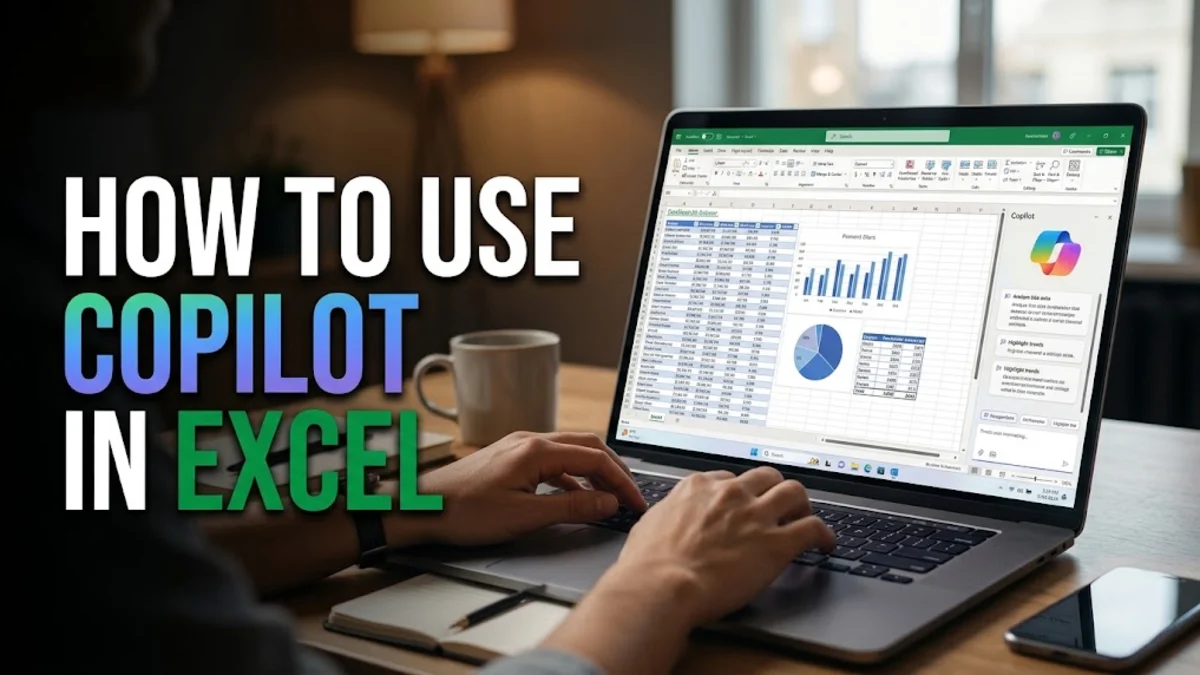
To use Copilot in Excel, ensure your workbook is saved to OneDrive or SharePoint with AutoSave turned on, convert your data into an official Excel Table, and click the Copilot icon located on the Home tab. Once the side panel opens, you can type plain-English prompts to generate complex formulas, summarize trends, highlight outliers, and build visualizations without writing spreadsheet syntax manually.
While Microsoft Copilot simplifies spreadsheet tasks, it requires specific document settings and well-structured data to function properly. If your dataset contains merged cells, blank header rows, or unformatted data ranges, Copilot will either return generic errors or gray out entirely. This step-by-step guide explains how to configure your files, command Copilot with natural prompts, and unlock advanced analytical workflows in Excel.
Verify Prerequisites and Enable Copilot
- Open Microsoft Excel on Windows, Mac, or your preferred web browser.
- Save your workbook directly to OneDrive or a SharePoint library rather than your local desktop.
- Check the top-left corner of the Excel window and verify that the AutoSave toggle is switched to On.
- Navigate to File > Account and ensure you are signed in with the Microsoft account attached to your Copilot subscription.
- Click the Home tab on the ribbon and look for the Copilot button on the far right. Clicking it launches the Copilot side pane.
.xlsx or .xlsm, as older .xls legacy files do not support cloud AI processing.Format Your Data as an Official Excel Table
- Click any cell within your data cluster.
- Press Ctrl + T on Windows or Cmd + T on Mac to open the Create Table dialog box.
- Ensure the box labeled My table has headers is checked, then click OK. Alternatively, go to Home > Format as Table and select a table style.
- Navigate to the newly visible Table Design tab on the ribbon, find the Table Name box on the far left, and give your table a descriptive name such as SalesData2026 or InventoryLog.
Generate Formulas and Calculated Columns
XLOOKUP, INDEX/MATCH, or complex conditional logic can be tedious and prone to syntax errors. Copilot allows you to describe the exact calculation you need in natural English, inspect the suggested formula, and insert it into your table with a single click.
When asking Copilot to generate a formula, specify the exact column names and the desired outcome. For example, open the Copilot pane and enter a prompt such as: "Add a column that calculates the 10 percent discount on the Unit Price if Quantity is greater than 50, otherwise return 0." Copilot evaluates your table structure and generates the appropriate formula, such as =IF([@Quantity]>50, [@UnitPrice]*0.1, 0).
Before inserting the formula, Copilot displays an explanation of how the math works and provides an Insert column button. Click this button to populate the entire table column automatically. If the formula does not match your intended logic, reply directly in the chat with refinements, such as: "Change the threshold to 75 units and round the result to two decimal places."Analyze Trends and Summarize Complex Datasets
- "What are the top three products by total revenue, and what percentage of total sales do they represent?"
- "Compare the quarterly performance between regional offices and highlight which region showed the highest growth rate."
- "Identify any unusual spikes or drops in operational expenses over the last six months."
Create PivotTables and Visual Charts Automatically
Sort, Filter, and Highlight Data with Prompts
| User Prompt | Copilot Action | Applied Result |
|---|---|---|
| "Highlight rows where Delivery Status is 'Delayed' in light red." | Conditional Formatting | Adds a soft red fill rule to matching table rows. |
| "Show only transactions over $5,000 from the Western territory." | Table Filter | Applies combined numeric and categorical filters. |
| "Sort by Department alphabetically, then by Salary descending." | Multi-level Sort | Reorders records across two dependent criteria. |
| "Flag the top 10 percent of profit margins in green." | Top/Bottom Rule | Applies visual accent colors to leading performers. |
Troubleshoot Common Copilot in Excel Problems
The bottom line
Using Copilot in Excel turns intimidating data analysis and complex formula writing into an intuitive, conversation-driven workflow. By ensuring your files are saved to OneDrive, structuring your numbers into clean Excel tables, and using specific prompts that reference your exact column headers, you can automate hours of manual spreadsheet maintenance. Keep your calculation settings set to automatic and your data clean to get the most reliable insights from your AI assistant.
Frequently asked questions
Why is the Copilot button grayed out in my Excel ribbon?
The Copilot button is grayed out if your workbook is saved locally instead of in OneDrive or SharePoint, if AutoSave is turned off, or if your file is saved in the legacy .xls format. Save your file as .xlsx in cloud storage and ensure AutoSave is active.
Can Copilot in Excel work without formatting my data as a table?
No. Copilot in Excel requires data to be formatted as an official Excel Table (created via Ctrl + T) with defined header rows. It cannot analyze unstructured ranges or arbitrary cell selections.
Does Copilot support external data connections and Power Query?
Copilot can analyze the output data loaded from Power Query into an Excel Table, but it cannot currently write, edit, or debug Power Query M code or build data model relationships in Power Pivot.
Are my Excel formulas and data shared publicly when using Copilot?
No. When using Microsoft 365 Copilot with business licenses, enterprise data protection policies apply, meaning your confidential organizational data is not used to train foundational AI models.
Can Copilot in Excel write macros or VBA code?
Copilot in the standard Excel grid focuses on formulas, tables, and charts rather than VBA scripting. To generate VBA macros, you can use the Microsoft 365 Copilot Chat sidebar or web interface to write the code, then paste it into the VBA editor.