How to Fix an Android Phone Not Turning On
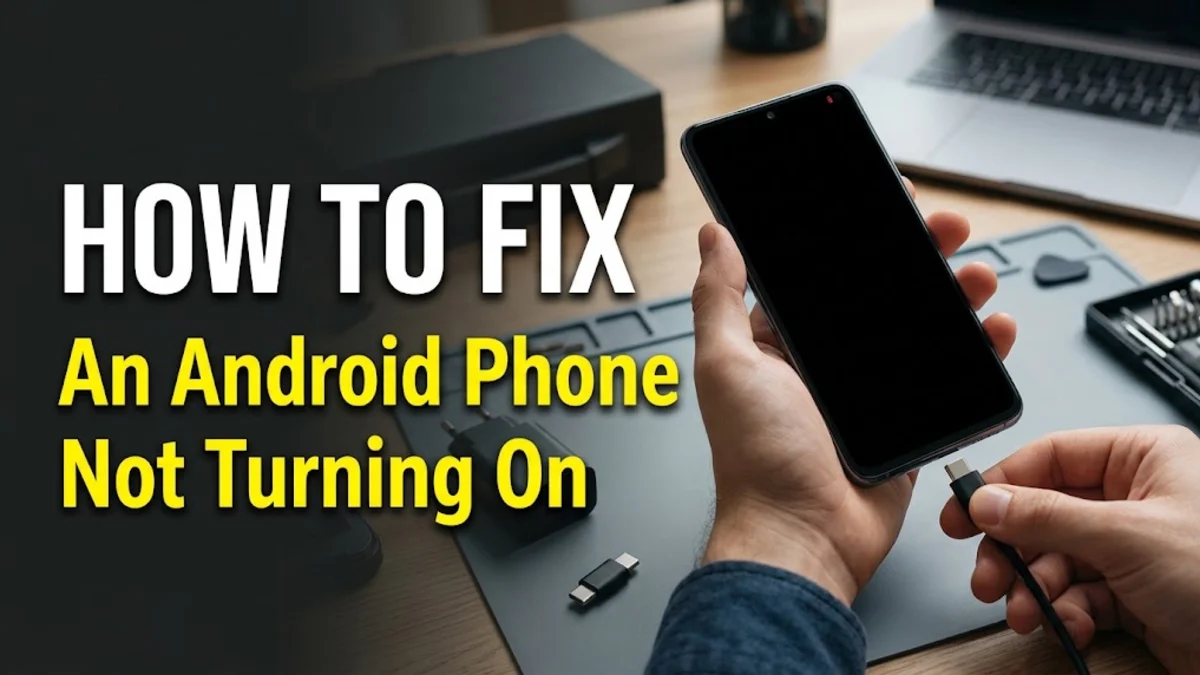
When your Android phone refuses to power on, it can feel like the device is completely dead. In most cases, however, an unresponsive handset is simply stuck in a frozen software state, drained past its typical startup threshold, or struggling with a faulty charging connection.
Before you consider sending your device in for repair or replacing it, you can run through several straightforward hardware and software troubleshooting steps. These proven fixes will help you revive Samsung Galaxy, Google Pixel, Motorola, and other modern Android devices without losing your personal data.
Perform a Forced Restart on Your Device
When an operating system crashes during a sleep cycle, the screen remains completely black, mimicking a dead battery or broken motherboard. A standard press of the power button will not wake a system frozen in this deep kernel lock. A forced restart cuts power to the memory temporarily and forces the bootloader to execute a clean restart.
To force restart most modern Android smartphones:
- Samsung and Google Pixel: Press and hold both the Power (or Side button) and Volume Down buttons simultaneously for at least 15 to 20 seconds until the manufacturer logo appears on the display.
- Motorola and OnePlus: Press and hold the Power button firmly for 20 to 30 seconds. If that fails, hold Power and Volume Up together.
- Other Android handsets: Press and hold Power and both volume buttons together until you feel a vibration.
Ensure you hold the physical buttons continuously without letting go early. Many users release the buttons after five seconds, which is insufficient to trigger the hardware-level power interrupt.
Inspect the Charging Port, Cable, and Power Adapter
A phone cannot start if its battery level sits below the critical voltage needed to initiate the display and processor. Dust, pocket lint, and debris frequently accumulate inside USB-C ports over months of daily carry, preventing the pins from making full electrical contact even when the cable feels seated.
Take a bright flashlight and peer inside the charging port. If you see compacted lint or dust, gently extract it using a dry wooden or plastic toothpick. Never use metal objects like paperclips or safety pins, as they can short the contacts or permanently bend the delicate internal pins. Blow out any loosened dust using a burst of dry compressed air held upright.
Next, isolate your charging equipment. Faulty wall bricks, damaged cables, or low-wattage computer USB ports often fail to supply the current needed to wake an exhausted battery. Swap to an authentic USB-C cable and a known-working high-wattage wall adapter, plugging directly into a functioning wall socket rather than a power strip or extension cord.
Allow a Deep Discharge Trickle Charge
When a lithium-ion battery completely discharges to absolute zero, its internal battery management system (BMS) enters a protective sleep state. In this mode, modern fast chargers may not immediately detect the device, and the typical on-screen charging animation will not display right away.
Connect your phone to a verified wall charger and leave it completely undisturbed for a minimum of 30 to 45 minutes. Avoid the temptation to press the power button every few minutes, as repeated wake attempts consume any minuscule trickle charge the battery manages to accumulate.
After 45 minutes, look closely for any visual battery indicator on the screen. If nothing appears, attempt the forced restart procedure while the phone remains plugged into the charger. Keeping the phone connected to a live power source during the hard reboot ensures that a depleted battery has immediate supplemental current to fire up the system display.
Determine if the Problem Is a Black Screen or True Power Loss
Frequently, an Android phone is actually powered on and running in the background, but the display panel or its backlight has failed. Confusing a blank screen with a dead phone leads to wasted troubleshooting time and incorrect repair decisions.
To test whether your device is quietly running:
- Call your phone from another device or landline and listen for ringing, vibration, or notification sounds.
- Toggle the physical mute or alert slider if your handset has one, and feel for haptic feedback.
- Connect the device to a computer using a USB data cable and check whether your computer plays an unrecognized device chime or displays the phone in File Explorer.
- Shine a bright desk lamp or flashlight directly onto the glass screen at an angle while pressing the power button. If you can faintly make out icons or text, the screen backlight has failed, meaning the internal hardware is functioning properly.
If you confirm the phone produces sound or vibrates despite a pitch-black display, the fault lies with the AMOLED or LCD screen assembly rather than the motherboard or battery.
Reboot into Android Recovery Mode and Clear Cache
Corrupted system update files, broken system caches, or boot-looping framework modules can stop Android from completing its startup routine, leaving the screen dark. You can bypass the standard graphical interface by booting directly into the hardware recovery partition.
To access Recovery Mode on most modern devices:
- Connect your phone via USB cable to a powered-on computer or smart TV (many modern devices, including recent Samsung models, require a live USB connection to enter recovery).
- Press and hold the Power and Volume Up buttons simultaneously.
- Release both buttons the moment the brand boot screen or recovery screen appears.
- Use the Volume Down button to highlight Wipe cache partition.
- Press the Power button to select it, confirm on the next screen, and wait a few seconds.
- Once complete, highlight Reboot system now and press the Power button.
Clearing the cache partition removes temporary operational files without erasing your personal photos, messages, or apps, making it an ideal repair step for stubborn boot issues.
Check for Physical Water Ingress or Battery Bulging
Physical damage can prevent internal power circuits from closing properly. Even water-resistant smartphones can suffer liquid damage if rubber seals degrade over time or if the chassis suffers hairline cracks from previous drops.
Remove your phone case and inspect the entire perimeter of the device. Look along the seams between the screen and frame, as well as the rear glass. If the rear panel appears lifted, separated, or bowed outward, your battery may have swelled. A swollen battery is a safety hazard; if you observe this, unplug the device immediately and take it to an authorized repair specialist.
If the device was recently exposed to moisture, check the SIM tray slot. Most manufacturers place a Liquid Contact Indicator (LCI) inside the SIM slot or on the tray. If the white indicator strip has turned bright pink or red, internal moisture has tripped the safety circuits. Let the phone dry in a well-ventilated area with silica gel packets for at least 48 hours before attempting to power it on again.
The bottom line
An Android phone that will not turn on is usually suffering from a software lockup, a deeply drained battery, or a blocked charging port. Working methodically through hard restarts, port cleanings, and recovery mode will bring the vast majority of unresponsive devices back to life. If your phone still fails to respond after these steps, contact the manufacturer or a certified repair technician to inspect the internal battery and motherboard power rails.
Frequently asked questions
Why does my phone vibrate but the screen stays completely black?
This indicates that the operating system and motherboard are functioning, but the display panel, digitizer cable, or display driver has failed. You will need to have the screen assembly inspected and likely replaced by a technician.
Can cold or hot weather stop an Android phone from turning on?
Yes. Lithium-ion batteries struggle in extreme temperatures. If exposed to freezing weather, the chemical reaction slows down and cannot supply startup current. Bring the phone into a room-temperature environment for 30 minutes before charging or powering it on.
Will a hard restart delete my photos or contacts?
No. A forced restart simply simulates disconnecting and reconnecting the battery. It clears temporary volatile memory (RAM) but preserves all your stored photos, applications, accounts, and system data.
What should I do if my phone gets stuck on the boot logo?
If the phone powers on but freezes on the manufacturer logo, boot into Recovery Mode by holding Power and Volume Up while connected to a computer, then select Wipe cache partition. If that fails, a factory reset via Recovery Mode may be required.