How to Fix Windows 10 Bluetooth Not Working
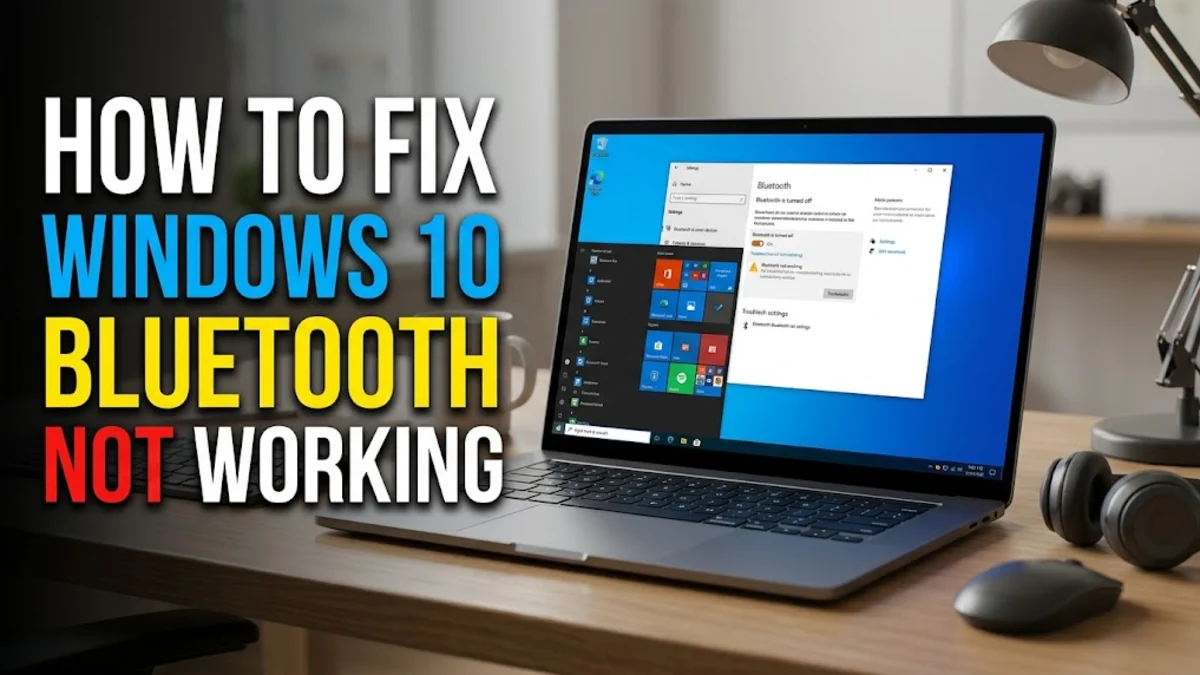
When you encounter Windows 10 Bluetooth not working, your system abruptly disconnects your wireless headphones, mice, keyboards, or game controllers without warning. In many cases, the Bluetooth toggle icon disappears entirely from the Quick Actions menu, or the system reports an error stating that Bluetooth is turned off even when your hardware adapter is firmly plugged in.
Bluetooth failures on Windows 10 stem from four primary culprits: corrupted hardware driver states, suspended system background services, aggressive battery-saving profiles that power down the radio, or stale device pairings. This troubleshooting guide walks through practical, technician-tested solutions arranged from the quickest checks to deeper system resets so you can restore your wireless connectivity.
Check Physical Switches, Flight Mode, and Quick Actions
Before tweaking configuration files or registry keys, ensure that the operating system or physical hardware has not disabled radio broadcasts. Many laptops feature a dedicated physical switch or an Fn key shortcut that turns off wireless radios alongside Wi-Fi. If your keyboard has an antenna symbol printed on one of the function keys (often F2 or F12), press it in combination with Fn to make sure wireless transmission remains active.
Next, inspect the Windows notification area to verify software-level switches:
- Press Win + A to open the Action Centre panel on the right edge of your screen.
- Look at the Airplane mode tile. If it is highlighted, click it once to switch it off immediately.
- Ensure the Bluetooth quick tile is highlighted blue. If the toggle appears gray, click it to activate your adapter.
- Navigate to Settings > Devices > Bluetooth & other devices and verify that the master Bluetooth switch is set to On.
If the master toggle is missing entirely from this menu, Windows cannot detect the wireless controller at the motherboard or USB bus level. If you use an external USB Bluetooth dongle, unplug it, wait five seconds, and insert it into a direct USB port on the back of the motherboard rather than through an unpowered external hub.
Restart the Bluetooth Support Service and Set Automatic Startup
Windows relies on a dedicated background system process called the Bluetooth Support Service (bthserv) to handle device discovery, authentication handshakes, and peripheral data streams. If this service crashes, fails to launch during boot, or runs under an incorrect user privilege account, your Bluetooth functionality shuts down completely without throwing an explicit error message.
You can verify and reset this service using the management console by following these steps:
- Press Win + R to open the Run dialogue box, type
services.msc, and press Enter. - Scroll down the alphabetical list to find Bluetooth Support Service.
- Right-click Bluetooth Support Service and select Restart. If the service is currently stopped, select Start.
- Right-click the service again and choose Properties.
- Under the General tab, locate Startup type and change the drop-down selection from Manual to Automatic.
- Switch to the Log On tab at the top. Ensure that This account is selected, type
NT AUTHORITY\LocalServiceinto the account field, leave both password fields completely blank, and click Apply.
Restart your computer after applying these parameters. Forcing the service to run on automatic startup prevents Windows from failing to launch the discovery engine after routine updates or system wake-ups.
Run the Native Windows Bluetooth Troubleshooter
Windows 10 includes automated diagnostic routines designed specifically to identify missing dependencies, reset crashed radio hardware, and repair standard registry subkeys associated with wireless communications. Running the troubleshooter should always precede manual driver modifications because it captures hardware faults and restarts the stack without risking driver corruption.
To launch the diagnostic utility properly, execute the following workflow:
- Open the Start menu and select Settings > Update & Security > Troubleshoot.
- Click the Additional troubleshooters link located near the bottom of the window.
- Under the Find and fix other problems heading, click Bluetooth, then click Run the troubleshooter.
- Allow the automated tool to scan your network adapters, inspect registry permissions, and verify hardware power states.
If the troubleshooter detects that Bluetooth capability was disabled by system policies, it applies an instant automated patch and prompts you to verify your device connection. Review the final report details: if it reports Device does not have Bluetooth, the issue is hardware-oriented or your driver is completely missing from the system tree.
Reinstall or Update Bluetooth Drivers in Device Manager
A corrupted, outdated, or generic driver remains the single most common cause of ongoing Bluetooth malfunctions on Windows 10. When Windows installs cumulative updates, it occasionally overwrites proprietary manufacturer drivers (from Intel, Realtek, Qualcomm, or Broadcom) with generic Microsoft fallback drivers that lack support for low-energy profiles or modern audio codecs.
To clean up and reinstall your wireless adapter driver cleanly:
- Right-click the Start button and select Device Manager from the power user menu.
- Locate the Bluetooth category and click the arrow to expand it.
- Right-click your main adapter (commonly labeled Intel Wireless Bluetooth, Realtek Bluetooth Adapter, or Generic Bluetooth Adapter) and select Update driver.
- Choose Search automatically for drivers. If Windows updates the driver, restart your PC immediately.
- If no update is found, right-click the adapter again and select Uninstall device. If prompted, leave the option to delete driver software unchecked for now, and click Uninstall.
- Click the Action menu at the very top of Device Manager and select Scan for hardware changes.
Windows will automatically detect the physical adapter and reload a clean factory instance of the driver. If your adapter displays a yellow warning triangle or appears under Other devices as an Unknown device, visit your motherboard or laptop manufacturer's official support site, download the latest package matching your exact model, and install it manually.
Disable USB and Adapter Power Management Restrictions
Windows 10 implements aggressive energy-saving algorithms, particularly on portable laptops and battery-operated tablets. By default, the operating system reserves permission to turn off internal transceivers and USB root hubs when it calculates that the device is idle. This behavior frequently causes Bluetooth peripherals to freeze, drop audio, or fail to wake up after your computer sleeps.
You can stop Windows from shutting down your adapter by adjusting driver power parameters:
- Open Device Manager by pressing Win + X and selecting it from the menu.
- Expand the Bluetooth section, right-click your primary Bluetooth radio adapter, and click Properties.
- Click the Power Management tab. If this tab is visible, uncheck Allow the computer to turn off this device to save power and click OK.
- Next, expand the Universal Serial Bus controllers section near the bottom of Device Manager.
- Right-click each entry labeled USB Root Hub or Generic USB Hub, select Properties, open the Power Management tab, and clear the same checkbox.
Disabling these power-saving toggles prevents the motherboard from cutting voltage to internal wireless chips when the operating system enters low-power idle states, resolving sudden disconnection loops.
Remove Existing Pairings and Re-Register Peripherals
When your Bluetooth adapter works properly but fails to connect to one specific headset, keyboard, or mouse, the pairing registry key for that accessory is likely corrupted. This frequently happens when a peripheral has been paired with a second device (such as a smartphone or tablet) in the interim, invalidating the shared encryption keys stored on your Windows 10 installation.
Follow this procedure to achieve a clean connection handshake:
- Open Settings > Devices > Bluetooth & other devices.
- Locate your problematic device under Audio, Mouse, keyboard, & pen, or Other devices.
- Click on the peripheral name and click Remove device, then confirm by selecting Yes.
- Power down the peripheral completely. If it uses replaceable batteries, remove them for ten seconds to drain remaining capacitance.
- Put your peripheral into active pairing mode. On most headsets and controllers, this requires holding down the power or dedicated pairing button for five to seven seconds until an LED blinks rapidly.
- Return to Windows Settings, click Add Bluetooth or other device at the top, select Bluetooth, and pair the device fresh.
Always verify that the accessory is not actively connected to your phone or another nearby computer before attempting to re-pair, as many Bluetooth devices reject simultaneous discovery requests.
Reset the Network Stack and Clear Fast Startup Cache
If driver updates and service restarts fail, the problem may reside inside the Windows socket infrastructure or the system kernel session cache. Windows 10 employs a feature named Fast Startup, which saves the kernel state to the hibernation file (hiberfil.sys) during shutdown instead of performing a cold boot. If a driver glitched prior to shutdown, Fast Startup reloads that corrupted memory space upon power-up.
First, execute a true cold restart by holding down the Shift key on your keyboard while clicking Start > Power > Restart. Keep holding Shift until the blue recovery screen appears, then select Continue to boot into a fresh session.
If Bluetooth remains unresponsive after a cold reboot, flush your communication stack using an elevated command prompt:
- Type
cmdinto the Windows search bar, right-click Command Prompt, and select Run as administrator. - Type
netsh winsock resetand press Enter. - Type
netsh int ip resetand press Enter. - Type
ipconfig /flushdnsand press Enter. - Restart your computer normally.
Resetting the network and Winsock catalog clears stale protocol bindings shared between your network interface card and Bluetooth subsystem, restoring default system communication routing.
The bottom line
Resolving a stubborn Bluetooth issue on Windows 10 rarely requires hardware replacement. In the vast majority of scenarios, restarting the Bluetooth Support Service, clearing aggressive power-management flags, or reinstalling a dedicated manufacturer driver brings your wireless connections back online. If your computer still fails to recognize any wireless devices after performing a full network stack reset, the internal radio adapter may have suffered physical failure, in which case a plug-and-play USB Bluetooth 5.3 or 5.4 dongle offers an affordable, instant replacement.
Frequently asked questions
Why is the Bluetooth toggle completely missing in Windows 10 Settings?
When the Bluetooth toggle disappears, Windows cannot detect the physical adapter. This occurs if the Bluetooth Support Service is stopped, the driver in Device Manager has crashed or become disabled, or an external USB dongle has lost electrical contact with the port.
Why does my Bluetooth device show Paired but won't connect?
A 'Paired' status indicates Windows remembers the device, but active communication is suspended. This usually happens when the peripheral is already connected to another nearby device (like a phone), has low battery, or needs its pairing profile removed and re-added in Windows Settings.
Does disabling Fast Startup help fix Bluetooth connectivity?
Yes. Fast Startup saves the kernel state to disk on shutdown, which can preserve driver glitches across power cycles. Disabling Fast Startup or performing a Shift-Restart forces Windows to load the hardware driver fresh from disk.
How do I know if my PC has built-in Bluetooth?
Press Win + X, open Device Manager, and look for a dedicated Bluetooth entry in the hardware tree. Alternatively, expand Network adapters; if you see a Wi-Fi card from Intel or Realtek, check the model specifications online, as most modern Wi-Fi cards contain integrated Bluetooth.
Can audio stuttering over Bluetooth be fixed in Windows 10?
Yes. Audio stuttering is usually caused by 2.4 GHz Wi-Fi interference, outdated audio drivers, or the Handsfree Telephony profile. In Control Panel under Devices and Printers, open your headset properties, go to the Services tab, and uncheck Handsfree Telephony to preserve high-fidelity stereo output.