How to Fix PC Not Working Issues on Windows
When your computer refuses to turn on, freezes unexpectedly, or fails to boot into Windows, diagnosing the underlying problem can feel overwhelming. Whether the issue stems from a loose hardware connection, a corrupted system file, or a conflicting device driver, following a systematic troubleshooting approach will help you pinpoint the exact cause.
Check Power Connections and Power Supply
When your computer fails to respond, checking the physical power delivery is always the first logical step. A loose power cable, a tripped surge protector, or a failing power supply unit (PSU) can prevent your system from turning on or maintaining stability. Start by verifying that the main power cord is securely plugged into both the back of your desktop tower and the wall outlet or power strip. If you are using a surge protector, test the outlet with another device or plug your PC directly into the wall to rule out strip failure. For laptops, ensure the charging brick indicator light is lit and the DC jack is firmly connected. If the LED on the charging brick flickers or turns off when moved, you may have a damaged cable or a faulty adapter that requires replacement. Another common culprit is the physical power switch on the back of the desktop power supply unit itself; make sure this toggle switch is flipped to the I position and not O. If your PC still shows no signs of life, such as spinning fans or flashing lights, the internal power supply might have failed completely and need professional testing.
Perform a Hard Power Reset to Clear Residual Charge
Electrical buildup or temporary glitches in the motherboard's CMOS and power regulation circuits can cause a computer to lock up completely and refuse to boot. Performing a hard power reset forces all capacitors to discharge fully, clearing any corrupt temporary states. To do this on a desktop, completely unplug the power cable from the back of the tower. Next, press and hold the physical power button on the front of the case for a full 30 to 45 seconds. This drains any lingering electrical charge stored in the motherboard components. After waiting a minute, reconnect the power cable directly to a known working wall outlet and attempt to turn the system on normally. For laptops with a removable battery, turn the device off, disconnect the charger, remove the battery, and hold the power button for 30 seconds before reassembling. For modern laptops with non-removable internal batteries, you can perform a similar reset by holding down the power button for an extended period of 60 seconds while all cables are disconnected. This simple technique frequently resolves sudden black screen or non-responsive startup issues without requiring any technical tools.
Disconnect All External USB Peripherals and Devices
Faulty external devices, corrupted USB flash drives, or malfunctioning mice and keyboards can interfere with the computer initialization sequence during startup. The Windows operating system attempts to initialize all connected hardware controllers during the POST phase, and a shorted USB port or device can cause the system to freeze or refuse to boot entirely. To troubleshoot this, shut down your PC completely and unplug every single external accessory. This includes external hard drives, printers, webcams, game controllers, docking stations, and even non-essential USB hubs. Leave only your primary monitor, keyboard, and mouse connected to the computer. Once all other peripherals are removed, attempt to turn your PC back on and observe if it boots successfully into the operating system. If the computer successfully boots up, you can reconnect your external devices one by one, restarting after each connection, to identify the specific faulty accessory or cable causing the system conflict.
Boot into Safe Mode to Diagnose Software Conflicts
Run Hardware Diagnostics and Memory Tests
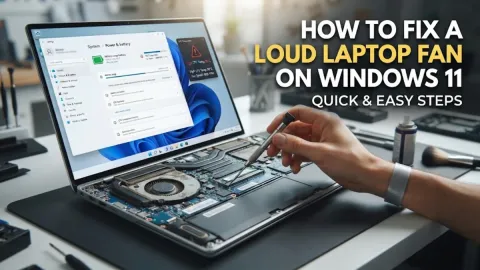
Faulty internal hardware components, particularly failing RAM sticks or overheating processors, will frequently cause sudden system freezes, random reboots, or complete failure to operate correctly. You can test your system memory for errors directly from the Windows environment without needing external software tools. Open the Windows search bar, type Windows Memory Diagnostic, and select the application. Choose the recommended option to restart now and check for problems. Your computer will reboot into a dedicated diagnostic blue screen and run a comprehensive multi-pass test on your installed RAM modules. If the tool reports any hardware errors or memory faults, you will need to power down the machine, open the chassis, and reseat your RAM sticks or replace the defective module. Additionally, you should monitor your system temperatures to ensure that dust buildup or failing cooling fans are not triggering thermal shutdowns. Cleaning internal heatsinks and replacing dried thermal paste on the CPU can instantly restore stable performance to an overheating PC.
Use Windows Startup Repair or System Restore Points
The bottom line
Resolving a non-responsive or malfunctioning PC requires a methodical approach that starts with checking basic physical power connections and gradually moves toward software and hardware diagnostics. By systematically testing power cords, clearing residual static, disconnecting faulty USB devices, and utilizing built-in Windows recovery tools like Safe Mode and Startup Repair, you can identify and fix the root cause of the problem. Taking these troubleshooting steps ensures your system gets back up and running smoothly without unnecessary repair costs.
Frequently asked questions
Why won't my PC turn on at all when I press the power button?
This is usually caused by a loose power cable, a tripped surge protector, a switched-off power supply unit, or a dead internal hardware component like the motherboard or power supply.
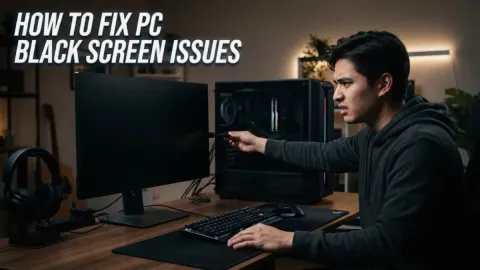
What should I do if my PC turns on but the screen stays completely black?
Check that your monitor is plugged into a power source and securely connected to the correct video port on your graphics card or motherboard. Disconnecting external USB devices can also resolve display initialization issues.
How can I access Safe Mode if Windows will not boot normally?
Interrupt the boot process by holding the physical power button down while the computer starts up, repeating this three times to trigger the Automatic Repair environment, then navigate to Advanced options and Startup Settings.
Can a failing hard drive cause my PC to stop working?
Yes. A failing or corrupted solid-state drive or hard disk drive can prevent the operating system from loading files, resulting in boot loops, error screens, or a complete failure to start.