How to Connect an iPad to Any TV
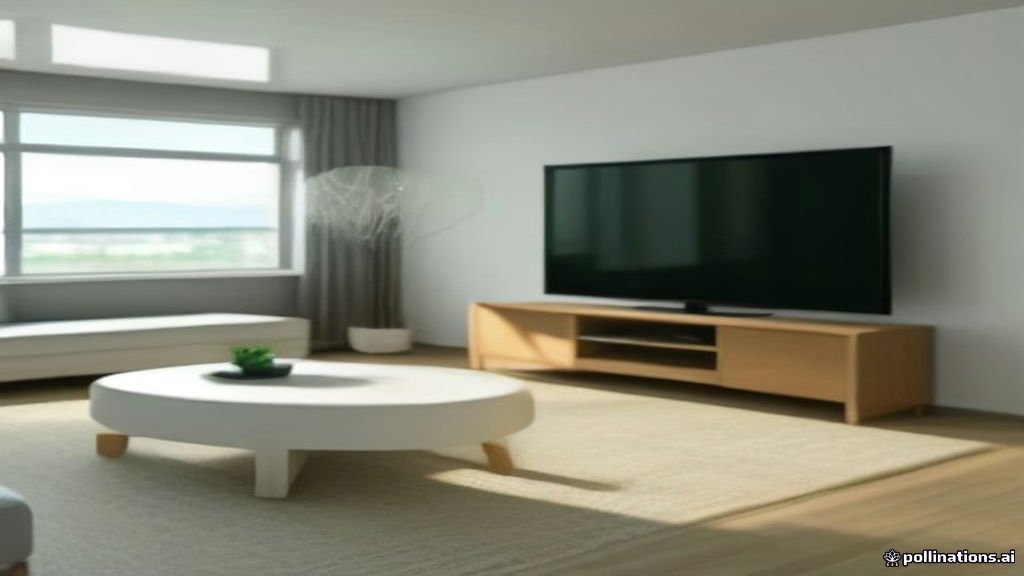
Connecting your iPad to a TV lets you enjoy movies, present slideshows, display mobile games, or share video calls on a significantly larger screen. Whether you want to mirror your entire display or simply cast video content from a streaming app, setting up a connection takes only a few minutes. Both wireless and wired solutions work reliably depending on your home theater setup and television model.
You can connect an iPad to a smart TV using built-in Apple AirPlay software, an HDMI adapter cable, or popular media streaming players like Roku, Chromecast, and Fire TV. This guide covers step-by-step instructions for every connection method, along with quick troubleshooting solutions if your screen remains black or audio refuses to play.
Connect iPad to TV Wirelessly Using AirPlay
Apple AirPlay is the easiest wireless method to stream content or duplicate your screen if you own an Apple TV media player or an AirPlay-compatible smart TV. Most modern smart TVs manufactured by Samsung, LG, Sony, Vizio, and Roku natively include AirPlay technology. Wireless screen mirroring allows you to project your entire display without cluttering your entertainment center with extra cords.
To stream or mirror your iPad screen to your television using AirPlay, follow these steps:
- Connect your iPad and your smart TV or Apple TV to the exact same Wi-Fi network. AirPlay will not discover local devices if they reside on separate guest or frequency bands.
- Swipe down from the top-right corner of your iPad screen to open Control Center.
- Tap the Screen Mirroring button, represented by two overlapping rectangular screens.
- Select your smart TV or Apple TV from the list of available local devices.
- If a four-digit AirPlay passcode appears on your television display, enter that code into the pop-up prompt on your iPad.
To stop sharing your display at any point, re-open Control Center, tap Screen Mirroring, and choose Stop Mirroring. If you only wish to stream a specific video rather than mirroring your entire home screen, tap the dedicated AirPlay icon (a triangle with concentric radio rings) inside video player controls in apps like Safari or Apple TV.
Connect iPad to TV Using an HDMI Cable and Adapter
A wired connection using an HDMI adapter provides zero latency, maximum image stability, and does not depend on a fast Wi-Fi network. This makes direct HDMI cables ideal for mobile gaming, high-framerate presentations, or environments with congested local wireless signals. The adapter type you need depends entirely on which port your iPad model features.
Modern iPad models—including recent iPad Pro, iPad Air, iPad mini, and base iPad versions—use a standardized USB-C port. Older entry-level iPads use Apple's proprietary Lightning port. Follow these steps to connect using HDMI:
- Obtain the correct adapter: a USB-C Digital AV Multiport Adapter (or USB-C to HDMI cable) for USB-C iPads, or an official Lightning Digital AV Adapter for Lightning iPads.
- Plug one end of a high-speed HDMI cable into an open HDMI input port on your television.
- Connect the opposite end of the HDMI cable into the HDMI receiver port on your adapter.
- Plug the adapter's connector directly into your iPad's charging port.
- Turn on your television and switch the video input source to the matching HDMI port (such as HDMI 1 or HDMI 2) using your TV remote.
Your iPad screen will mirror instantly onto the television. Official Apple multiport adapters feature an extra pass-through charging port, allowing you to connect your regular charging cable so your iPad battery does not drain during extended viewing sessions.
Cast Content from iPad to TV Using Google Chromecast
If your television features built-in Chromecast technology or has a Google Chromecast dongle attached, you can cast media directly from your iPad. While iOS does not support native system-wide screen mirroring directly to Chromecast hardware without third-party tools, almost all major media applications include native Chromecast streaming capability.
Casting offloads video processing directly to the Chromecast unit, allowing your iPad to act purely as a remote control while saving battery power. Here is how to cast video content:
- Ensure your iPad and Chromecast device are connected to the same local Wi-Fi network.
- Open a Chromecast-enabled app on your iPad, such as YouTube, Netflix, Disney+, or Prime Video.
- Start playing a video, then tap the screen to reveal media playback controls.
- Tap the Cast icon, which resembles a rectangular screen with Wi-Fi signal arcs in the bottom corner.
- Select your Chromecast device or Google TV from the list to begin playback on the television.
If you require full screen mirroring to a Chromecast rather than simple video casting, download a specialized mirroring app from the App Store, such as DoCast or Replica. Open the third-party app, tap start broadcast, and confirm the system screen recording prompt to duplicate your interface.
Connect iPad to Roku or Amazon Fire TV Devices
Streaming media sticks like Roku and Amazon Fire TV offer simple ways to display content from your iPad onto a non-smart television screen. Roku streaming players running modern software support Apple AirPlay out of the box, whereas Amazon Fire TV hardware typically requires installing a lightweight receiver application from the app catalog.
For Roku devices, check that AirPlay is enabled by navigating to Settings > Apple AirPlay and HomeKit on your Roku menu. Once verified, open Control Center on your iPad, select Screen Mirroring, and choose your Roku from the list. The pairing process works identically to standard Apple TV units.
For Amazon Fire TV devices, follow these steps to enable wireless mirroring:
- On your Fire TV home screen, open the search bar and download a free receiver app such as AirScreen.
- Launch the receiver app on your Fire TV and follow the initial screen prompts to initialize the receiver service.
- Ensure your iPad and Fire TV share the same Wi-Fi connection.
- Open Control Center on your iPad, tap Screen Mirroring, and select the AirScreen display name that appears.
Troubleshoot Common iPad TV Connection Problems
When video fails to display, audio output cuts out, or the AirPlay icon disappears entirely, a simple configuration fix usually restores functionality. Wireless network mismatches and incorrect TV video source selections cause the majority of connection failures.
If your iPad cannot discover your television or media player wirelessly, try these practical troubleshooting fixes:
- Check dual-band Wi-Fi settings: Routers often create two separate network names for 2.4 GHz and 5 GHz bands. Ensure both your iPad and TV are on the exact same band and network name (SSID).
- Fix black screens on HDMI: Verify that the HDMI cable is firmly seated into both the TV and adapter. Select the correct input source using your TV remote. Try disconnecting the adapter, waiting 10 seconds, and reconnecting it.
- Fix audio playing from iPad instead of TV: Open Control Center on your iPad, tap the audio card in the upper-right corner, tap the airplay audio destination icon, and select your television as the active speaker.
- Adjust aspect ratio and black bars: Because iPads use a 4:3 or 10:3 aspect ratio and televisions use 16:9 widescreen formats, vertical black sidebars are normal when mirroring the home screen. When you play a widescreen video full-screen, the video will automatically expand to fill your television display.
Comparing Wired vs Wireless iPad TV Connections
Selecting the ideal connection method depends on whether you prioritize convenient mobility or raw video stability. Wireless methods like AirPlay and Chromecast eliminate cable clutter across living room floors, making them ideal for casual movie streaming, browsing photo albums, or sharing home clips with family.
In contrast, wired HDMI connections deliver zero latency and uninterrupted playback without depending on home network speeds. Use an HDMI connection when presenting critical slide decks, playing fast-paced video games requiring immediate touch response, or staying in hotel rooms with restrictive guest Wi-Fi networks.
| Connection Method | Latency | Max Resolution | Wi-Fi Required | Best Used For |
|---|---|---|---|---|
| Apple AirPlay | Low | 4K HDR | Yes | Wireless screen mirroring and movie streaming |
| HDMI Adapter Cable | Zero | 4K at 60Hz | No | Gaming, presentations, offline movie playback |
| Google Chromecast | Low to Moderate | 4K HDR | Yes | Casting media from supported video apps |
| Fire TV Receiver App | Moderate | 1080p / 4K | Yes | Budget wireless connection to Amazon hardware |
The bottom line
Connecting your iPad to a television screen is straightforward once you select the right method for your hardware. For the most convenient wireless experience, use Apple AirPlay with an Apple TV or compatible smart TV. If low latency, maximum stability, or offline playback is your primary goal, a direct HDMI adapter cable provides instant plug-and-play mirroring without needing a Wi-Fi router.
Frequently asked questions
Why is my iPad not finding my smart TV for AirPlay?
Your iPad and smart TV are likely connected to different Wi-Fi bands (such as 2.4 GHz vs 5 GHz) or different network names. Ensure both devices share the exact same network, verify that AirPlay is turned on inside your TV settings menu, and reboot your router if discovery continues to fail.
Can I connect my iPad to a TV without Wi-Fi?
Yes. You can connect your iPad directly to a TV without an internet connection or Wi-Fi network by using a physical USB-C to HDMI adapter or Lightning Digital AV Adapter paired with a standard HDMI cable.
Why are there black bars on the side of my TV screen when mirroring my iPad?
iPads feature a native 4:3 aspect ratio, whereas modern televisions use a 16:9 widescreen format. Black bars appear on the sides during home screen mirroring to preserve original proportions. When you play a widescreen video inside a streaming app, the image will expand to fit the entire TV screen.
Do I need an Apple TV box to connect my iPad to my TV wirelessly?
No. Modern smart TVs from Samsung, LG, Sony, Vizio, and Roku include built-in AirPlay software, allowing wireless connection directly from your iPad without purchasing separate Apple TV hardware.
Can I charge my iPad while it is connected to a TV via HDMI?
Yes, provided you use an official Apple multiport adapter or a third-party hub with power delivery. These adapters feature a pass-through charging port alongside the HDMI output so you can plug in your wall charger while streaming.